
Getting Started
Getting started with MD.ai Annotator
Signing Up
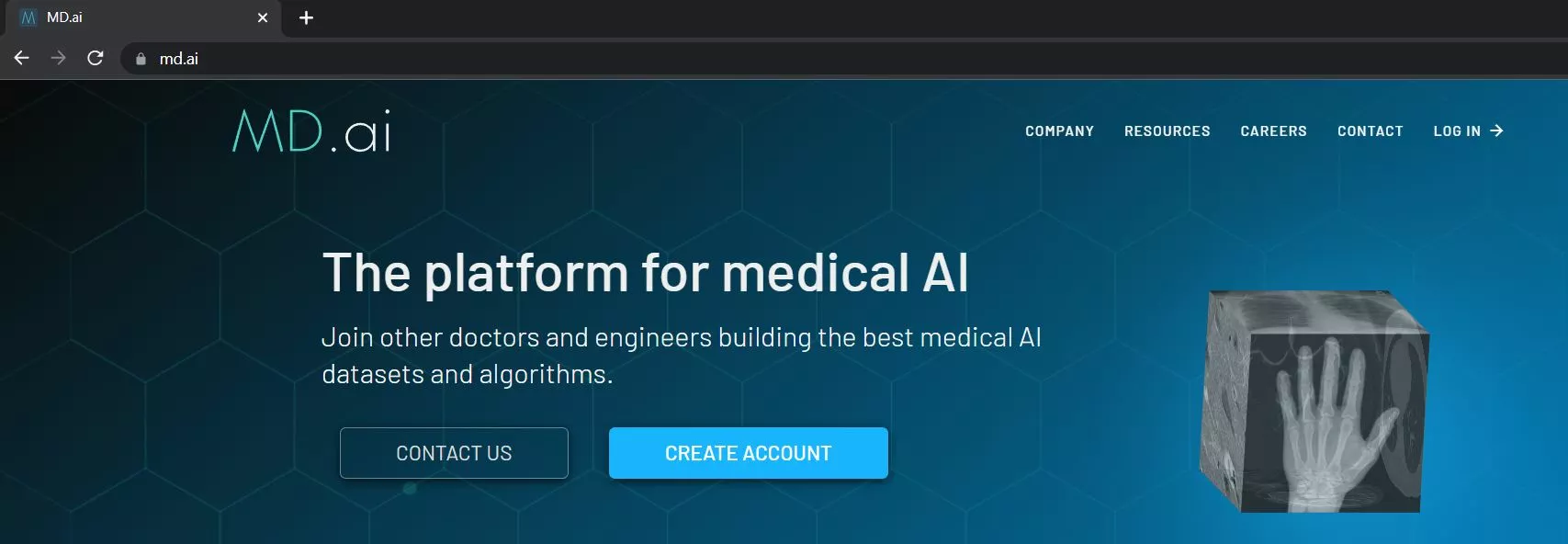
The first time you use MD.ai you’ll need to sign up. To do this go to https://md.ai and click on the blue Create Account button.
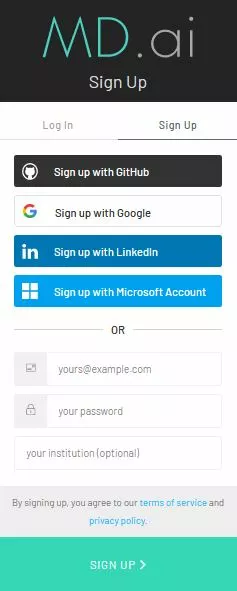
At the sign up page enter your email. If you frequently use google, a microsoft email account, or any of the other quick sign in options we recommend you select the appropriate option. For example, if you are signed in to a google account while web browsing, simply click Sign up with Google and your MD.ai account will be automatically created and you’ll immediately enter MD.ai.
Log In vs Sign Up
If you reached the sign up page by clicking log in on the main page, and you have never logged
in before, make sure you switch from the Log In tab to the Sign Up tab.
Signing In
When returning to MD.ai click the Log In button at the top right of the screen to log in with your credentials. If you have received an email invitation to a project, you can also click on the link in the email for access.
Project Invitations
Important: If you receive an email invitation to a project, make sure to use the same email ID to sign in so you have access to the project.
Make sure to sign in with your intended email. For example, if you received an invitation at your .edu address and you try to sign in with your gmail.com email address, you will not have access to the project you were added to unless the project owner also invtes you at your gmail.com email. Signing in with the correct email will successfully open the project.
If get an error message after signing in, please double check the invitation email.
System Requirements
MD.ai Annotator is a web application, so there is nothing to install, but performance depends on your machine, browser, and network. Annotator downloads and decodes imaging data in the browser, so RAM and bandwidth matter more than CPU speed.
Recommended Setup
| Minimum | Recommended | |
|---|---|---|
| Device | Laptop or desktop | Laptop or desktop |
| Browser | Chrome (latest) | Chrome (latest) |
| RAM | 8 GB | 16 GB+, especially for large CT/MR studies |
| Display | 1440 × 900 | 1920 × 1080 or higher; dual monitors help |
| Network | 25 Mbps download | 100 Mbps+, wired or strong Wi-Fi |
| Input | Trackpad | Mouse with scroll wheel |
Browser
Use Chrome (latest), which Annotator is developed and tested against. Other Chromium browsers (Edge, Brave, Arc) generally work. Firefox and Safari are not extensively tested and may differ in rendering or performance.
Extensions, especially ad blockers, privacy tools, and screen recorders, can slow image loading. If performance suffers, try an incognito window or a fresh Chrome profile with extensions disabled.
Operating System
Annotator is most extensively tested on macOS and Linux (Ubuntu). Windows works with Chrome installed.
Memory and Performance
Image data is cached in browser memory as you work, so RAM runs out first on a busy machine:
- 8 GB handles X-ray, ultrasound, and small series.
- 16 GB+ is recommended for large CT/MR studies, multi-series comparisons, and long sessions.
- Close unused tabs and other browsers first, since every open tab competes for the same memory.
Network and Firewall
Studies stream as you open them, so connection stability matters more than peak speed. Check throughput at fast.com if loading feels slow. On institutional networks, ensure your firewall or proxy allows md.ai and its subdomains; blocked requests surface as Not Found or SecurityPolicyViolated errors.
Unsupported Environments
Phones and tablets are not supported for annotation. They may suffice for reviewing images or applying global (study-level) labels, but drawing tools such as polygons and masks need a mouse or trackpad on a desktop browser.