
Upload
Upload files from your computer to a dataset
Use an Upload dataset to load files from your computer. You can upload in the browser or, for large datasets, with the CLI.
Upload in the browser
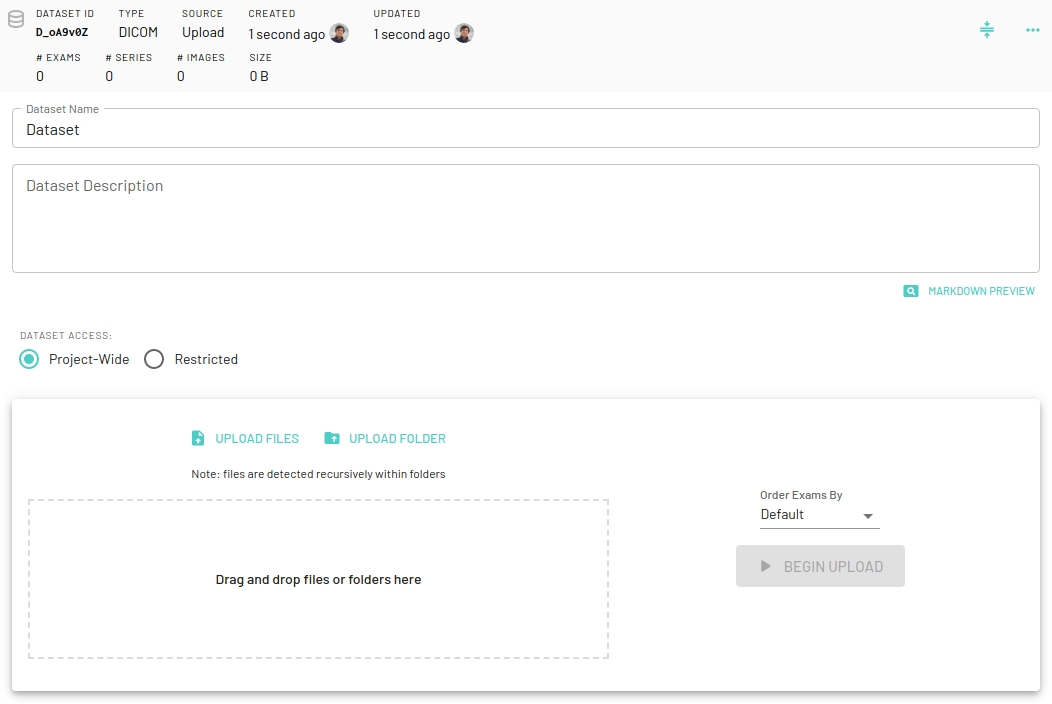
On the project's Edit page, find your Upload dataset.
Drag files or folders onto the drop zone, or click Upload Files or Upload Folder. Folders are searched recursively; hidden files (starting with .) are skipped. Click Clear Files to start over.
Click Begin Upload. Keep the tab open, and your computer awake, until the upload finishes. You can stop it with Cancel Upload.
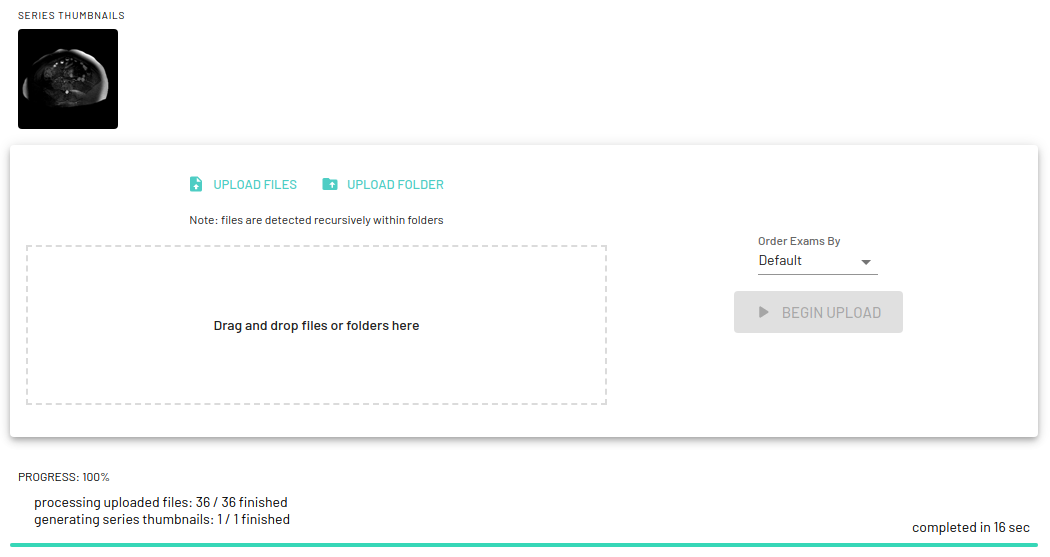
When the upload finishes, the files are processed in the background and series thumbnails appear as they're ready.
What you can upload
- DICOM files, images, and videos. See supported data.
- Archives, which are extracted automatically:
.zip,.tar,.tar.gz/.tgz,.tar.bz2,.tar.xz,.gz,.bz2,.xz,.rar,.7zand.cab.
To group images and videos into exams and series, organize them in folders before uploading.
Upload with the CLI
For large datasets (over about 100 GB), or to script uploads, use the CLI:
mdai dataset load --dataset-id D_GmxvgB ./dicom_dirThe CLI also needs no browser tab to stay open. See dataset load.
When your account reaches its storage limit, uploading is disabled with the message Storage limit reached: please upgrade account.