
Export Data
You can export a project's images, DICOM metadata, annotations, user activity, models and model outputs. Open the Export panel from the project sidebar on the left.
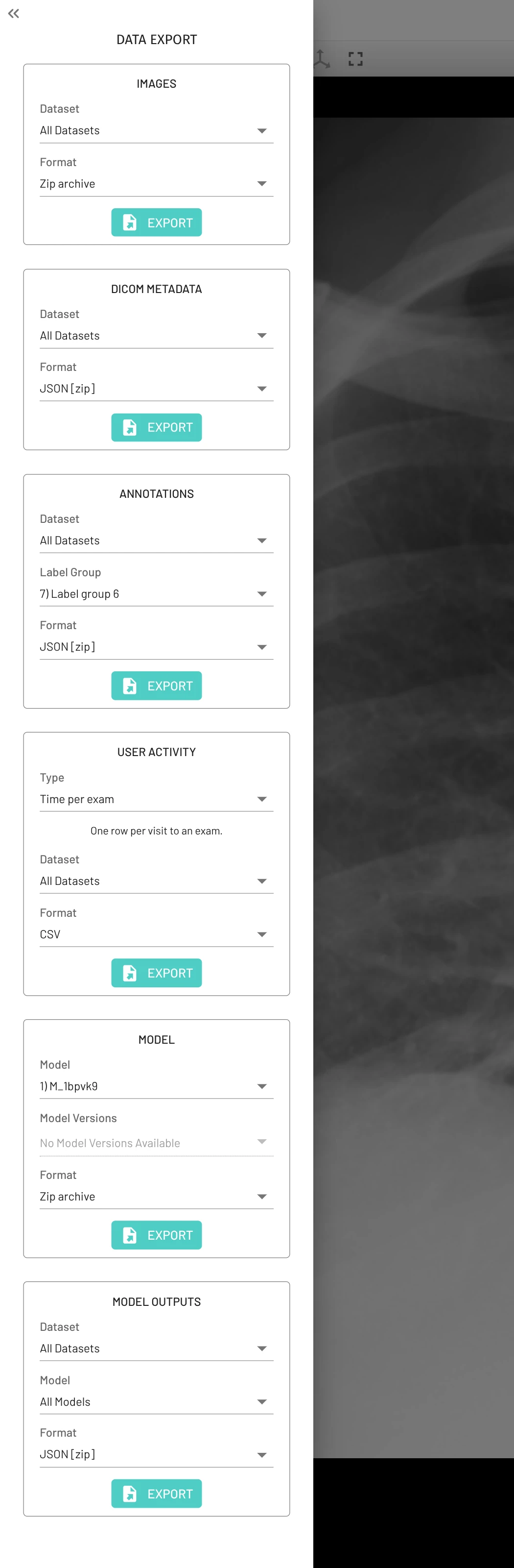
How exporting works
Each kind of export has its own block in the panel. Choose its options, then tap Export. The export runs on the server and shows its progress, so you can close the panel and come back to it later. When it finishes, tap Download File. A large export is split into parts, each with its own download button.
- Repeat exports are fast. If nothing has changed since the last export with the same options, the finished file is offered again without waiting. User activity is the exception and is always exported fresh.
- A new export replaces the old file. Exporting again with the same options deletes the previous file, so download it first if you still need it.
- Who can export. Project members can export, and so can anyone on a public project with open data. User activity, the metadata label group and, on some environments, images are limited to project admins. In crowdsourcing projects, only admins see the
Exportpanel. Share projects can't export images, DICOM metadata, annotations or user activity. - Turning exports off. Project admins can disable each kind of export in the project settings. A disabled export shows a message in its block instead of the export options.
Images
Choose a Dataset, or All Datasets, and tap Export. Images are exported as a zip archive of the DICOM files, plus the original files of any videos. An export larger than about 50 GB is split into several zip files.
- Only datasets that were uploaded or received by DICOM push can be exported. Other datasets are greyed out in the list.
- In a cloned project, images are exported from the original project, which the block names.
- Some environments allow only project admins to export images, or don't allow image export at all. The block then explains why it can't be used.
DICOM Metadata
Choose a Dataset, or All Datasets, and a Format, then tap Export. The DICOM tags of every image are exported as JSON or CSV, either zipped (the default, JSON [zip]) or as a plain file. See the JSON format.
Annotations
Choose a Dataset, or All Datasets, then a Label Group, or All Label Groups. Choose a Format, either zipped JSON (the default, JSON [zip]) or plain JSON, and tap Export. See the JSON format.
- The
Metadata Label Groupholds project metadata rather than image annotations, and only project admins can export it. - If you only have access to some label groups,
All Label Groupsis unavailable. Export each label group separately.
User Activity
User activity shows how long each user spent reading each exam. It is computed from the exams users open in the annotator, so it includes exams that have no annotations. Only project admins can export it.
Choose the Type of summary, then the Dataset and the Format: CSV (the default) or JSON. Time per exam is selected by default.
Time is measured in two ways:
activeSecondsis the reading time: time the annotator tab was visible and in use. A gap of more than 2 minutes with no mouse or keyboard activity counts as 2 minutes.elapsedSecondsis wall-clock time from opening the exam to leaving it, including breaks.
User and dataset IDs match those in the annotations export, so the two can be combined. Activity recorded before user activity exports were introduced only tracks which exams were opened, so its active time is an estimate.
Time per exam
One row per visit to an exam. An exam opened again later is a new visit.
| Column | Description |
|---|---|
datasetId | Dataset the exam belongs to |
StudyInstanceUID | Study Instance UID of the exam |
examNumber | Exam number in the dataset |
userId | User who opened the exam |
visitNumber | 1 for the user's first visit to the exam, 2 for the next, and so on |
openedAt | When the exam was opened (UTC) |
closedAt | When the user left the exam (UTC) |
elapsedSeconds | Wall-clock time of the visit |
activeSeconds | Reading time during the visit |
Time per user
One row per user, totaled across all their visits.
| Column | Description |
|---|---|
userId | User |
examsOpened | Number of different exams the user opened |
visits | Number of visits to exams |
activeSeconds | Total reading time |
elapsedSeconds | Total wall-clock time of all visits |
firstActivityAt | When the user first opened an exam (UTC) |
lastActivityAt | When the user last left an exam (UTC) |
Model
Choose a Model and its Model Versions, then tap Export. The model is exported as a zip archive. See the archive structure.
- The list only shows models you created and models their creators have made exportable.
- Only versions with uploaded code can be exported. All of them are selected by default.
- Model exports are only available on environments with models enabled.
- You can also export a model from its model card.
Model Outputs
Choose a Dataset, or All Datasets, then a Model, or All Models. Choose a Format, either zipped JSON (the default, JSON [zip]) or plain JSON, and tap Export. See the JSON format.
Model output exports are only available on environments with models enabled.