
Work with Annotations
View details, add notes and tags, change labels, review, hide and delete annotations
Each image's annotations and model outputs are listed below it. Use these tags to inspect and act on individual annotations.
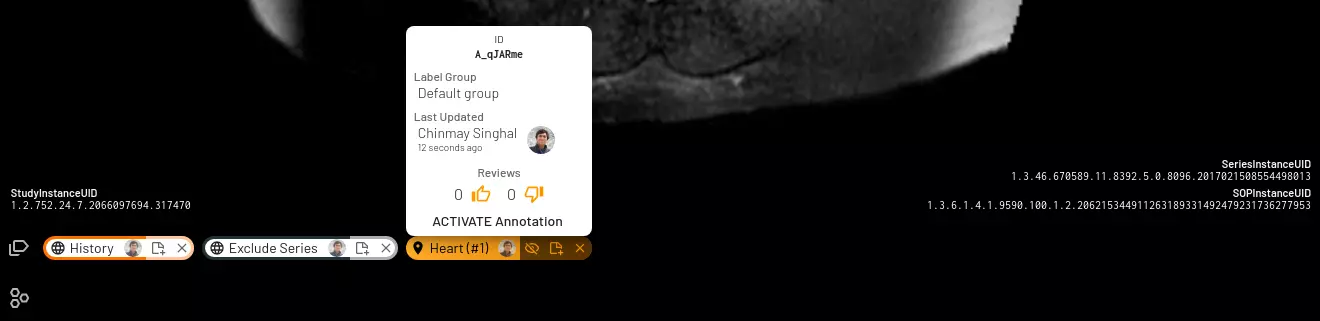
View details
Hover over an annotation's tag to see its details: the note and recorded value, its ID, who created and last updated it and when, its label group, RadLex tags, and whether it was imported, interpolated, or cloned from a model output. The tag also shows the author's avatar.
In Share projects, authors are anonymous. Blinded users see only their own annotations.
Add a note or tags
Click the note icon on the tag (ADD Note/Tags) or press Alt+E to open the note editor. See Notes.
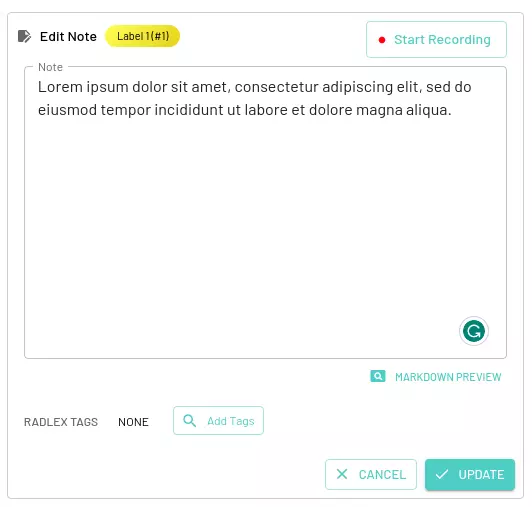
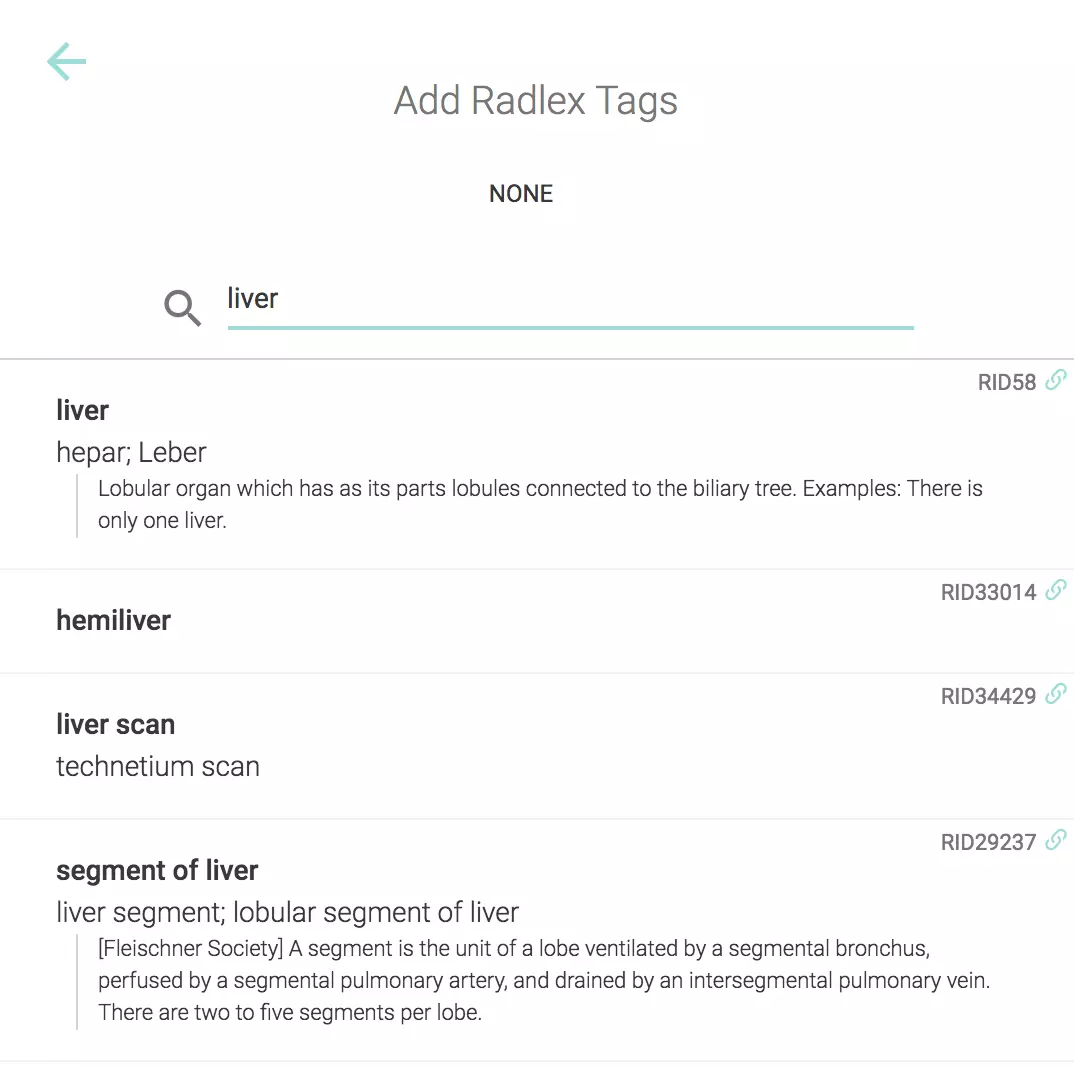
RadLex tags
Add RadLex terms to an annotation in the note editor, to describe findings with a standard vocabulary. Admins can also add RadLex tags to labels. Tags are included in exports.
Change the label
To move an annotation to a different label, hover over its tag and choose CHANGE Label, then pick the new label. You can choose a label in another label group.
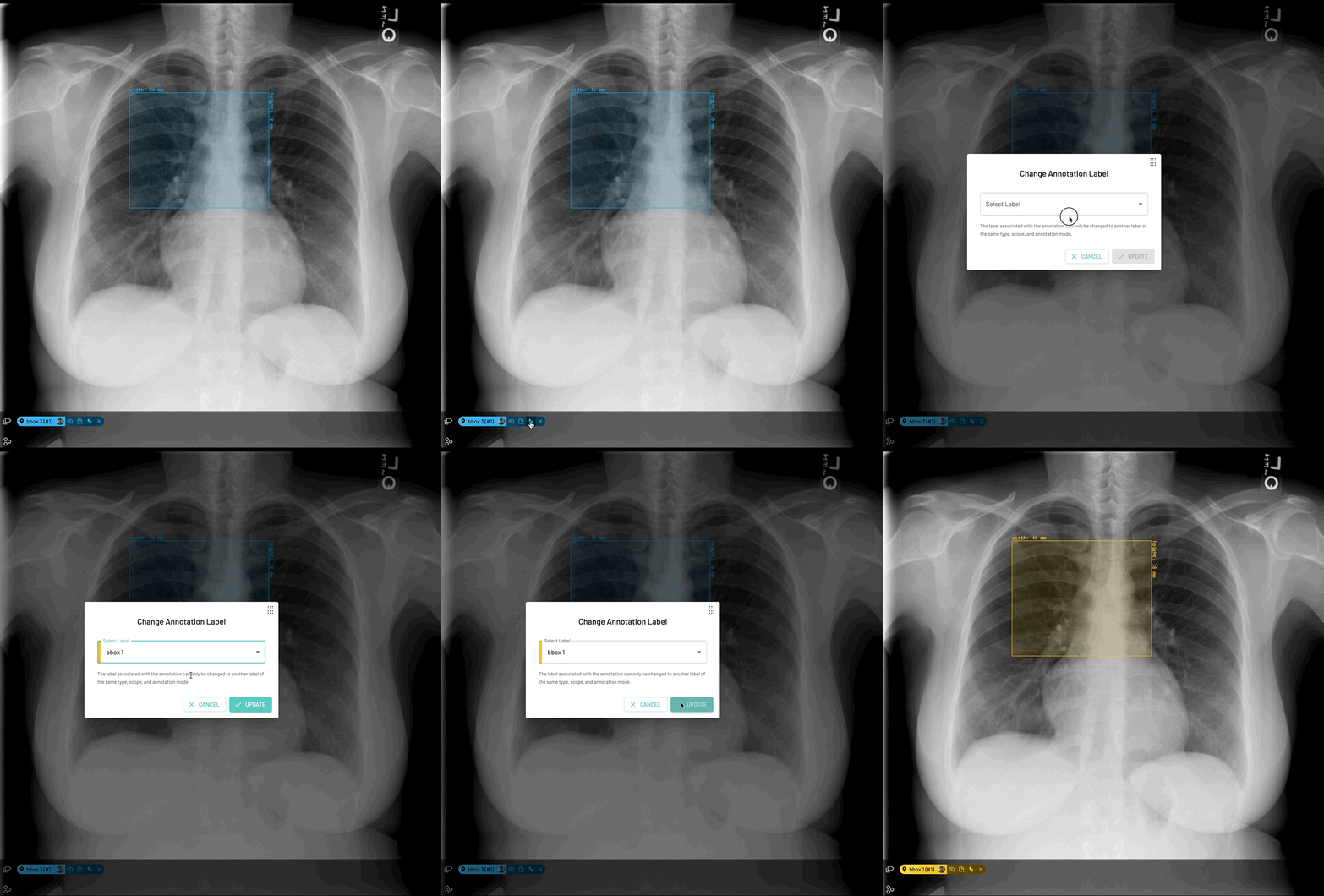
The new label must have the same type, scope and annotation mode. A sublabel annotation can only change to another sublabel of the same parent, and a top-level annotation to another top-level label. You can't change the label while the annotation has sublabel annotations. For annotations in a group, such as a video interval, the whole group changes.
Review annotations
QA users and admins can review annotations with thumbs up or down, in the Reviews section of the annotation's details. Writers can review annotations in the Metadata label group.
Reviews are counted in exports, and model performance uses them to choose between conflicting annotations.
Hide an annotation
Click the eye icon on a local annotation's tag (HIDE Annotation) to hide it while you work around it. To hide all annotations of a label, use Label Controls; to hide all annotations, use Layers Control.
Delete an annotation
Click the X on the tag (DELETE Annotation). You're asked to confirm when deleting another user's annotation. On videos, delete frame annotations from the timeline. The timeline can only be edited by QA users and admins, and by Writers if the project lets them edit all annotations.