
Microsoft Azure Blob Storage
Load data from an Azure Blob Storage container
A Microsoft Azure Blob Storage dataset reads data directly from your Azure container. Your files stay in your container, so MD.ai needs continued read access to it.
MD.ai reads your container through the MD.ai Azure application (Application ID db45952b-287b-443a-8509-9402266814db). Granting access takes two steps in Azure: consent to the application in your tenant, then give it the Storage Blob Data Reader role on the container.
Connect the container
On the project's Edit page, find your Microsoft Azure Blob Storage dataset.
Enter your Azure Tenant ID, Storage Account Name, Container Name and, to load only part of the container, a Folder Prefix (optional).
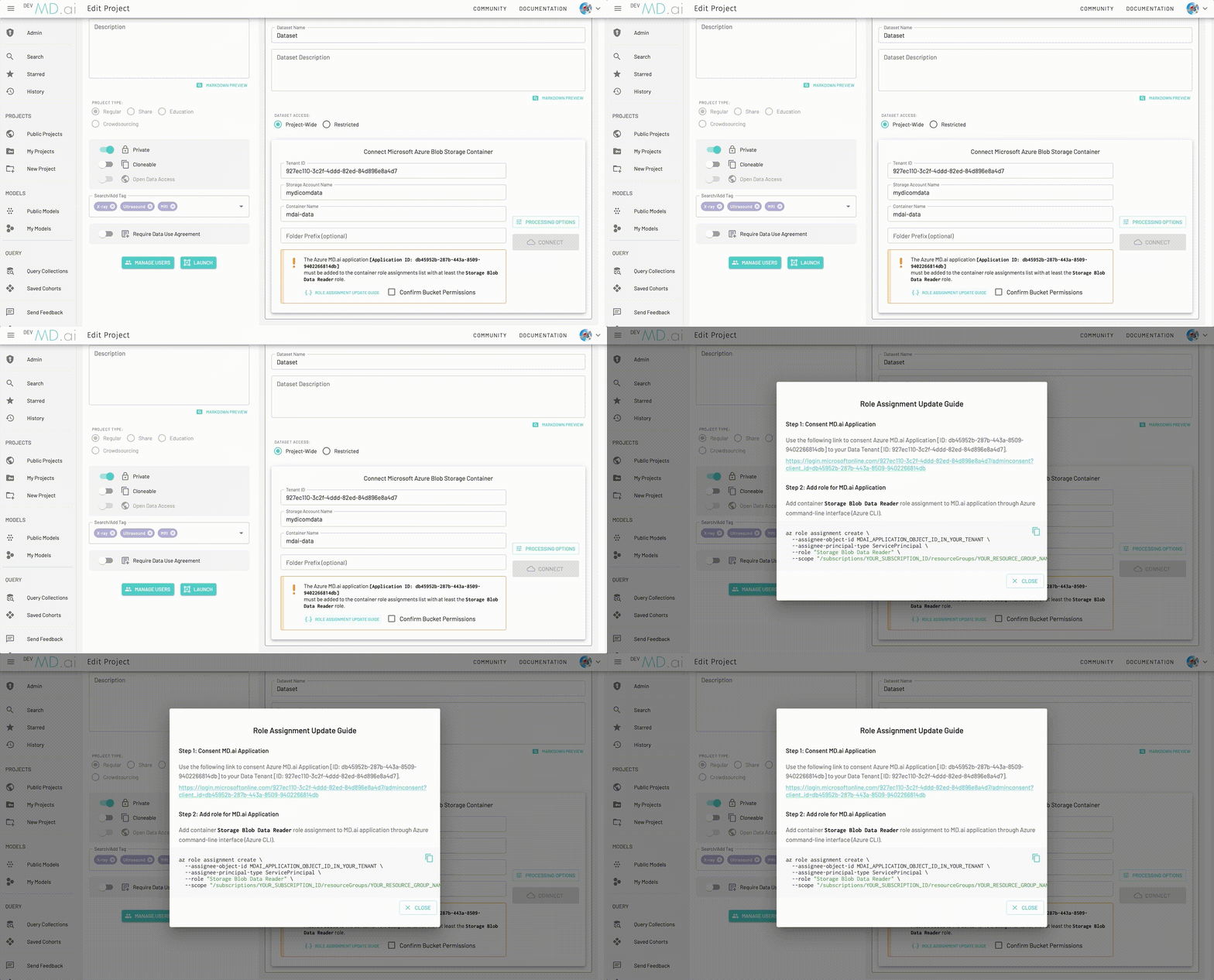
Click Role Assignment Update Guide and grant access as it describes. The button is enabled once the storage account and container names are filled in.
Select Confirm Bucket Permissions and click Connect.
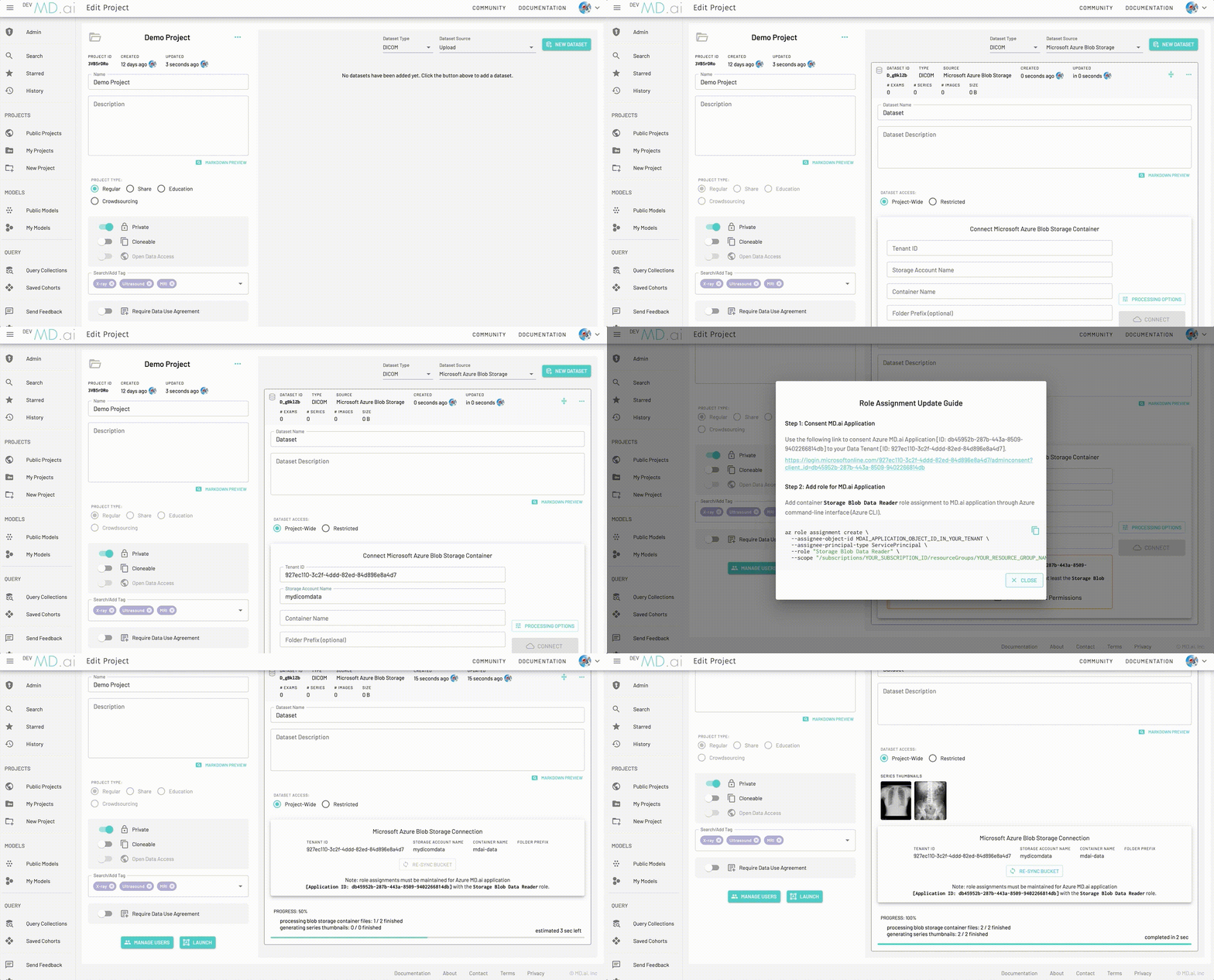
The data is then processed.
Grant access
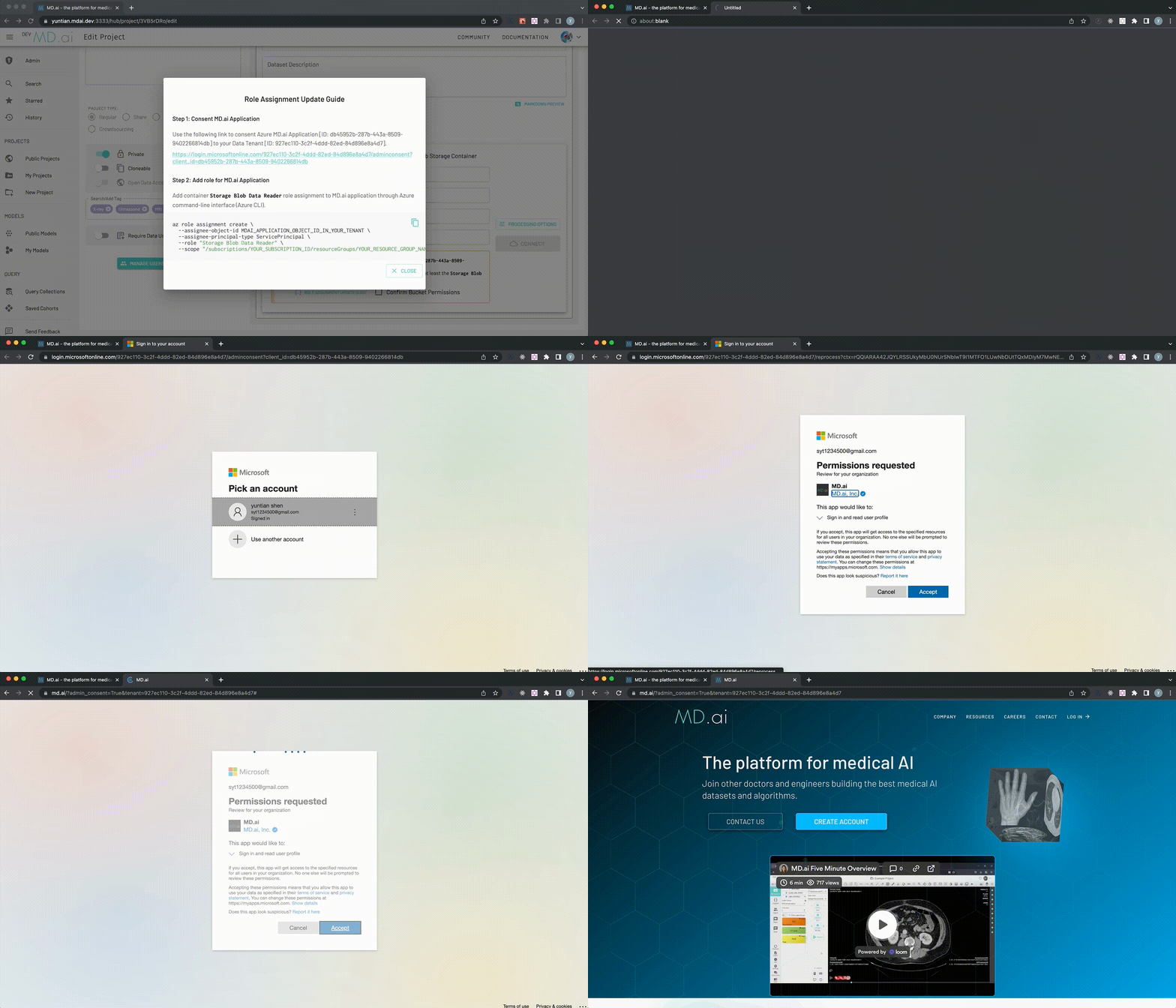
Step 1: Consent to the MD.ai application
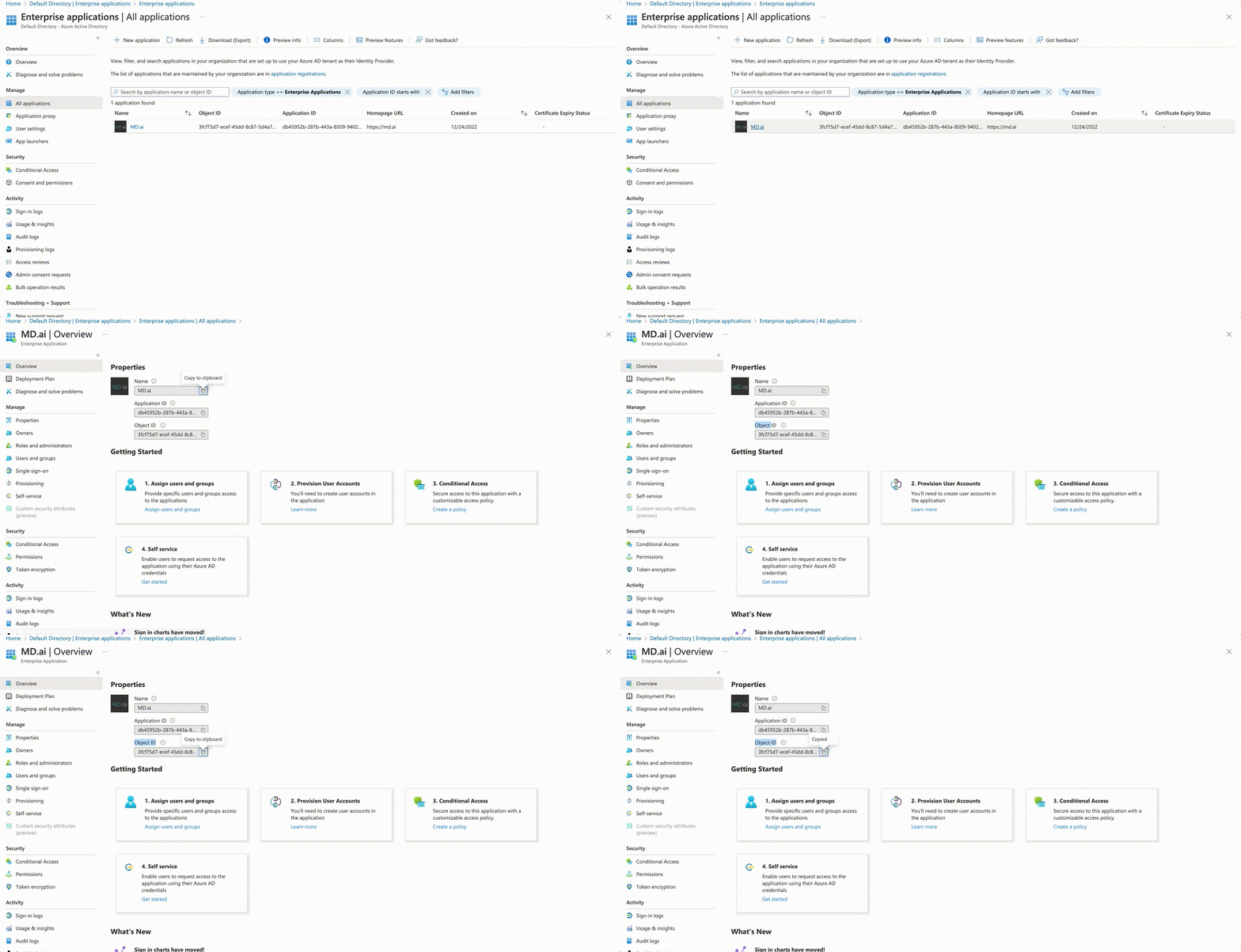
In the Role Assignment Update Guide, click the consent link and approve the MD.ai application for your tenant. This needs an Azure account allowed to grant tenant-wide consent, typically a Global Administrator or Cloud Application Administrator.
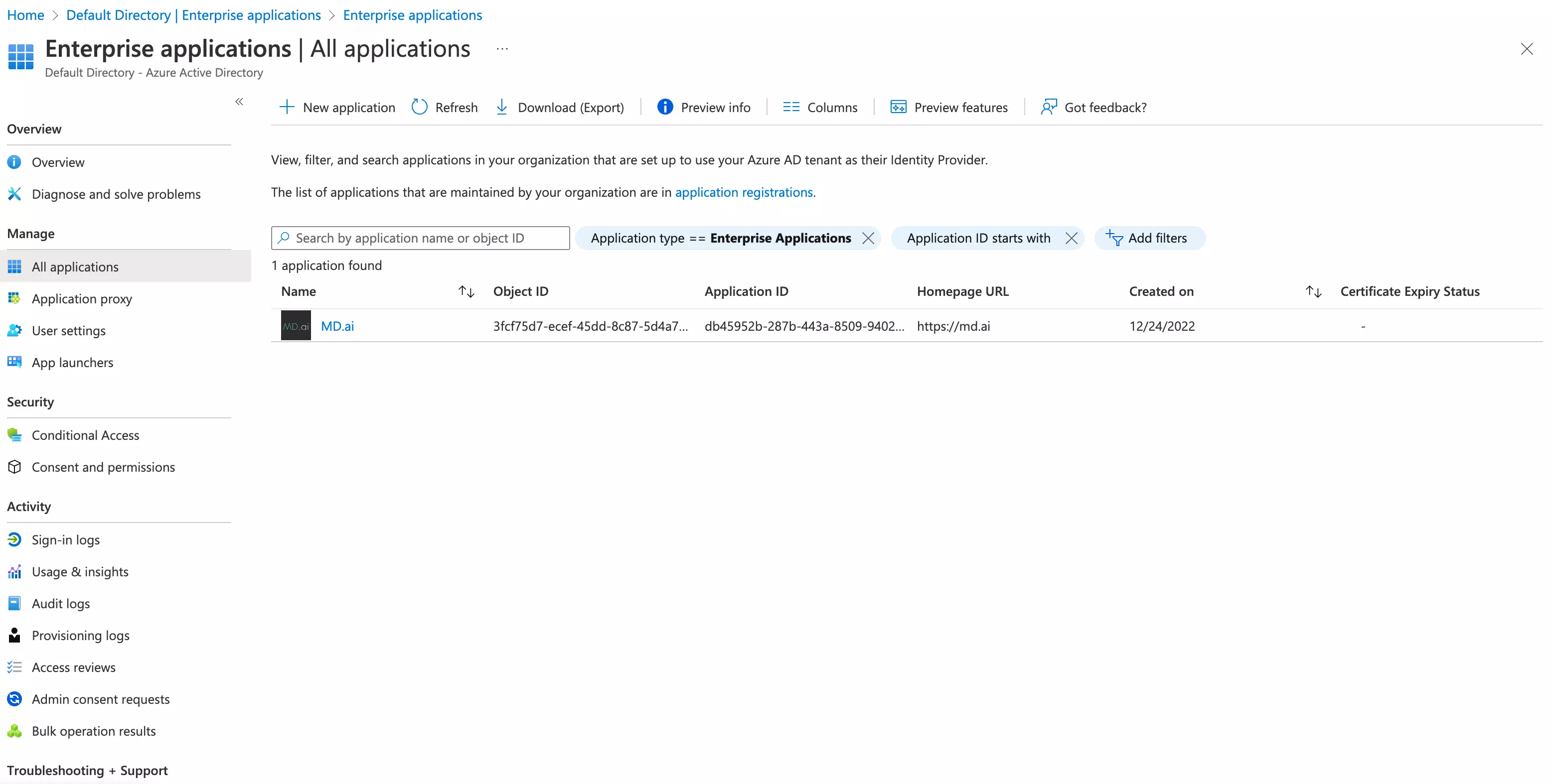
The application then appears in your tenant's Enterprise applications list.
Step 2: Give the application read access
Give the MD.ai application the Storage Blob Data Reader role on the container. The guide provides an Azure CLI command with your storage account and container filled in:
az role assignment create \
  --assignee-object-id MDAI_APPLICATION_OBJECT_ID_IN_YOUR_TENANT \
  --assignee-principal-type ServicePrincipal \
  --role "Storage Blob Data Reader" \
  --scope "/subscriptions/YOUR_SUBSCRIPTION_ID/resourceGroups/YOUR_RESOURCE_GROUP_NAME/providers/Microsoft.Storage/storageAccounts/<storage-account>/blobServices/default/containers/<container>"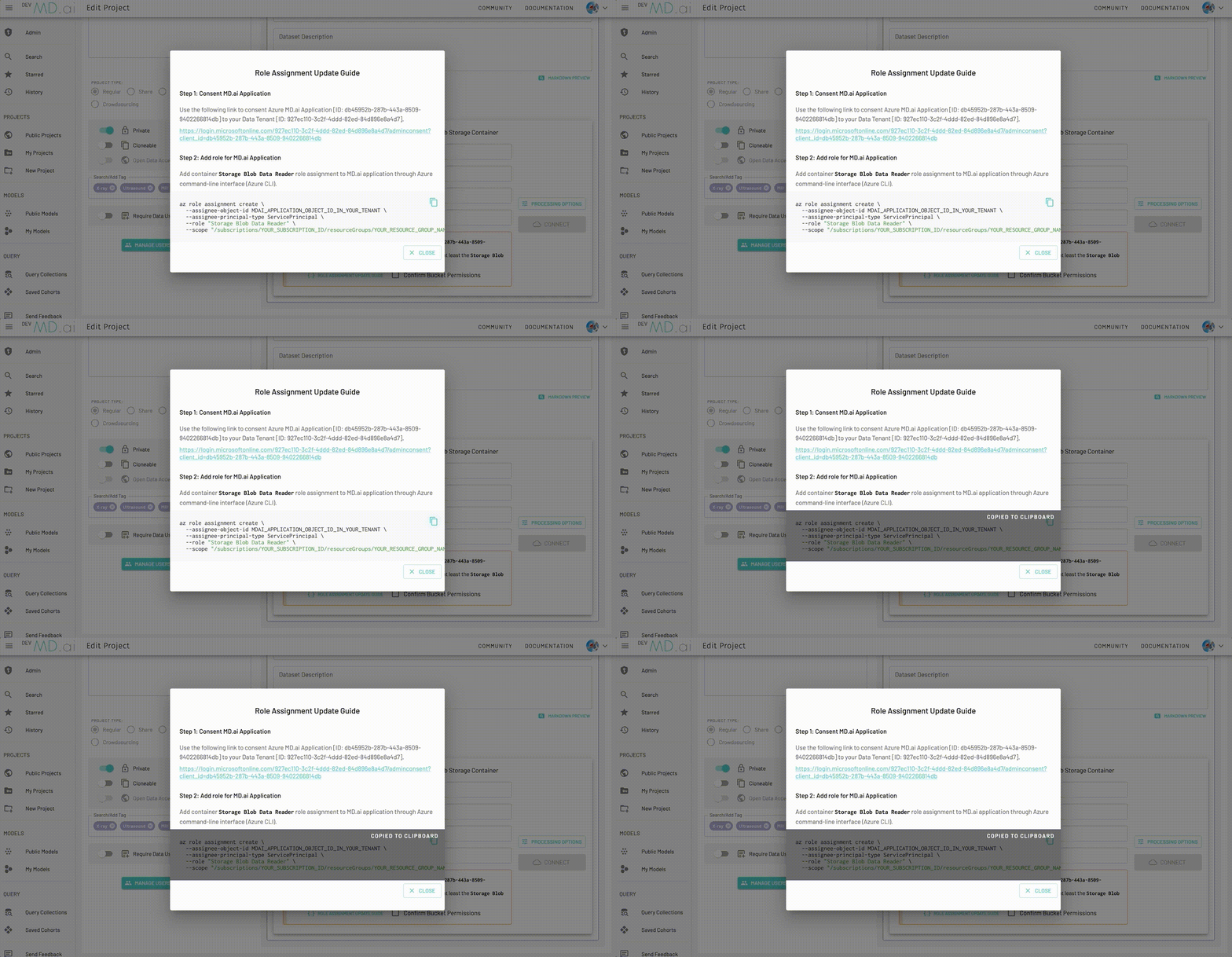
Replace the placeholders:
MDAI_APPLICATION_OBJECT_ID_IN_YOUR_TENANT: the application's Object ID, from Enterprise applications in your tenant. This is different from the Application ID.YOUR_SUBSCRIPTION_IDandYOUR_RESOURCE_GROUP_NAME: the subscription and resource group of your storage account.
Once assigned, the application appears in the container's Access Control (IAM) role assignments.
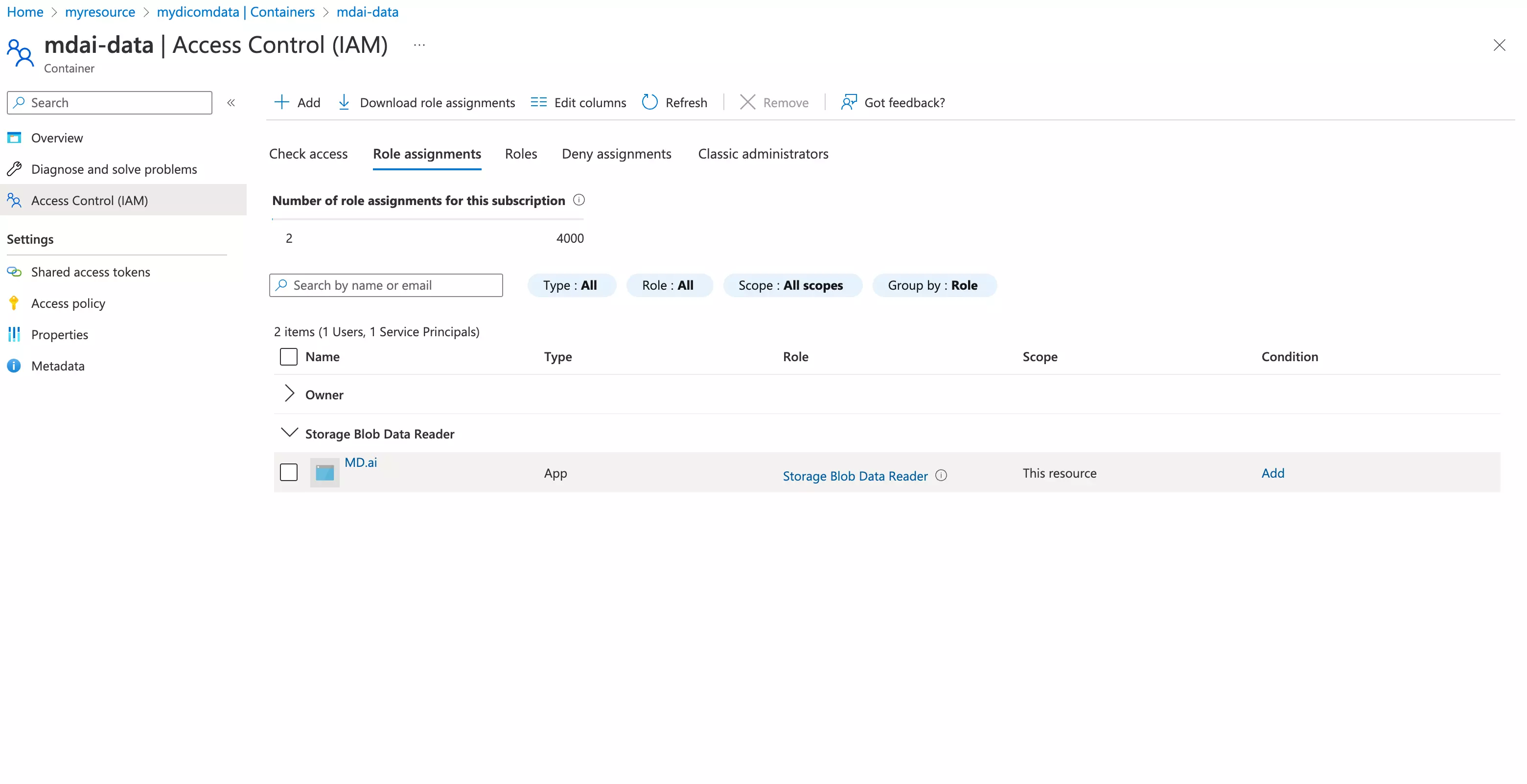
Keep this role assignment in place. Images are read from the container when they are viewed, so removing access breaks the dataset.
Sync changes
The container isn't watched for changes. To load files added since you connected, click Re-Sync Bucket.
A re-sync only adds data. To also remove exams, series and images whose files were deleted from the container, select Remove data deleted from bucket before re-syncing. Annotations and model outputs on the removed data are deleted too, and this can't be undone.