
Label Controls
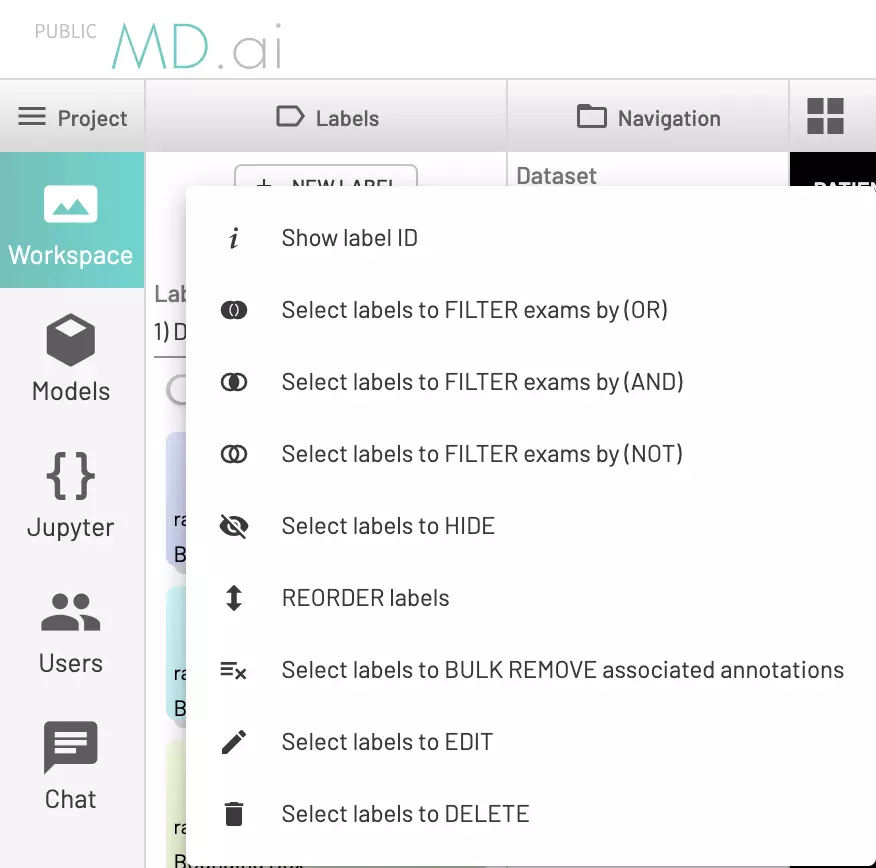
Filter
All users can Filter and Hide labels. Writers, QA and admins can bulk remove annotations, with the scope of what they can remove depending on their role. Admins can edit, reorder, and delete any labels.
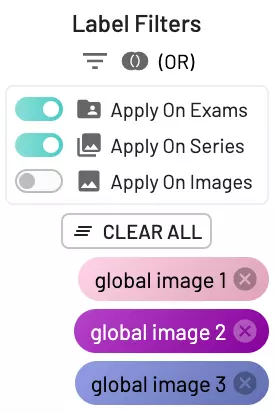
Choose the filter option in the Labels Controls and select the labels and label group you would like to filter by. Then click filter again. When you open the Exam window in the Navigation column, you'll see only the filtered cases. There are different types of filters available:
- AND filter will show only the resources that contain all the labels you have selected.
- OR filter will show the resources that contain any of the labels you have selected.
- NOT filter will show only the resources that do not contain the labels you have selected.
These filters can be applied to all resource levels including exam, series and images.
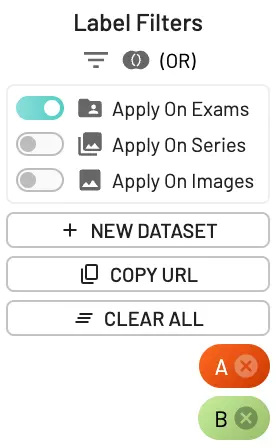
New dataset from label filters
Once you apply any label filters, an advanced way to interact with this subset is to create a new dataset that only contains exams/series or images belonging to the applied filter:
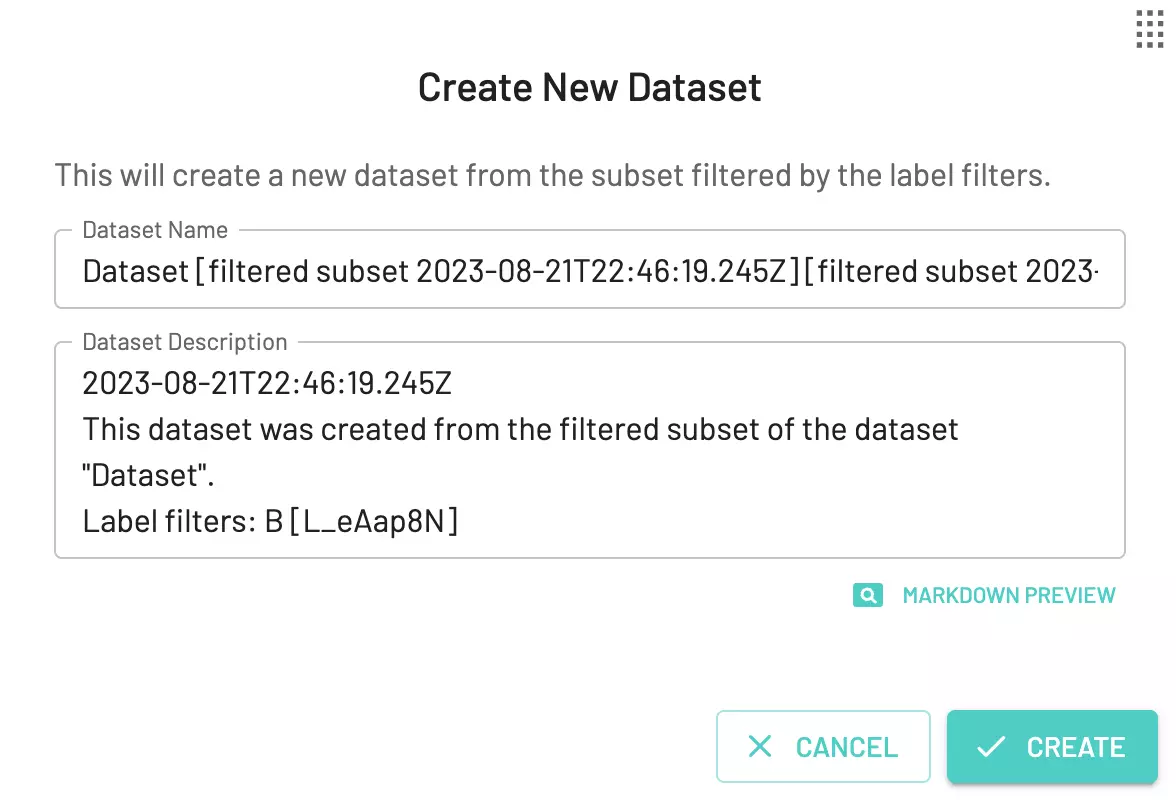
A dialog will appear where the name/description of the new filtered dataset can be edited. By default, the name and description will be modified to include the filter info.
You can also click on Copy URL to create a temporary URL link, that can be passed to users added to the project, to view and interact with the filtered subset without actually creating a new dataset.
Hide labels
Choose the hide option in Label Controls and select the labels you would like to hide. You can also hide individual annotations on an image by using the hide icon on the annotation tag.
Reorder labels
Drag and drop labels into the position to change their order.
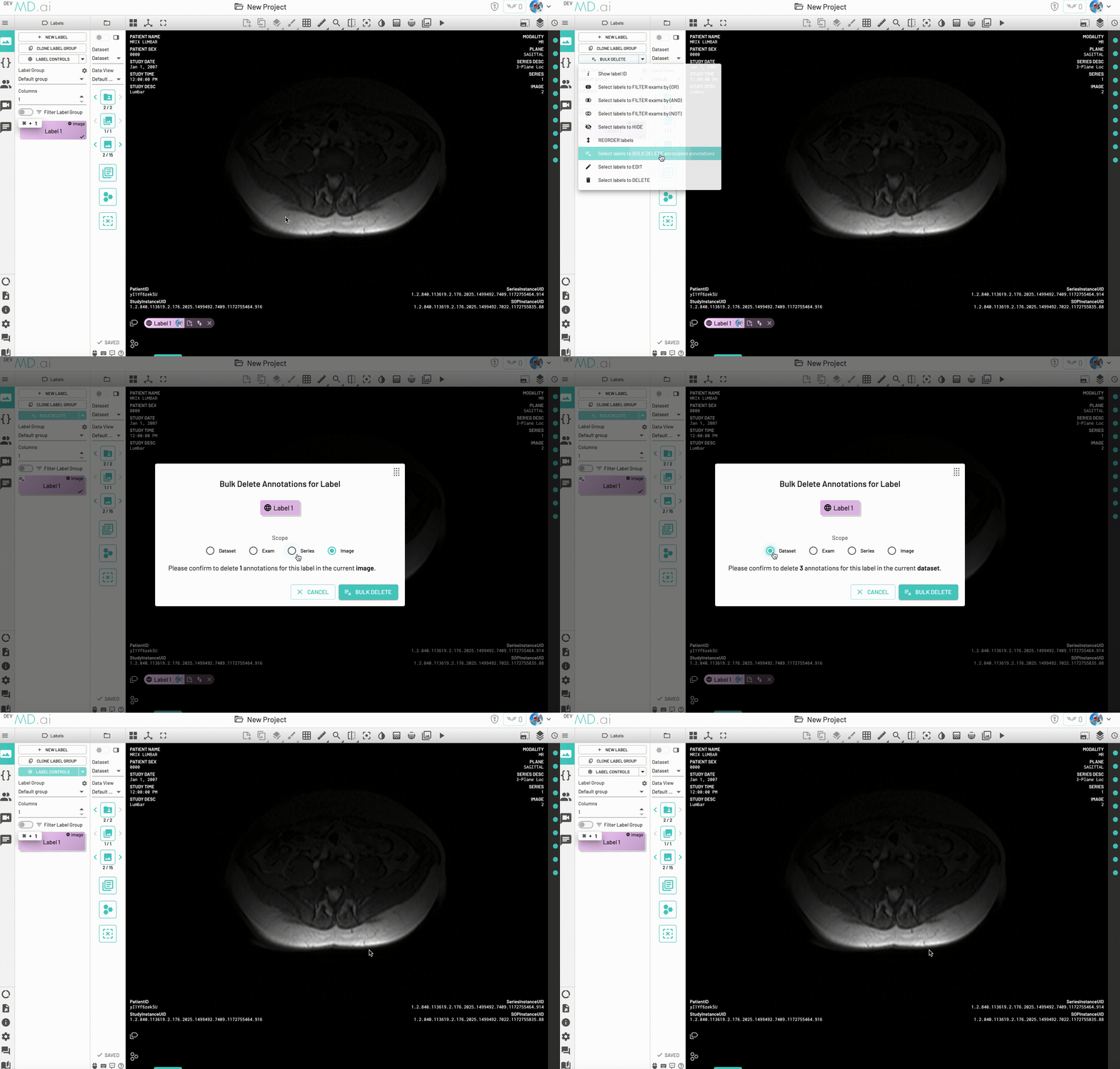
Remove annotations in bulk
BULK REMOVE is a feature to remove specific label annotations from the entire Dataset, Exam, Series or Image resource. This is also useful to remove unwanted annotations added with the interpolator tool.
Use the Delete only my own annotations checkbox to choose whose annotations are removed. The
confirmation message always reports the number of annotations that the current selection will
delete, so it updates as you change the checkbox or the resource scope.
Which annotations you can remove depends on your project role:
| Role | Bulk removal |
|---|---|
| Reader | Cannot bulk remove annotations. |
| Writer | Own annotations only. The checkbox is not shown. |
| Writer, when the project expands the writer edit scope | Any user's annotations. The checkbox is selected by default. |
| QA, Admin | Any user's annotations. The checkbox is cleared by default. |
Only admins can bulk remove at the Dataset scope, which additionally requires typing
DELETE to confirm. Bulk removal cannot be undone, so export your annotations first if you may need
them later.
Edit labels
Change the label title, color, Radlex tags, and settings such as whether it records a number using this option.
Delete labels
This allows you to delete a label and with it, all the associated annotations from the entire project.