
Delete Exams, Series and Images
Remove DICOM resources from a dataset
Project admins can delete exams, series and images from a dataset. Deleting a resource also deletes everything inside it, along with its annotations and model outputs. Deleting the last images of a series also removes the series, and an exam left empty is removed too. Deletion can't be undone, so export anything you need first.
To delete a whole dataset, see Rename or delete a dataset. To delete by UID from a script, use the CLI.
Delete in the annotator
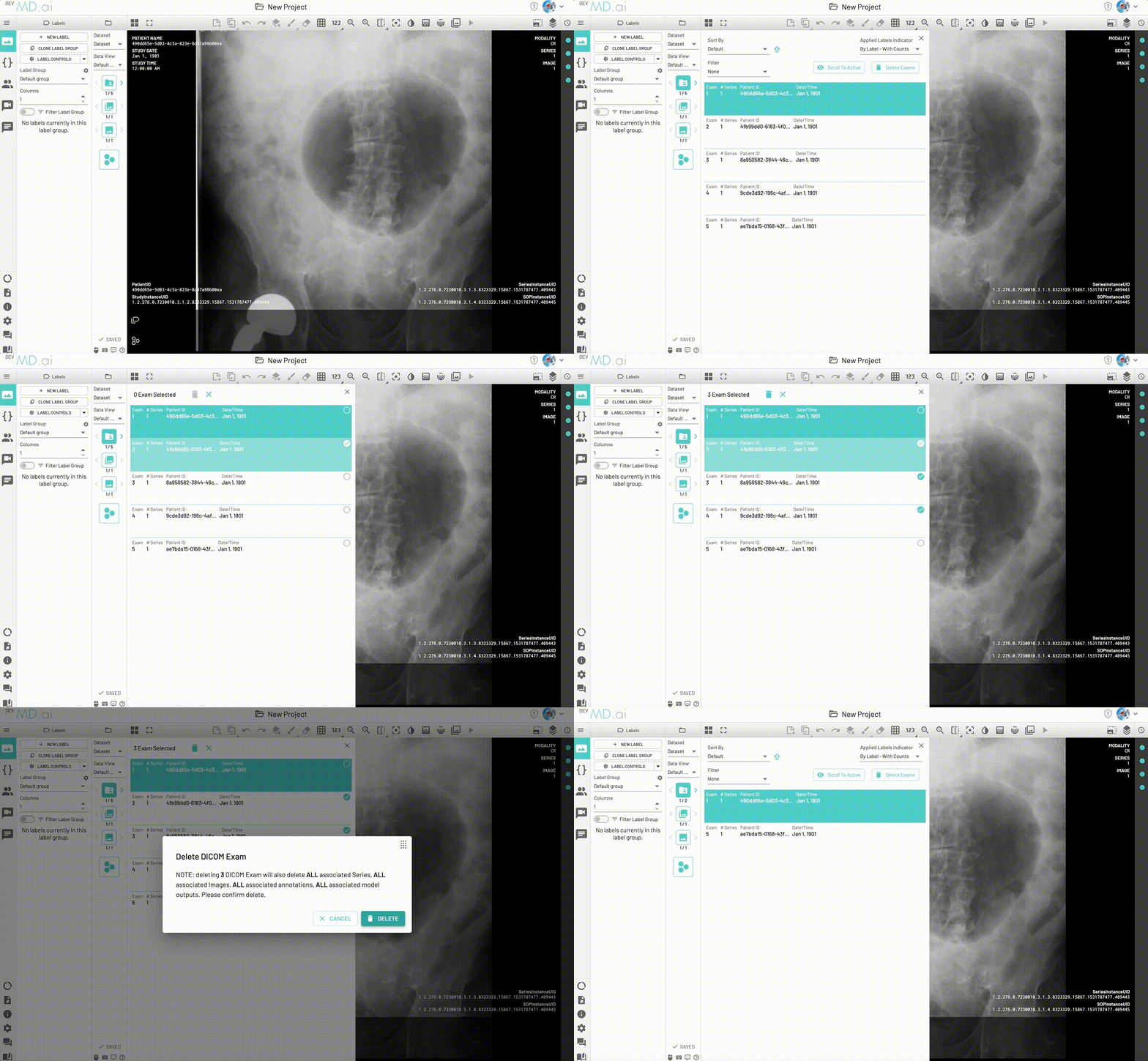
In the Navigation column, open the Exam, Series or Image list.
Click Delete Exams, Delete Series or Delete Images at the top of the list.
Select the items to delete. The bar at the top shows how many are selected.
Click the trash icon (Delete Selected Exams), then Delete to confirm. Click the X icon (Cancel Delete) to stop without deleting.
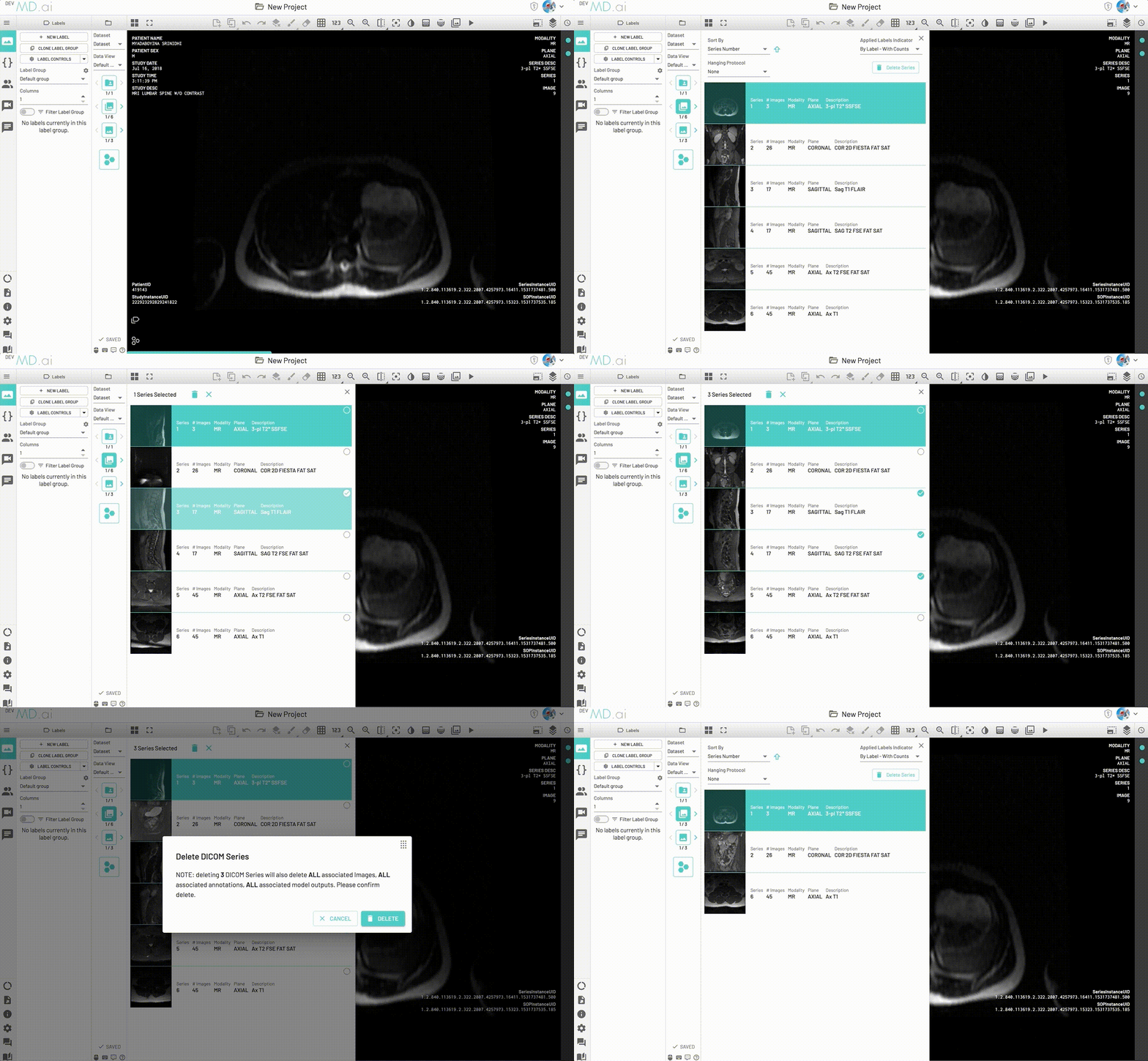
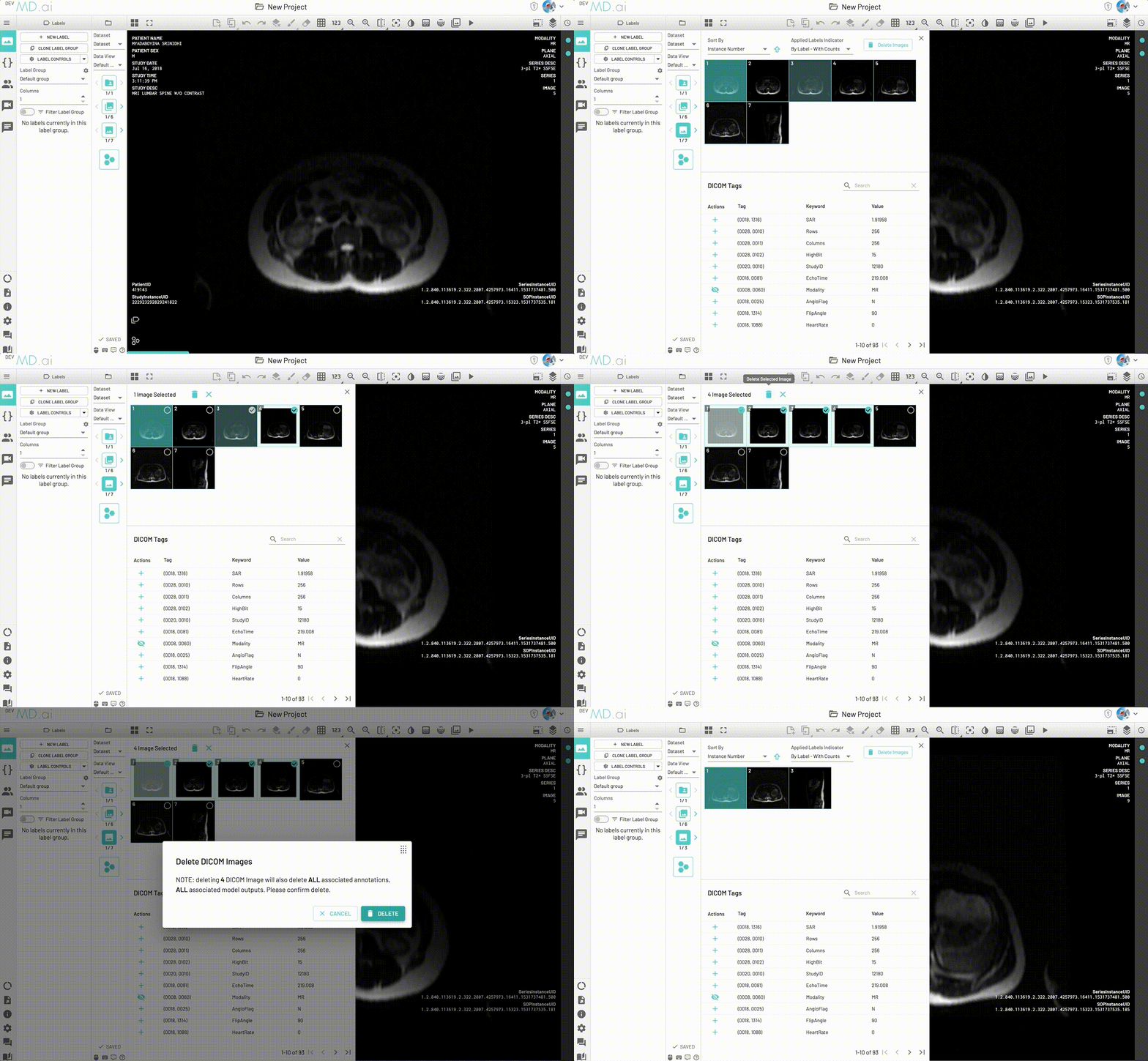
Series and images work the same way:
Exam numbers are kept
Deleting exams doesn't renumber the others, so assignments, which refer to exam numbers, stay correct. (New uploads can still renumber exams in datasets ordered by a field such as Patient ID; see exam ordering.) The dataset then has gaps in its numbering: after deleting exam 1 of 3, the remaining exams are still numbered 2 and 3.