
Google Cloud Storage
Load data from a Google Cloud Storage bucket
A Google Cloud Storage dataset reads data directly from your GCS bucket. Your files stay in your bucket, so MD.ai needs continued read access to it.
Grant access
Add MD.ai's service account to your bucket's permissions with at least the Storage Object Viewer role:
external-data@mdai-gcp.iam.gserviceaccount.comThe connect form shows the service account for your deployment; dedicated deployments may use a different one.
Keep this permission in place. Images are read from the bucket when they are viewed, so removing access breaks the dataset.
Connect the bucket
On the project's Edit page, find your Google Cloud Storage dataset.
Enter the Bucket Name and, to load only part of the bucket, a Folder Prefix (optional). A gs:// prefix or trailing slash on the bucket name is removed automatically.
Select Confirm Bucket Permissions and click Connect.
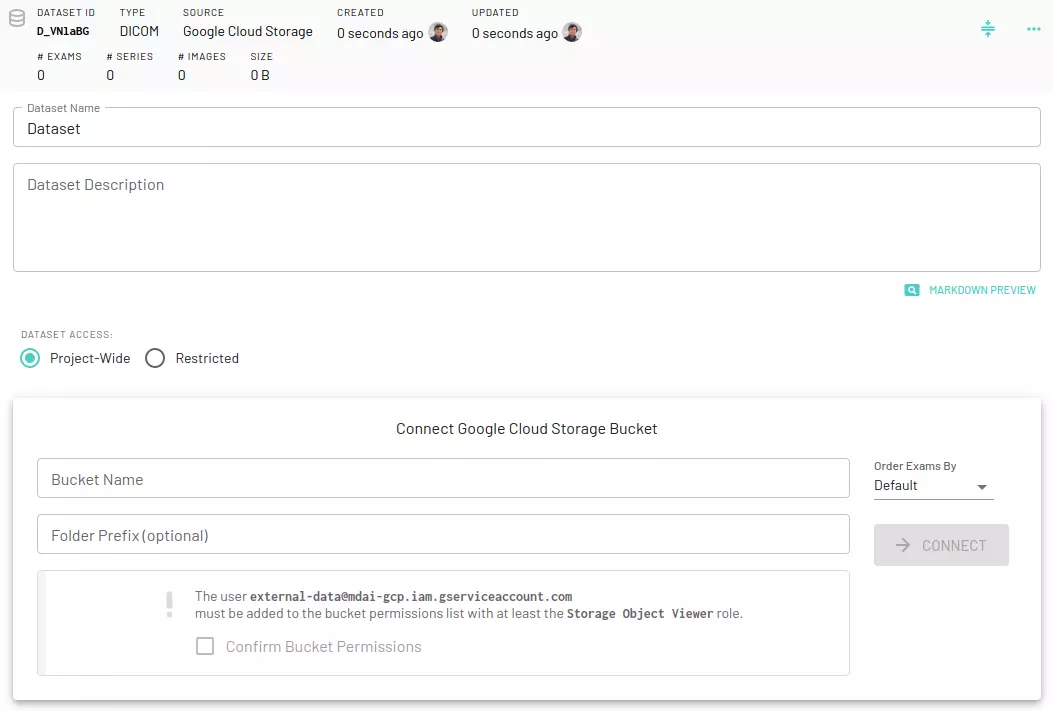
The data is then processed. You can also connect a bucket with the CLI: mdai dataset connect.
If connecting fails, the form shows why: No objects found in bucket, Insufficient permissions or bucket not found, or Connection error.
Sync changes
The bucket isn't watched for changes. To load files added since you connected, click Re-Sync Bucket.
A re-sync only adds data. To also remove exams, series and images whose files were deleted from the bucket, select Remove data deleted from bucket before re-syncing. Annotations and model outputs on the removed data are deleted too, and this can't be undone.