Users, Roles and Assignments
Add people to a project, choose what they can do, and assign them work
Project admins manage users from Users in the project sidebar, or Manage Users on the project's Edit page.
Add users
Open Users.
Under Add User, search for a name or type an email address.
Choose a role. New users are WRITER by default.
For Writers and Readers, optionally set access controls.
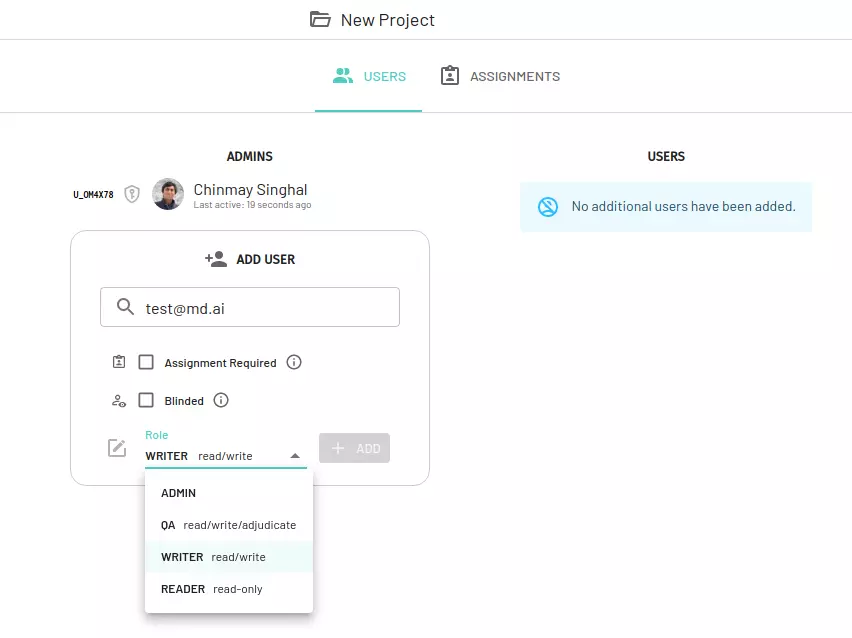
The person gets an email invitation with a link to the project. If they don't have an MD.ai account yet, the link takes them to sign up; they must use the invited email address. Until then, they're listed as pending, and you can remove them with Remove pending user.
You can also add users with the CLI.
Roles
The app shows roles in capitals, such as WRITER. These docs write them as Reader, Writer, QA and Admin.
| Role | Summary |
|---|---|
READER | Read-only: views images and annotations, but can't annotate. |
WRITER | Creates annotations and edits their own. |
QA | Also edits, deletes and reviews everyone's annotations. Use it for adjudicators. |
ADMIN | Manages the project: labels, datasets, users, settings and models. |
INACTIVE | No access to a private project. Read-only access to a public one. |
To change a role, use the menu on the user's row. To remove someone from a project, set them to INACTIVE; INACTIVE can't be chosen when adding a user.
What each role can do
| Capability | Reader | Writer | QA | Admin |
|---|---|---|---|---|
| View images, annotations and model outputs | ✓ | ✓ | ✓ | ✓ |
| Filter and hide labels, chat, export annotations and DICOM metadata | ✓ | ✓ | ✓ | ✓ |
| Create annotations, and edit and delete their own | ✓ | ✓ | ✓ | |
| Reorder labels (for themselves) | ✓ | ✓ | ✓ | |
| Run models on an exam, series or image | ✓ | ✓ | ✓ | |
| Edit and delete others' annotations | with setting¹ | ✓ | ✓ | |
| Bulk delete annotations | own only¹ | ✓ | ✓ | |
| Review annotations (thumbs up / down) | Metadata only | ✓ | ✓ | |
| Filter exams by who annotated them | ✓ | ✓ | ||
| Run models on a whole dataset | ✓ | ✓ | ||
Apply and edit Metadata labels | ✓ | |||
| Create, edit and delete labels and label groups | ✓ | |||
| Manage users, assignments and project settings | ✓ | |||
| Manage datasets, delete exams, run De-ID | ✓ | |||
| Create, clone and configure models | ✓ | |||
| Export user activity, and images where admin-only | ✓ | |||
| Bulk delete across a whole dataset | ✓ | |||
See hidden model outputs and a hidden Metadata group | ✓ | |||
| Jump to another user's current image (not in Share projects) | ✓ |
¹ With the project setting Allow users with writer role to edit/delete all annotations, Writers can edit and delete anyone's annotations, including in bulk.
In Share projects, every member can add users.
Who can create projects
Creating projects isn't a project role. It requires a superuser account, set up by MD.ai.
Access controls
For Writers and Readers, admins can set two access controls when adding a user, or later with Access Controls on the user's row:
Assignment Required: the user can't access the project until they have an assignment.Blinded: the user sees only their own annotations, not other users'.
These controls aren't available for admins and QA users. In Education projects, Writers and Readers added in the web app are blinded by default; in Crowdsourcing projects, all Writers and Readers are blinded.
Assign exams
Assignments control which exams and label groups each user works on. Users get their assignment automatically when they open the project. If an assignment changes while they're working, they see an Assignment Updated notice.
Assignments apply to Writers, Readers and QA users; admins always see everything. The Assignments tab isn't available in Share and Crowdsourcing projects.
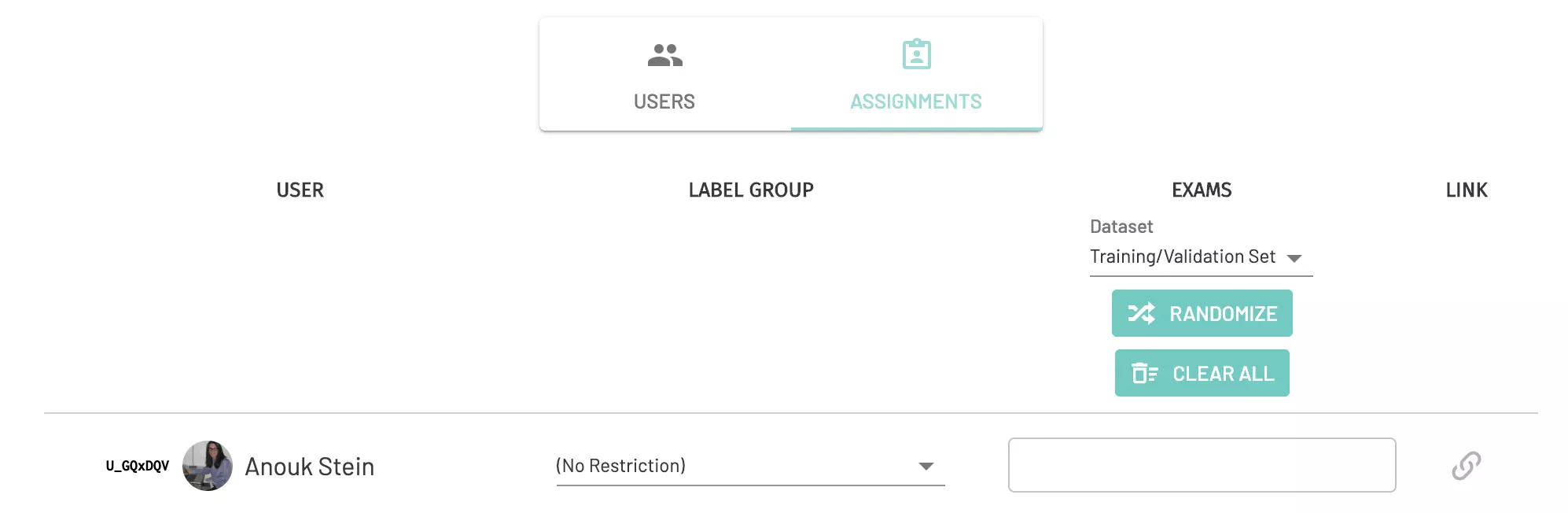
Open Users and select the Assignments tab.
Under Label Groups, choose the groups the user can see and use, or (No Restriction) for all of them. Restrict users to different groups to have them read the same exams independently.
If the project has more than one dataset, choose the dataset.
Under Exams, enter exam numbers and ranges, such as 1,3-5,7.
Once a user has exams assigned in any dataset, they can only access datasets where they have assignments.
Distribute exams randomly. Click Randomize, enter the Number of Exams, and choose which roles to include. Each selected user's assignment in the current dataset is replaced with a random sample of that many exams. Clear All removes every user's exam assignments in the current dataset.
Preview an assignment. The link icon on a user's row opens the workspace as that user's assignment would show it. This preview only works for admins; users don't need a link.
Exam numbers come from the dataset's exam ordering. Deleting exams doesn't renumber the rest. But with an ordering such as Patient ID or Study Date/Time, new uploads can renumber existing exams, and assignments then point to different exams. Use Default or Random ordering for datasets you assign by number.
You can also manage assignments with the CLI.
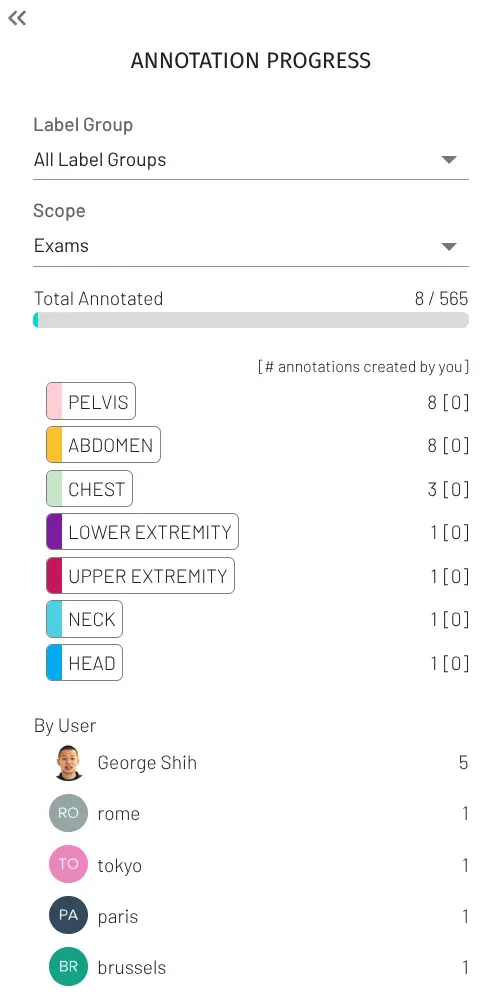
Monitor progress
Progress in the project sidebar shows how much has been annotated: the total annotated exams, series or images, counts per label, and counts per user. Choose a label group and the Scope to count by.
For time spent per exam and per user, export user activity.