
Model Settings
Control who can see, run, export and clone a model
Choose a model's settings when you create it. Afterwards, the model's owner can change them from the model card.
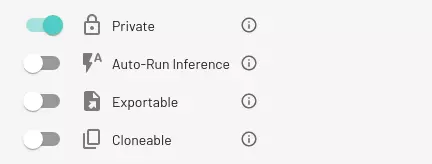
| Setting | Effect | Change it from |
|---|---|---|
| Private | Only project members can see the model. Off: everyone can. | The lock icon (Make Model Public / Make Model Private) |
| Auto-Run | Runs the model automatically on new data. | The auto-run icon on the card |
| Exportable | Lets project members export the model's code. Off: only the owner can. | Export Model > Edit Export Model Settings |
| Cloneable | Lets project members clone the model into other projects. | Create Model Clone Code > Edit Clone Model Settings |
Models follow their project's privacy by default, and models in public projects are always public.
Project admins can also hide all model outputs from non-admins, or turn off model and model output exports, in Project Settings.
You can also change settings with the CLI: mdai model set.
Auto-run
With Auto-Run on, the model's default version runs on every exam or series added to the project's datasets, with its args' default values. Private and temporary datasets are skipped. Auto-run tasks are marked Auto-Run in the task list.
Export a model
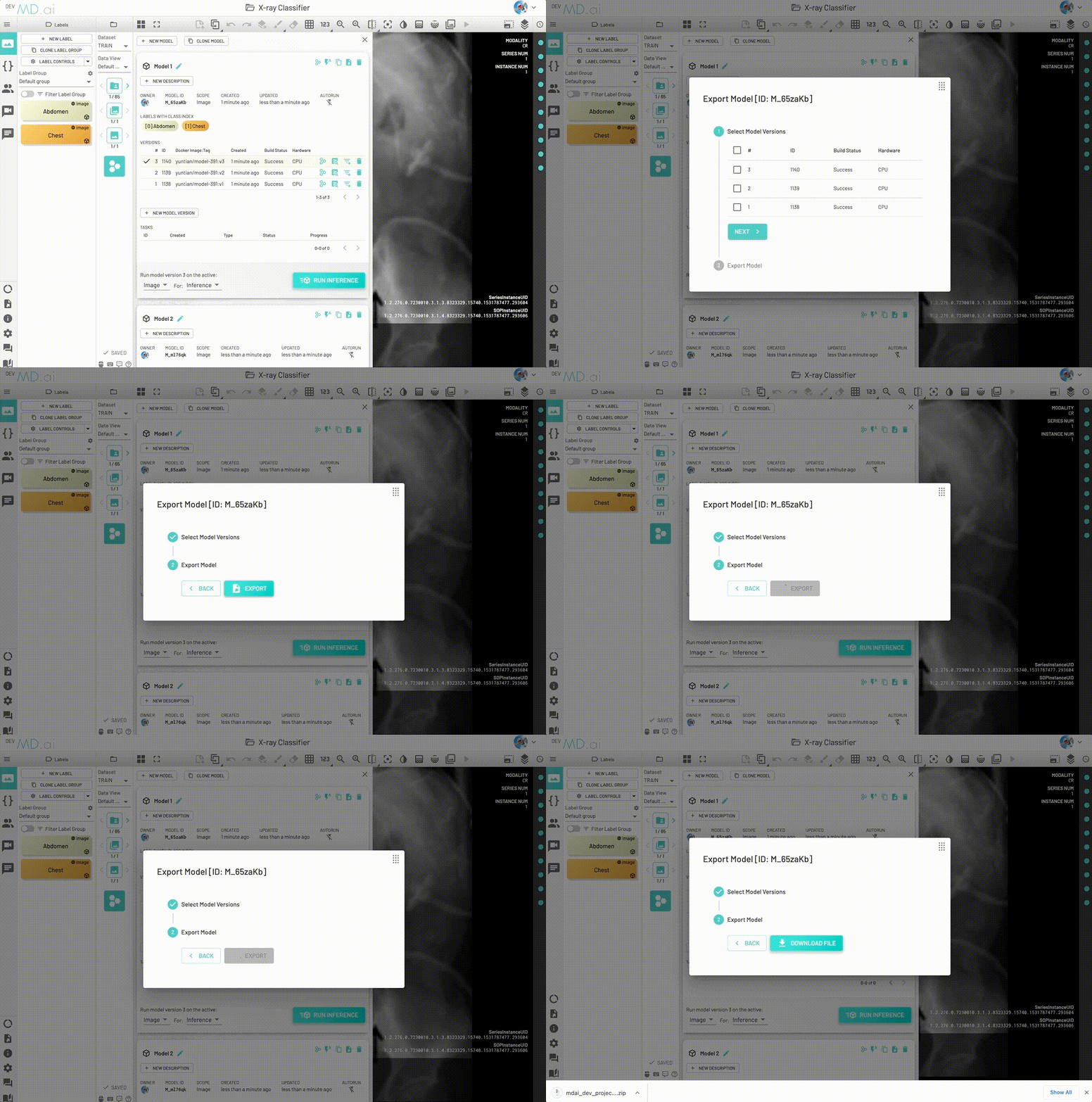
To download a model's code and configuration, for example to run it elsewhere:
- On the model card, click
Export Model. - Select the versions to export, and click
Next. - Click
Export, and wait for the export to finish. - Click
Download File.
Only versions with uploaded code can be exported, so models cloned from the Model Registry can't be. You can also export models from the project's Export panel. See the archive format.
Run an exported model locally
The Python client can run an exported model on your own DICOM files. It needs conda 4.9 or later, for example from Anaconda, and supports models built with any base_image from py37 to py314, but not custom or NVIDIA base images. py38 to py310 need mdai 0.16.1 or later, and py311 to py314, including the default, need 0.16.2 or later.
import mdai

# model_path: the `model` folder of the extracted export
mdai.run_inference("/path/to/export/model", "/path/to/dicom", model_version="v1")
The model runs in its own conda environment, mdai_<model ID>, with the Python version of its base_image. The environment is created on the first run and reused afterwards. The predictions are saved as a CSV file in model_path. To remove the environment afterwards, run mdai.delete_env("/path/to/export/model").
Clone a model
Cloning copies a model, with its labels, into another project. With Cloneable on, choose where it can be cloned to: Current Domain Only (default), or All MD.ai Domains.
On the model card, click Create Model Clone Code.
Select the versions to include, click Create Code, and copy the code.
In the destination project, open the Models panel and click Clone Model.
Paste the code and click Clone.
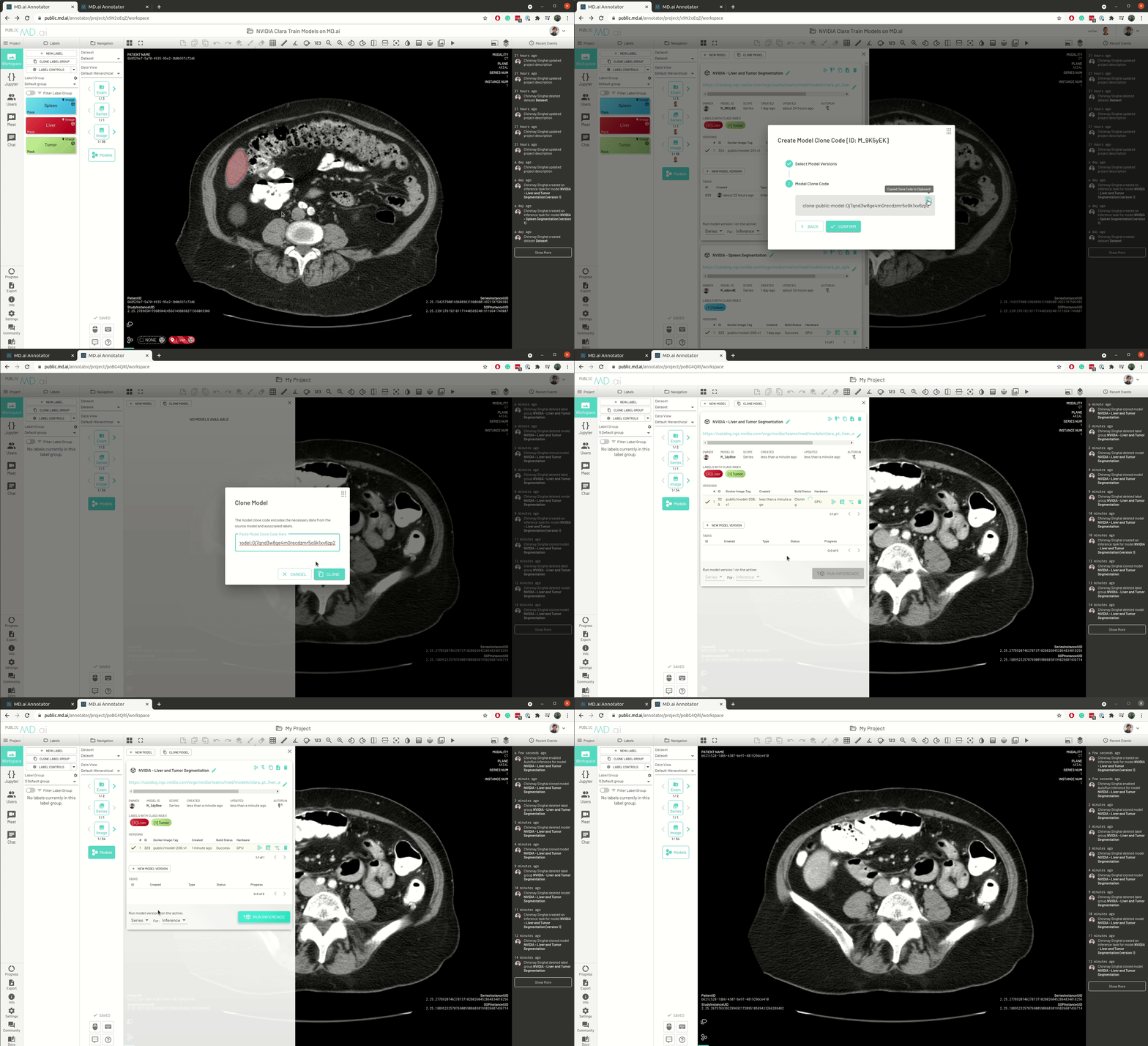
The clone gets its own label group, named after the model. Only project admins can clone models into a project.
Public models are listed under Public Models on the projects page, where you can create a clone code for cloneable ones.
You can also clone models with the CLI: mdai model clone.