Annotation Tools
Draw and edit each kind of annotation, including AI-assisted segmentation
How you draw depends on the label's annotation mode. Click a local label, then draw on the image. While the annotation is active, the bar above the image shows its label and mode, with buttons to show measurements, open its settings, add an interpolation frame, inactivate or delete it.
Tools that apply to every mode, in the toolbar:
UndoandRedo(Ctrl/⌘+Z,Ctrl/⌘+Shift+Z): undo the last change to the active annotation.Clear Active Layer(Ctrl/⌘+Backspace): remove the drawing, to start over.- Erase Tool: click vertices of a freeform, polygon or line annotation to remove them.
Bounding box
Drag to draw a rectangle. Drag its edges or corners to resize it. The width and height are shown along the edges.
Polygon
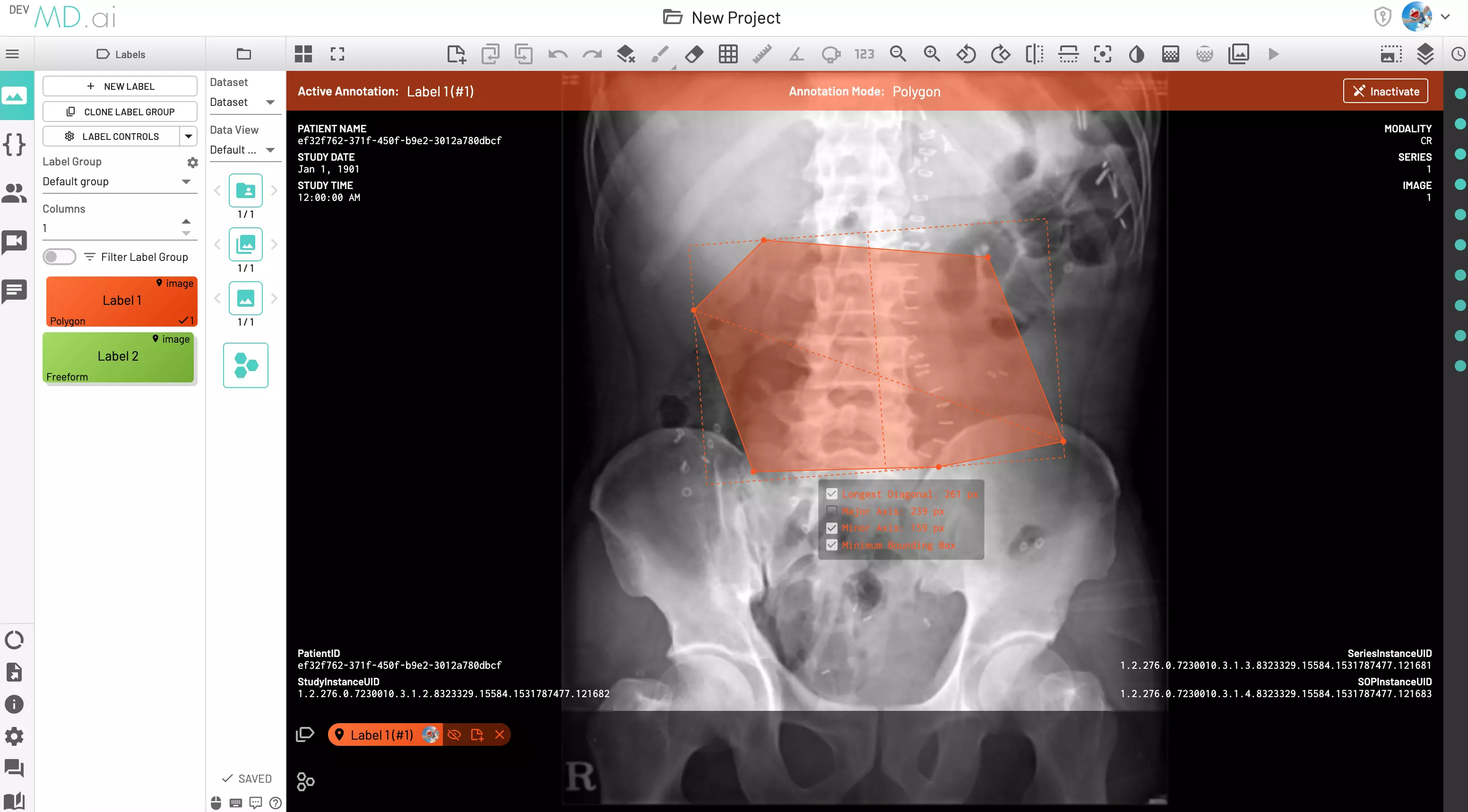
Click to place each corner. Drag a corner to move it, or drag the handle in the middle of an edge to add a corner.
Freeform

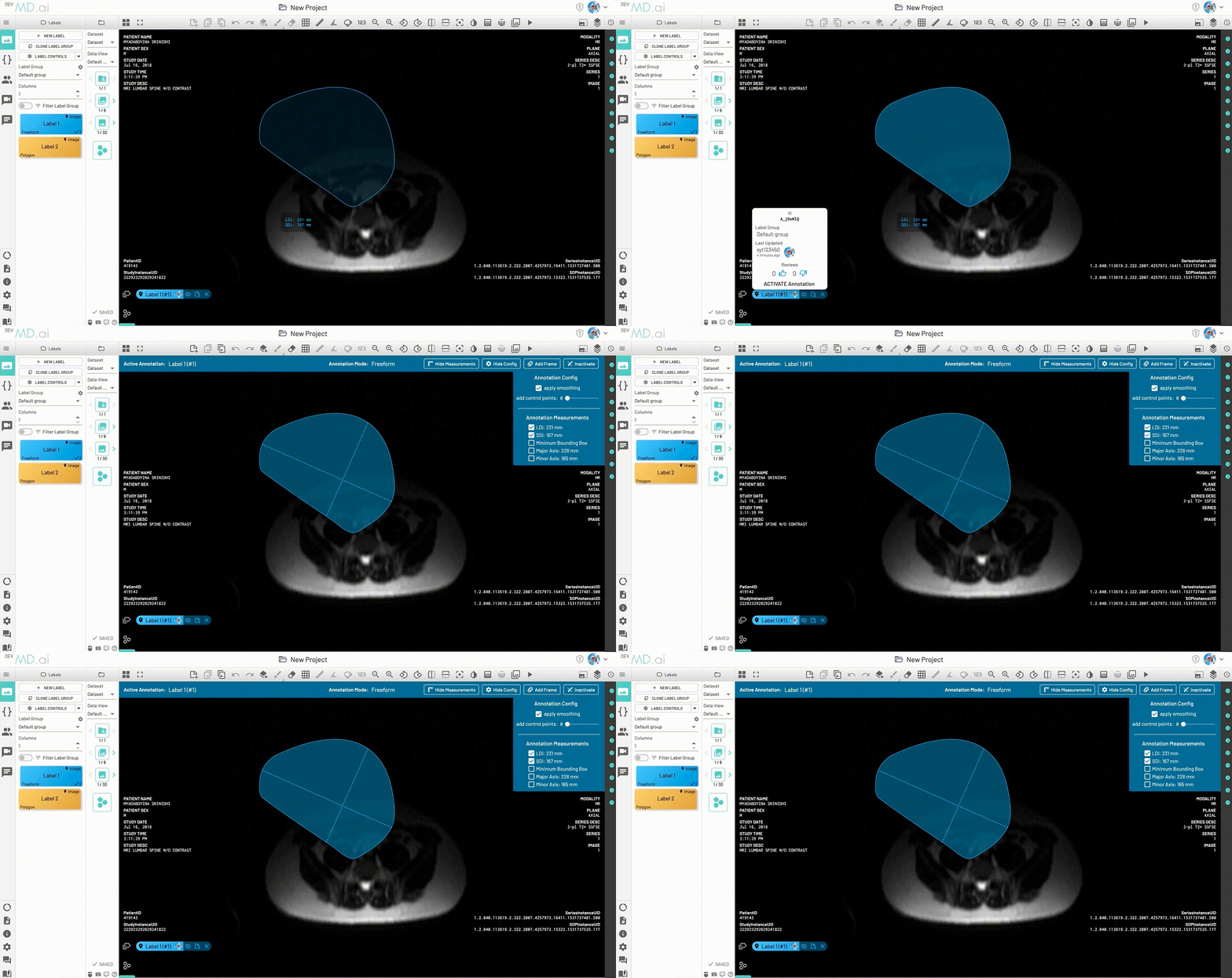
Hold the mouse button and draw the outline. To adjust it, hover over the edge and drag the points that appear. In the annotation's settings, you can turn smoothing on or off and add control points for finer editing.
Chop/Extend
To reshape a freeform annotation without redrawing it, click Chop/Extend (C):
- Extend: draw an arc from the outline around the area to add.
- Chop: draw an arc across the shape to cut off the part you don't want.
Mask

A mask is a pixel-level segmentation. It can have several separate regions and holes. Open Mask Tools in the toolbar to switch tools:
| Tool | Key | Use |
|---|---|---|
Brush | B | Paint the mask. Scroll to change the brush size. |
Eraser | E | Erase from the mask. |
Superpixels | S | Paint whole regions of similar pixels at once. The slider sets how many regions the image is split into. |
Auto Segmentation | A | Segment with AI, from a box you draw. See below. |
Smart Tracking | Carry the auto-segmentation box to the next images. See below. |
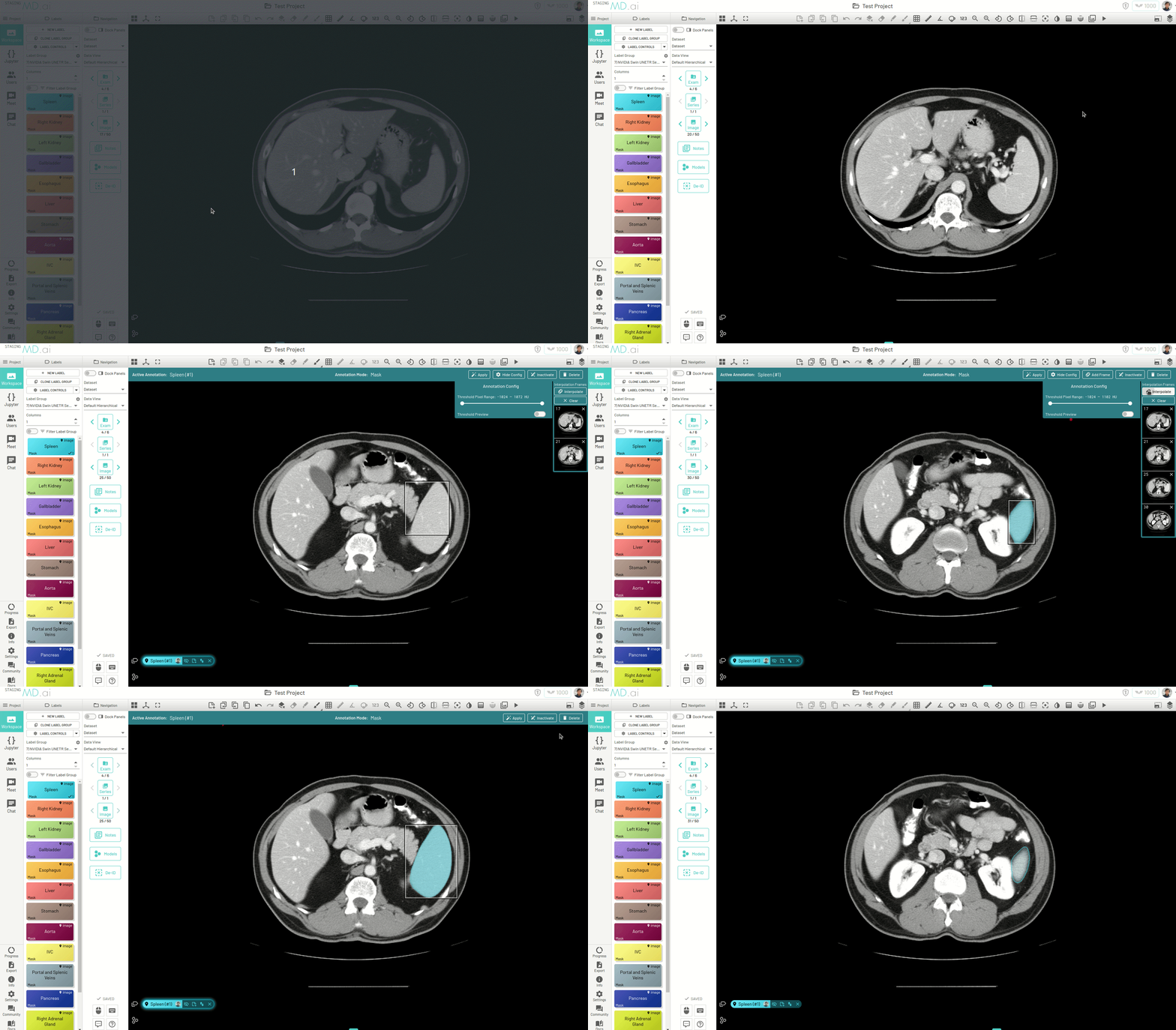
Thresholding. If the label has a Threshold Range (HU), the brush only paints pixels within the range, for example to paint only bone. Adjust the range for the current annotation with the Threshold Pixel Range slider in the annotation's settings, and turn on Threshold Preview to see which pixels are in range. Thresholding works with the brush and eraser.

Auto Segmentation
Auto Segmentation uses Meta AI's Segment Anything model to segment a structure from a box you draw.
- With a mask annotation active, choose
Auto Segmentation(A) inMask Tools. - Draw a box around the structure. The segmentation appears right away.
- To refine it, click to add
Foregroundpoints (areas to include) orBackgroundpoints (areas to exclude). Press/to switch between them. The segmentation updates after each point. - Press
Escto clear the box and start over.
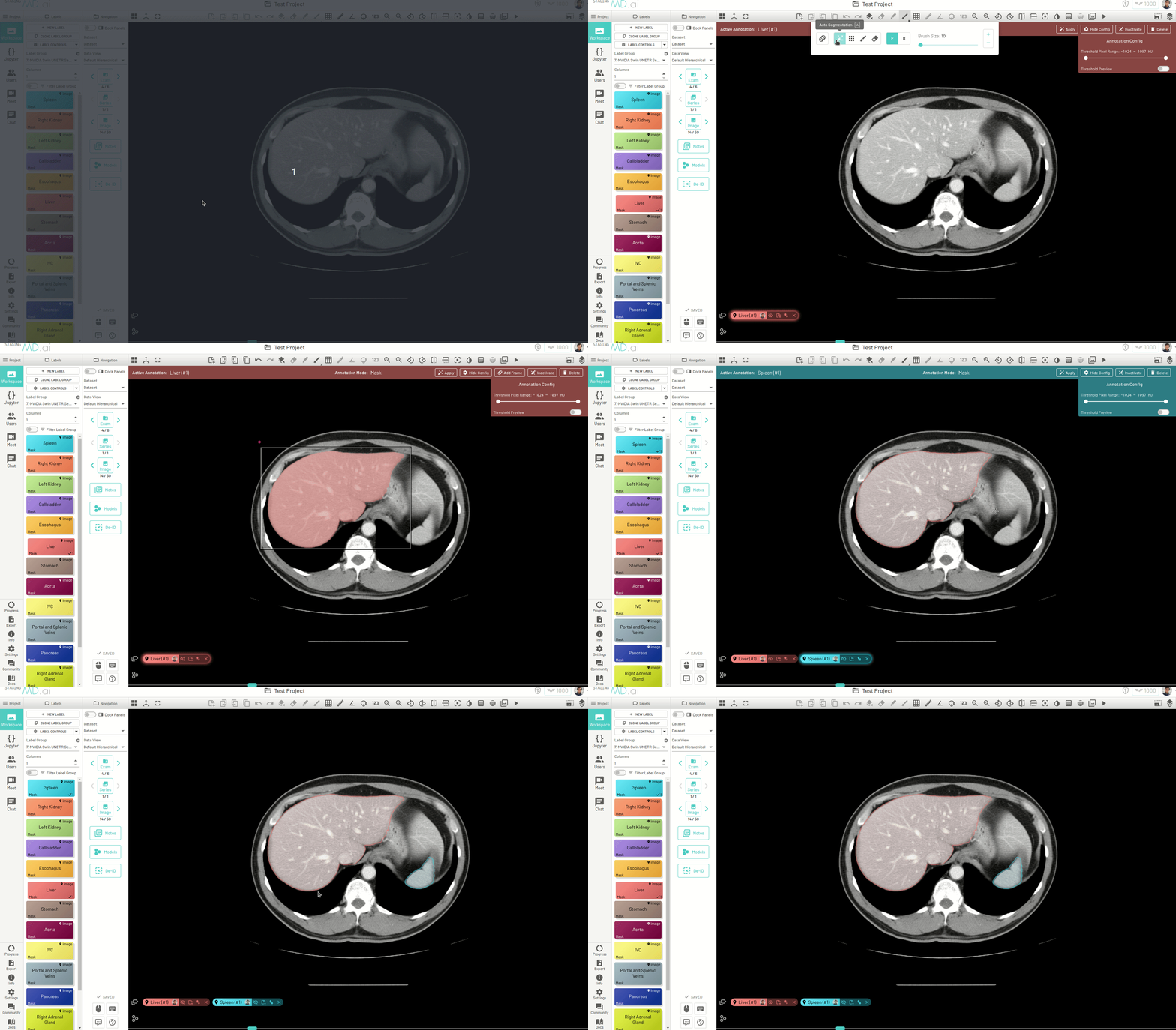
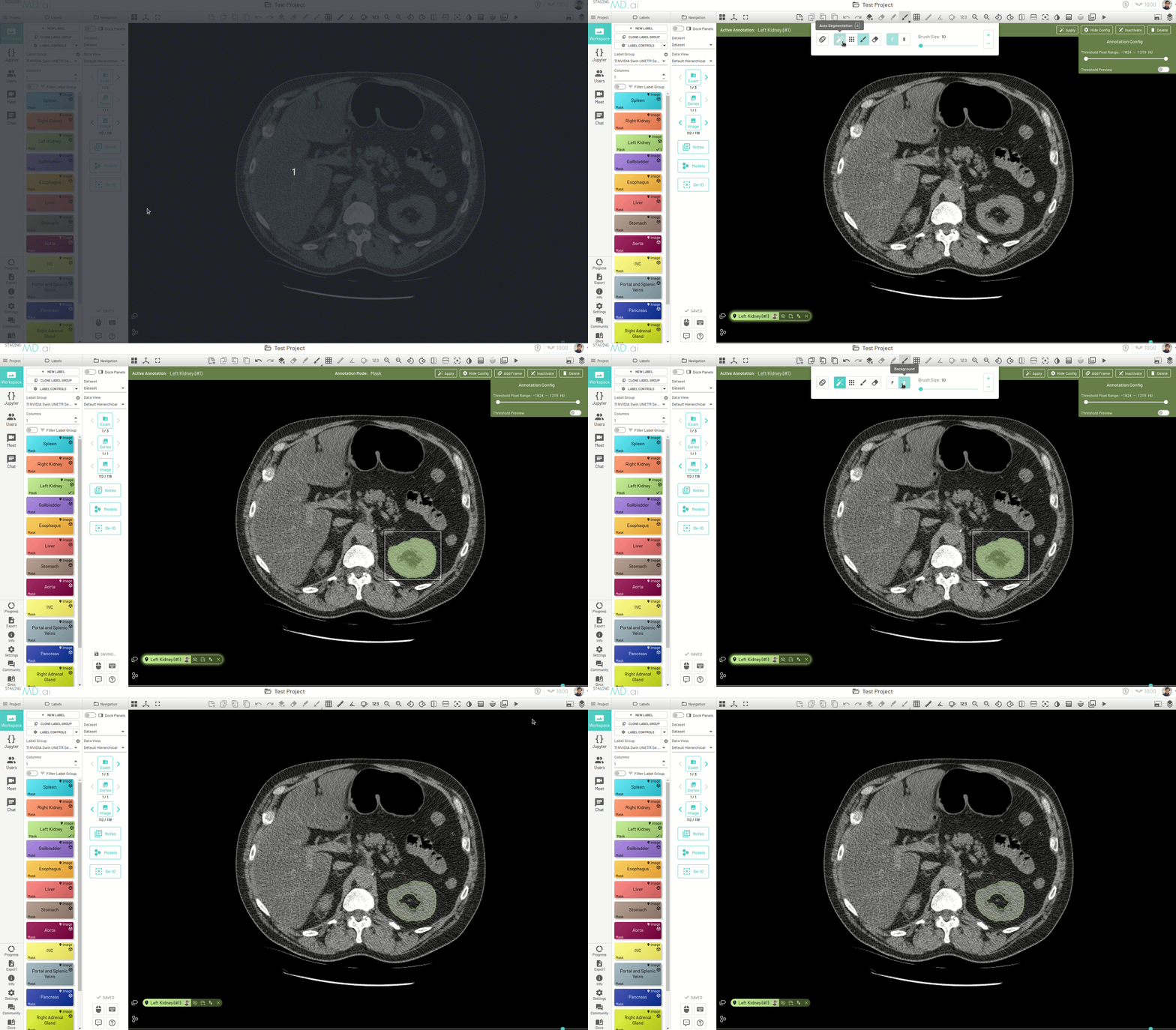
If a box produces no segmentation, add foreground or background points.
Segment a structure across a series
Three ways to segment a structure across many images:
-
Copy forward. Copy the active mask to the next image (
Ctrl+`, alsoCtrlon macOS). With auto-segmentation on, the copy re-segments on the new image, adapting the box to the structure's new shape and size. Repeat image by image.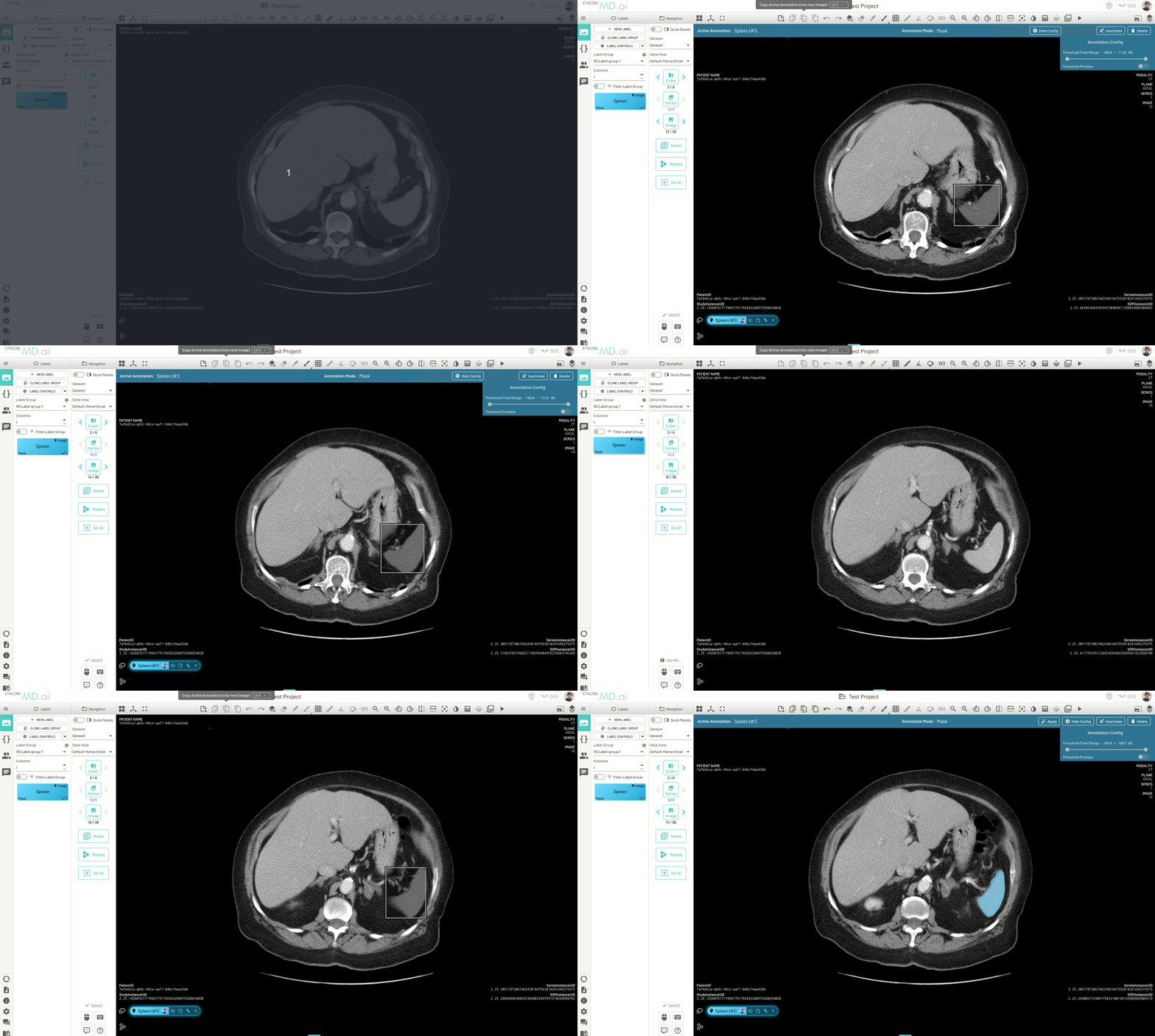
-
Smart Tracking. Turn on
Smart TrackinginMask Tools, and the auto-segmentation box follows you to the next images. Works best when the structure doesn't move much. Not available on videos.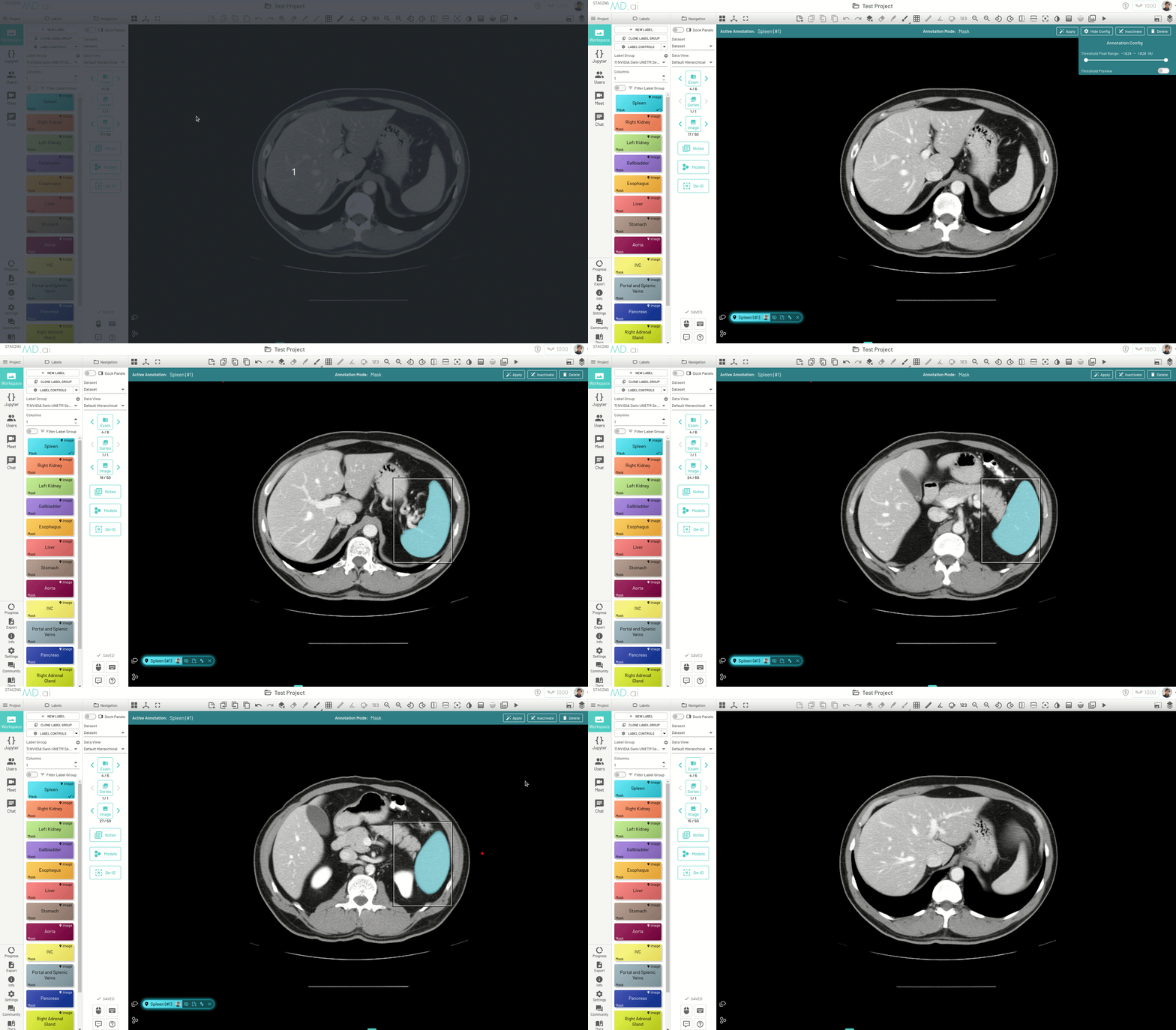
-
Interpolation. Segment a few images spread across the structure, and let MD.ai fill in the images in between. See Interpolate between images.
Line
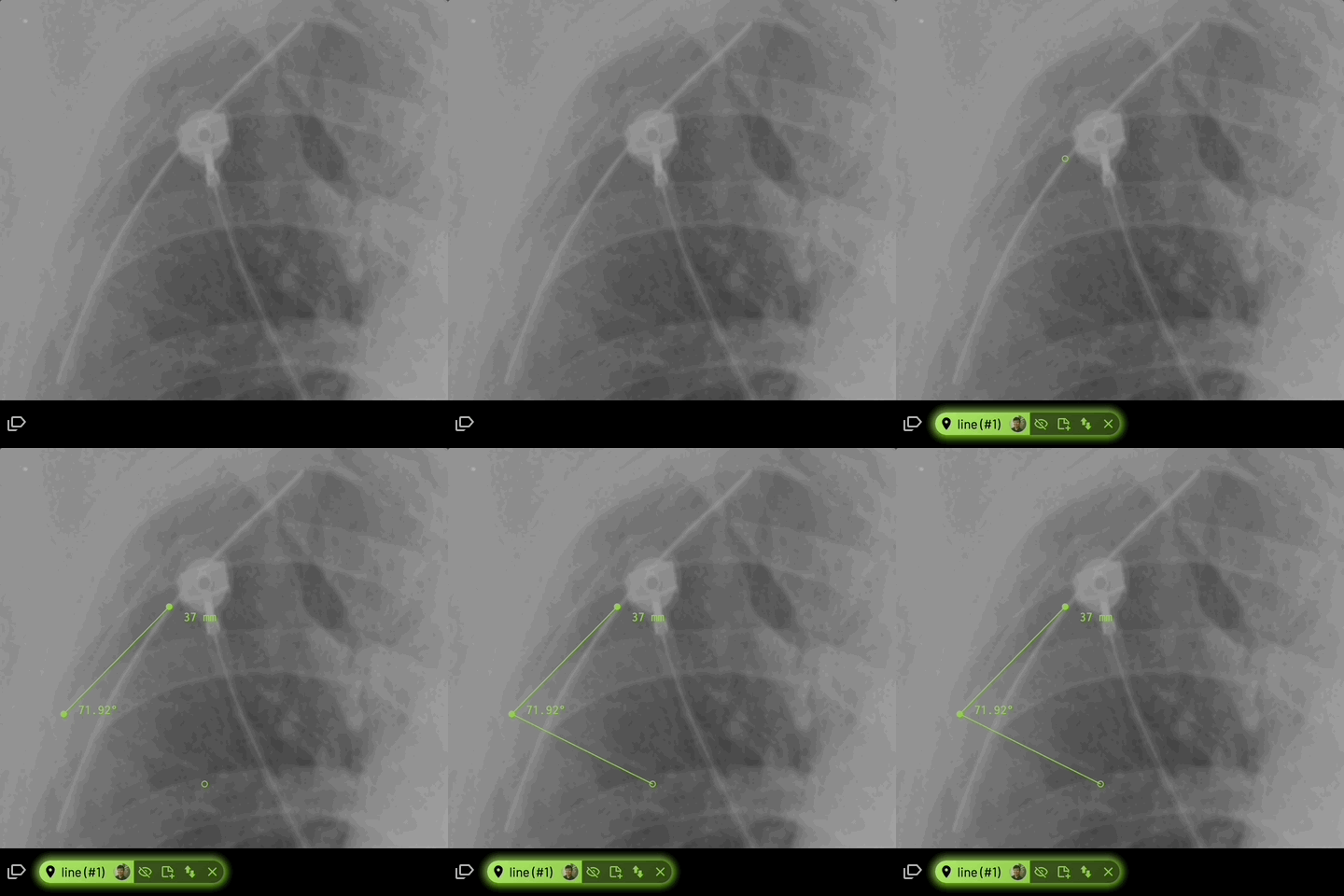
Click to place each point. A line can have one or more segments. Its length is shown, and with three points, the angle between the segments.
Location
Click to place a point.
Ellipse
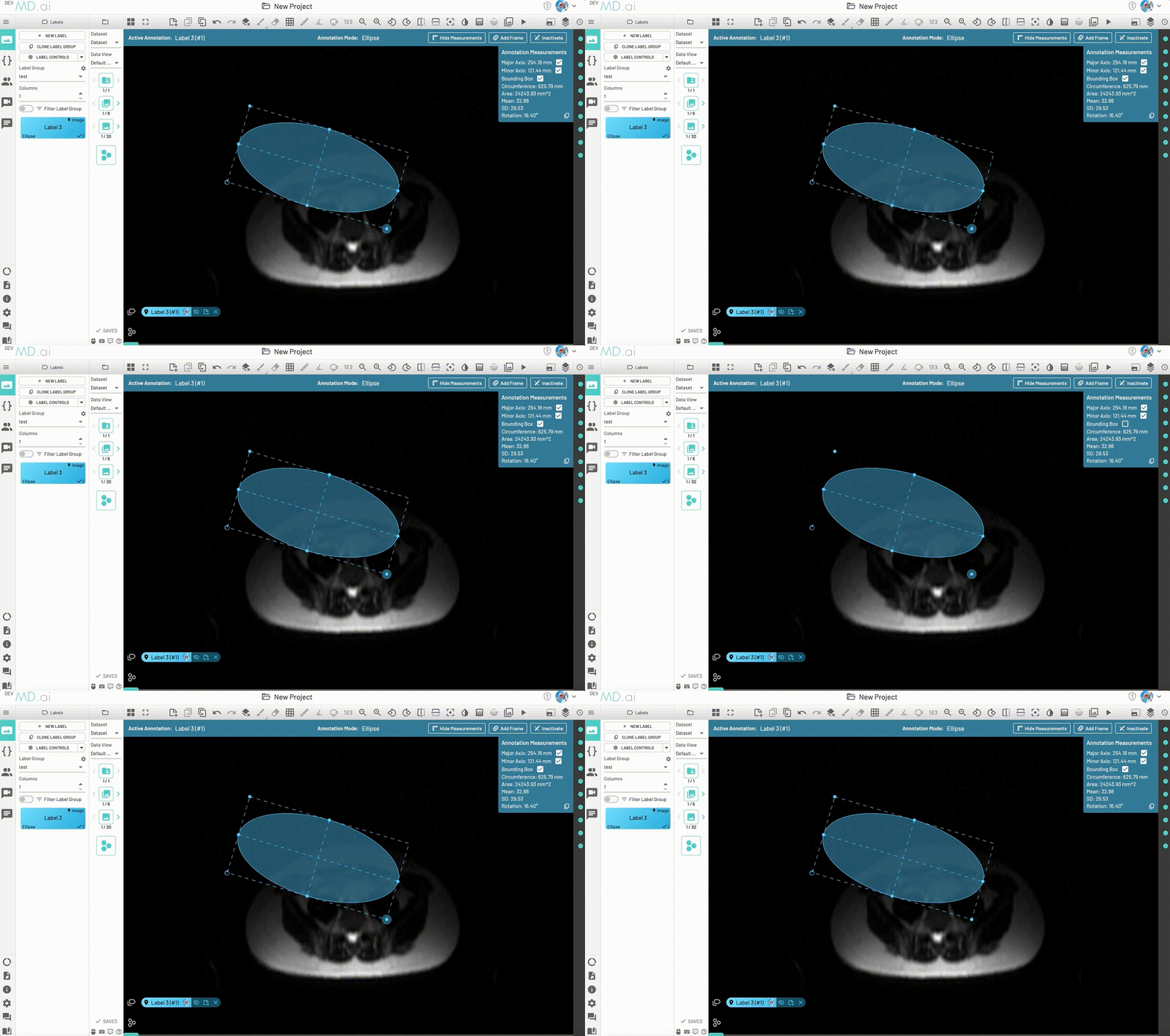
Drag to draw an ellipse, then drag its handles to resize and rotate it. It shows the major and minor axes, circumference, area, mean and standard deviation (in HU on CT), and rotation.
Measurements
Lengths are in millimeters when the image has pixel spacing, and in pixels otherwise. Turn measurements on or off for all annotations with Annotation Measurements in Layers Control.
For freeform, polygon and ellipse annotations, measurement options appear below the active annotation's bar (toggle them with Show/Hide Measurements). Choose what's shown, and click the copy icon to copy the values. Ellipses offer Major Axis, Minor Axis and Bounding Box, all on by default. Freeform and polygon annotations offer:
LDi: the longest diameter. On by default.SDi: the longest diameter perpendicular to the LDi. On by default.Minimum Bounding Box, with itsMajor AxisandMinor Axis. Off by default.