
Create Labels
Set up the labels your team annotates with
Labels define what your team annotates: a finding to outline, a diagnosis to apply to an exam, a score to record. Plan your labels before annotating starts. Some settings can't change once a label is in use, and annotation exports are only as consistent as the labels behind them.
Only project admins can create, edit and delete labels.
Create a label
In the Labels column, click New Label.
Choose the label group. New labels go into the active group by default. Click Create New Group to start a new one. See Label Groups.
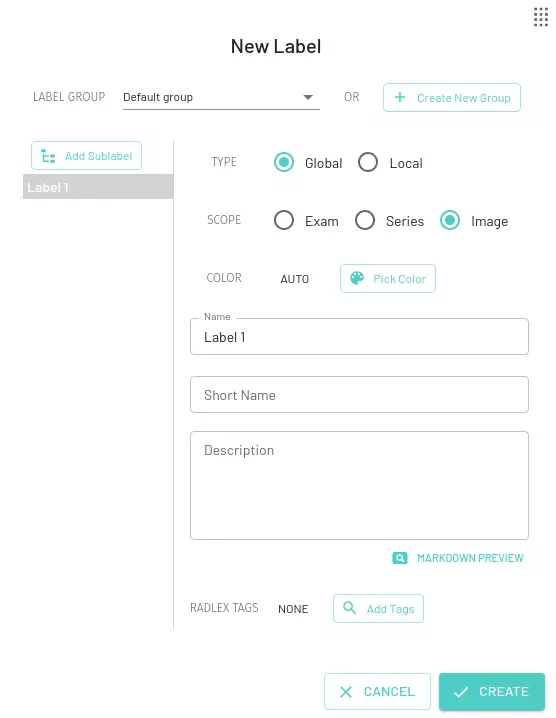
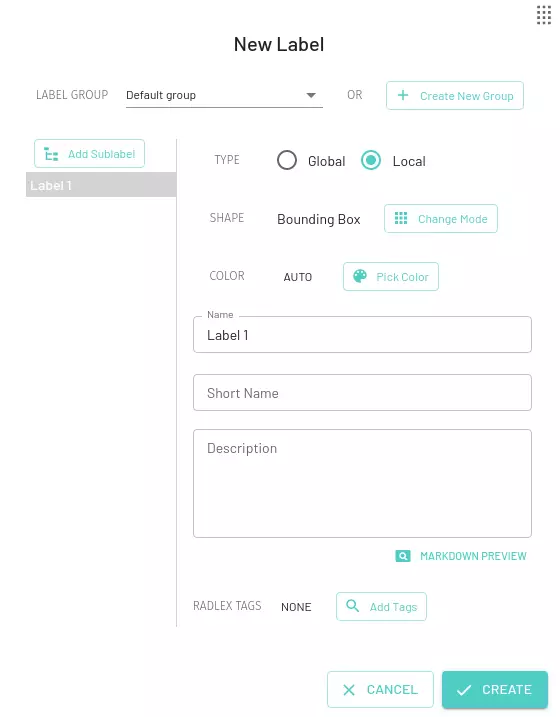
Choose the type: Global or Local. See Global and local labels.
For a global label, choose the Scope. For a local label, click Change Mode to choose the shape. See Annotation modes.
Enter a Name and, optionally, a Short Name, a Description and RadLex tags. Pick a color, or leave it to be assigned.
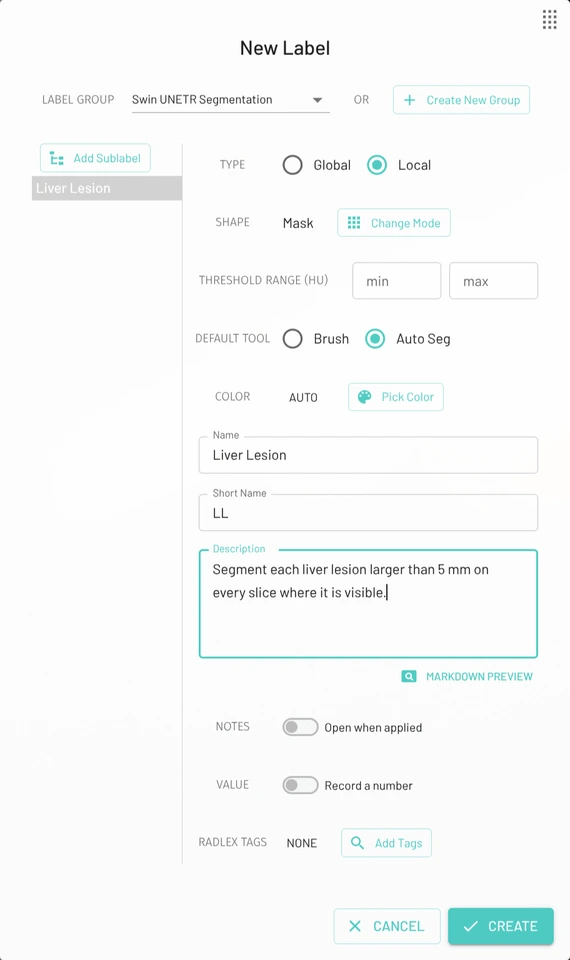
The description appears when users hover over the label, so use it for annotation instructions.
Global and local labels
| Type | Applies to | Examples |
|---|---|---|
| Global | A whole exam, series or image, with no drawing | Normal, Pneumonia, Poor quality |
| Local | A region drawn on an image. An image can have many. | Nodule boxes, Liver masks |
A global label's Scope is Exam, Series or Image (the default). Choose the level at which the answer is true: a diagnosis for the exam, a view for a series, a finding visible on one image. On videos, a Series label covers the whole video and an Image label covers one frame; both can be narrowed to part of the video.
Annotation modes
A local label's mode sets the shape users draw. See Annotation Tools for how to draw each one.
| Mode | Draws | Use for |
|---|---|---|
Mask | A pixel-level segmentation | Organs, lesions; training segmentation models |
Bounding Box | A rectangle | Detection |
Polygon | A shape with straight edges | Outlines with few points |
Freeform | A hand-drawn outline | Detailed outlines, measuring diameters |
Line | A line with one or more segments | Lengths, paths, angles |
Location | A single point | Landmarks, counting |
Ellipse | An ellipse | Round structures, ROI statistics |
Mode options:
- Mask:
Threshold Range (HU)limits the brush to pixels within a range, such as bone or fat.Default Toolsets the tool the mask opens with:BrushorAuto Seg. It defaults toBrushwhen a threshold is set, andAuto Segotherwise. - Freeform:
Apply Smoothingsmooths outlines as they're drawn. On by default.
Once a label has annotations or model outputs, or is mapped to a model, its type, scope and mode can't be changed.
Notes and numbers
Notes
Turn on Open when applied under Notes to open the note editor as soon as the label is applied. Use it when every annotation needs a comment or a value.
Recording a number
Any label can record a number with each annotation, such as a score from 0 to 100. Readers enter it with the annotation's note, and it's exported as a number, ready for analysis.
Under Value, turn on Record a number, then set:
IntegerorDecimal: whether only whole numbers are allowed.MinimumandMaximum(optional): the allowed range, inclusive. Leave either empty for no bound.
Also turn on Open when applied, so the editor opens with the number field ready.
For example, to score each lung nodule and each exam from 0 to 100, create:
- a
Locallabel such asNodule, recording anIntegerfrom 0 to 100, for each nodule; - a
Globallabel withExamscope such asCase score, set the same way, for the exam. Apply it to every exam, including those with no nodules.
Changing a label's rules affects only numbers entered afterwards: numbers already recorded are kept, even if they fall outside a narrower range. An annotation can't be switched to a label whose rules its number breaks.
Sublabels
Sublabels add detail to an annotation. For example, a Nodule label could have sublabels Solid, Part-solid and Ground-glass. A sublabel can be any type and mode, independent of its parent.
To add sublabels, click Add Sublabel when creating or editing a top-level label. Sublabels go one level deep.
Users apply a sublabel while its parent annotation is active, and for local parents, once it's drawn. By default they can apply several sublabels in a row; the project setting Apply single sublabel per parent label returns to the parent level after one.
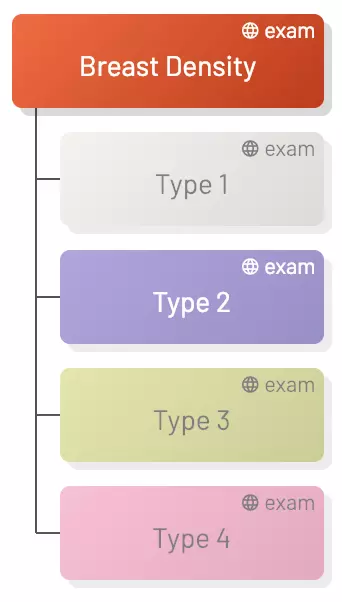
In the Labels column, sublabels are shown under their parent while it's active. Turn on Expand Sublabels at the top of the group to always show them.
Metadata labels
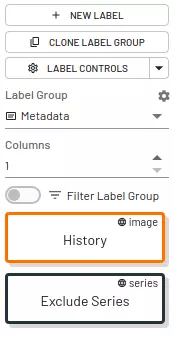
The Metadata label group holds information to show alongside the images, rather than annotations to train on: history, accession numbers, report text. Every project has one.
- Only admins can apply and edit metadata labels. Others can view them, unless the project hides the group.
- Metadata labels are usually global, at the exam, series or image level, and carry their information in the note.
- Import metadata in bulk with the Python client.
- Annotation exports leave out the
Metadatagroup unless an admin exports it explicitly.
Edit and delete labels
Use Label Controls > Select labels to EDIT to change a label's name, short name, color, description, RadLex tags, and note and value settings. See Label Controls.
Deleting a label deletes its sublabels and all their annotations from the whole project.