
Shared Library
Manage the templates, macros, guidelines, procedure codes, modalities and prompts shared with your site
Everything in the shared library is available to all users at the site or location, alongside their personal library. You manage it with the same tools users have for their own; see Manage your library for how to create and import each item.
Templates
Site Templates lists the site's templates. Use New Template, Import Templates, Export Templates, Reorder Templates and Bulk Delete Templates as in a personal library.
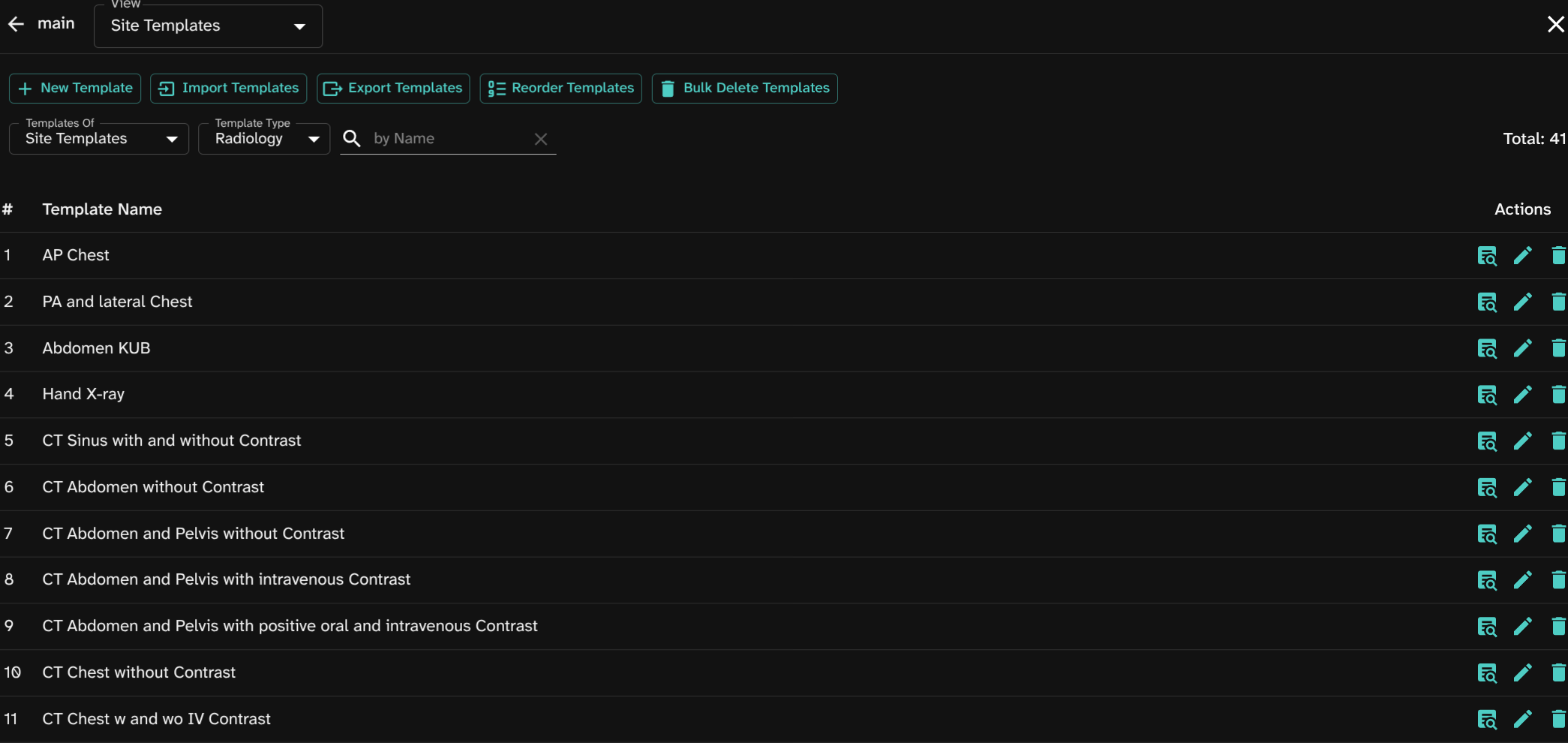
To see a user's personal templates, choose them under Templates Of → Site Members. You can see all their templates, including private ones, and Copy any that aren't private to Site Templates or to another member.
Macros
Site Macros works like My Macros: click New Macro, or Import Macros from a PowerScribe or Nuance AutoText .xml file. Users can insert site macros by name or number, after their own.
Clinical guidelines
Site Clinical Guidelines has two lists:
- Site guidelines you create or import. See Clinical guidelines.
- Community Clinical Guidelines provided by MD.ai, such as common classification systems, with their source. These are read-only, and can be attached to templates.
At a location other than the default, click Sync to Default Location to use the default location's guidelines and keep them in step. This replaces the location's own guidelines, and you can't add new ones while synced. To manage the location's guidelines separately again, click Syncing with Default Location, then Unsync; the guidelines synced from the default location are removed.
Procedure codes
Site Procedure Codes lists the procedure codes your templates are for. Attaching codes to templates helps MD.ai Reporting choose the right template for each exam. See Procedure codes.
Modalities
Site Modalities adds modalities beyond the standard DICOM ones, for use when you classify templates. Click New Modality and enter a Code, without spaces, and a Name. Click Show Default DICOM Modalities to see the standard list.
Prompts
Site Prompts holds lists of example questions that viewers of a shared report can ask in chat. Users choose a list as the Prompt List when they share a report.
- Click New Prompt List and name it.
- Click New Prompt, and enter the User Prompt: the question the viewer sees. Optionally, add a System Prompt with instructions for the model.
- Use Run Prompt to try it.