
Templates and Macros
Insert templates, fill fields and picklists, and use macros and clinical guidelines
Templates give your report its structure. Macros insert snippets of text. Clinical guidelines tell AI which criteria to follow. This page covers using them while you write; to create and import them, see Manage your library.
Templates
Open All Templates in the toolbar to see the templates you can use:
- Default Template, if you've set one.
- My templates: your personal templates.
- Site templates: shared by your site admin.
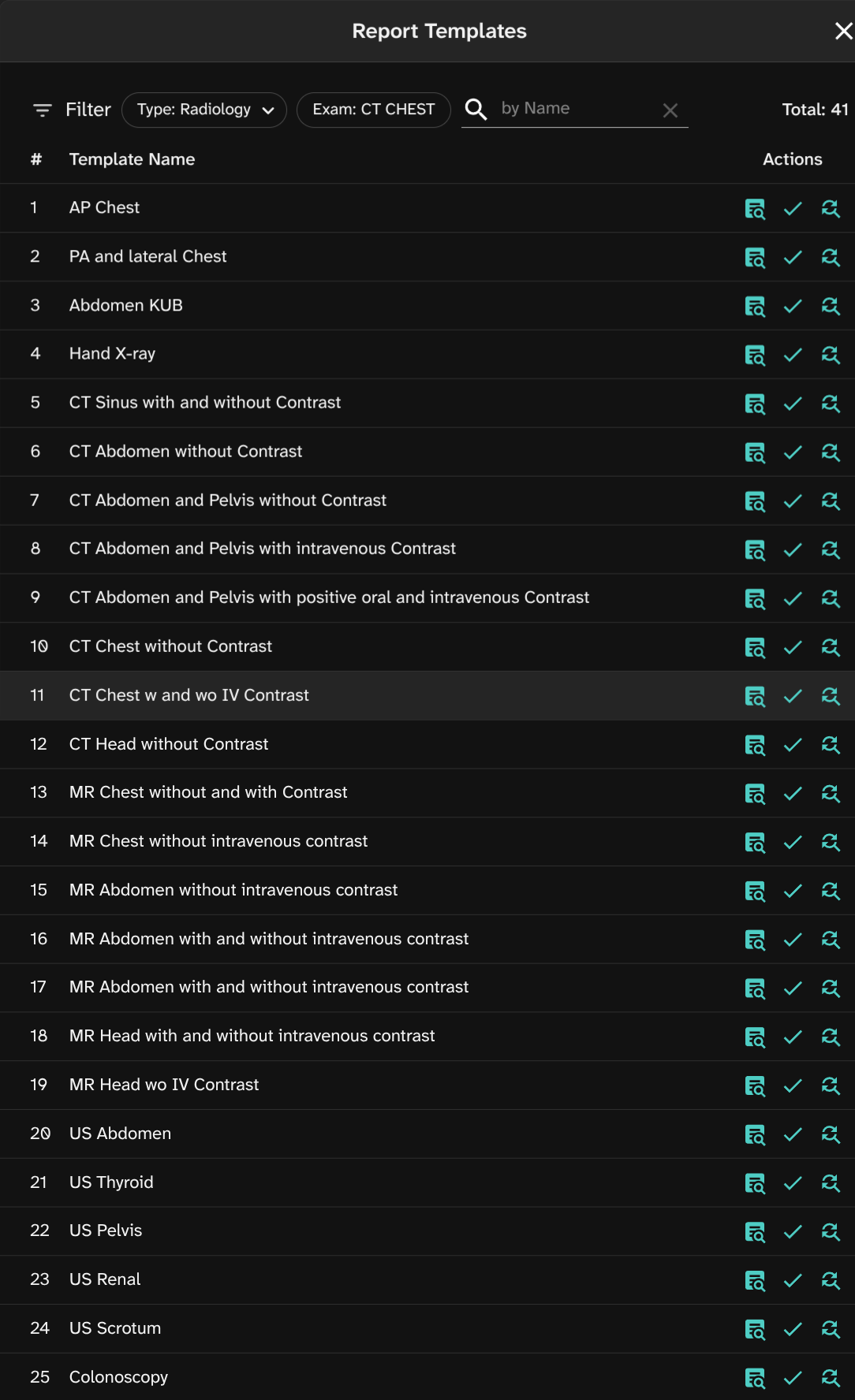
By default, the list shows only templates for the current exam's modality and body part. Click the Exam filter to turn it off and show all templates. If nothing matches, all templates are listed. Search by name, or, if your templates include more than one type, filter by Type.
A microphone chip shows a template's voice shortcut. Click Show Template Content to see its content, modality, body part, procedure codes and any attached clinical guideline.
Select or apply a template
Each template has two actions:
| Action | What it does |
|---|---|
| Select Template | Inserts the template at your cursor, with the study's clinical information filled in. |
| Apply Key Findings | Maps what you've already written into the template. See Report with AI. |
By voice:
| Say | To |
|---|---|
| "select template" + name or voice shortcut | Insert a template: "select template CT chest" |
| "template radiology" + number | Insert the template with that number in the list |
| "apply template" + name or voice shortcut | Map your findings into a template |
| "apply number" + number | Map your findings into the template with that number |
| "template auto" | Insert the best-matching template |
To insert the best template automatically whenever you open a study, turn on Auto template insertion in the toolbar's More menu. Or press AI on an empty report.
Fields
Text in square brackets is a field: Liver: [Normal].
- Press
TabandShift+Tab, or say "next field" and "previous field", to select the next or previous field. - Dictate or type to replace the selected field.
- Remove the brackets with Remove brackets in the More menu,
Ctrl/⌘+\, or by saying "remove brackets".
The Remove [ ] brackets before finalizing sign action, on by default, removes any brackets left when you sign.
Picklists
A picklist is a field with a set of options. Click it to choose.
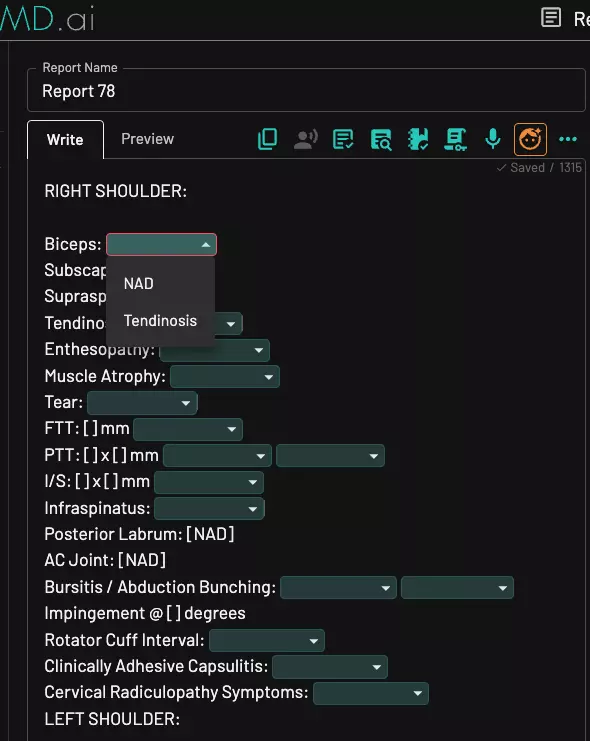
| Syntax | Picklist |
|---|---|
[[A | B | C]] | Choose one option. |
[[A | {B} | C]] | Choose one; B is selected when the template is inserted. |
[[A || B || C]] | Choose any number, from checkboxes. Selected options are joined by commas: [A, C]. |
[[A || {B} || {C}]] | Choose any number; B and C are selected when the template is inserted. |
- For a multi-select picklist, double every separator. A picklist that mixes
|and||is a single-select. - Options that end in sentence punctuation, such as
No acute finding., are joined with a space instead of a comma. - Picklists you haven't chosen from are removed when you sign.
Macros
A macro inserts a saved snippet of text at your cursor. To insert one:
- Say "select macro" and its name: "select macro normal chest".
- Say just its name, on its own.
- Say "macro number" and its number: "macro number 3".
- Open All Macros in the toolbar and click Insert.
Your own macros are listed first, then your site's. To create macros, see Manage your library.
Clinical guidelines
Clinical guidelines are reference criteria, such as Fleischner, LI-RADS or BI-RADS, that AI follows when it writes the impression. To add one to the report:
- Open All Clinical Guidelines in the toolbar and choose one.
- Say "use guideline" and its name.
- Select or apply a template that has a guideline attached. It's added automatically.
- Accept a Suggested guideline in the margin, when AI finds one that fits your findings.
The list shows your personal guidelines, then your site's, then community guidelines provided by MD.ai, with the source of each. When AI runs, the task bar shows which guidelines it used.