
Reports, HL7 and Usage
Find and manage any report at your site, check delivery to your RIS, and track usage
Site Reports
Site Reports lists every report at the site, including drafts, prelims and orders. It updates live.
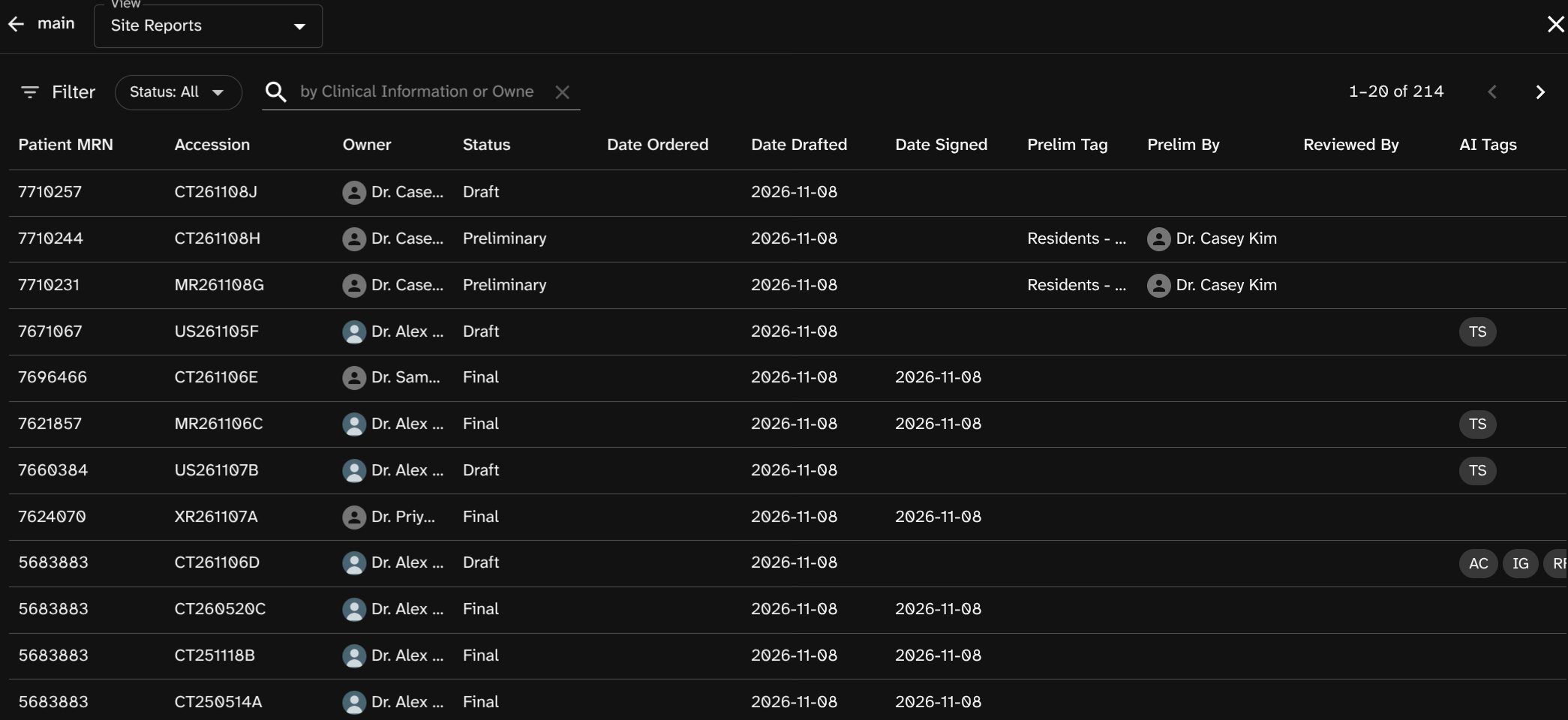
- Filter by Status, or search by clinical information or owner.
- Warnings from the report's launch, such as a missing location, and any unsigned addenda appear under each report.
- With prelim groups, the Prelim Tag, Prelim By and Reviewed By columns show who has each prelim.
Actions
| Action | What it does |
|---|---|
| Preview Report | Read the report without opening it. Use Previous report and Next report to step through the list. |
| View Source Report | Open a prelim or signed report. |
| Link Ordered Report | Link other orders into the report. Only at sites using ordered reports. |
| Reset Report to Draft | Return a signed report to draft, so it can be corrected and signed again. |
| Delete Report | Delete an unsigned report or order. Signed reports can't be deleted. |
Reset a signed report to draft
Use this when a signed report must be corrected and an addendum isn't appropriate.
- Click Reset Report to Draft.
- Read the warnings. Your RIS keeps the report it already received; signing again sends an updated report. Any addenda are deleted, and you must tick a box to confirm.
- Type the accession number, or
RESETif the report has none, and click Reset to Draft.
This can't be undone from Site Admin.
HL7 messages
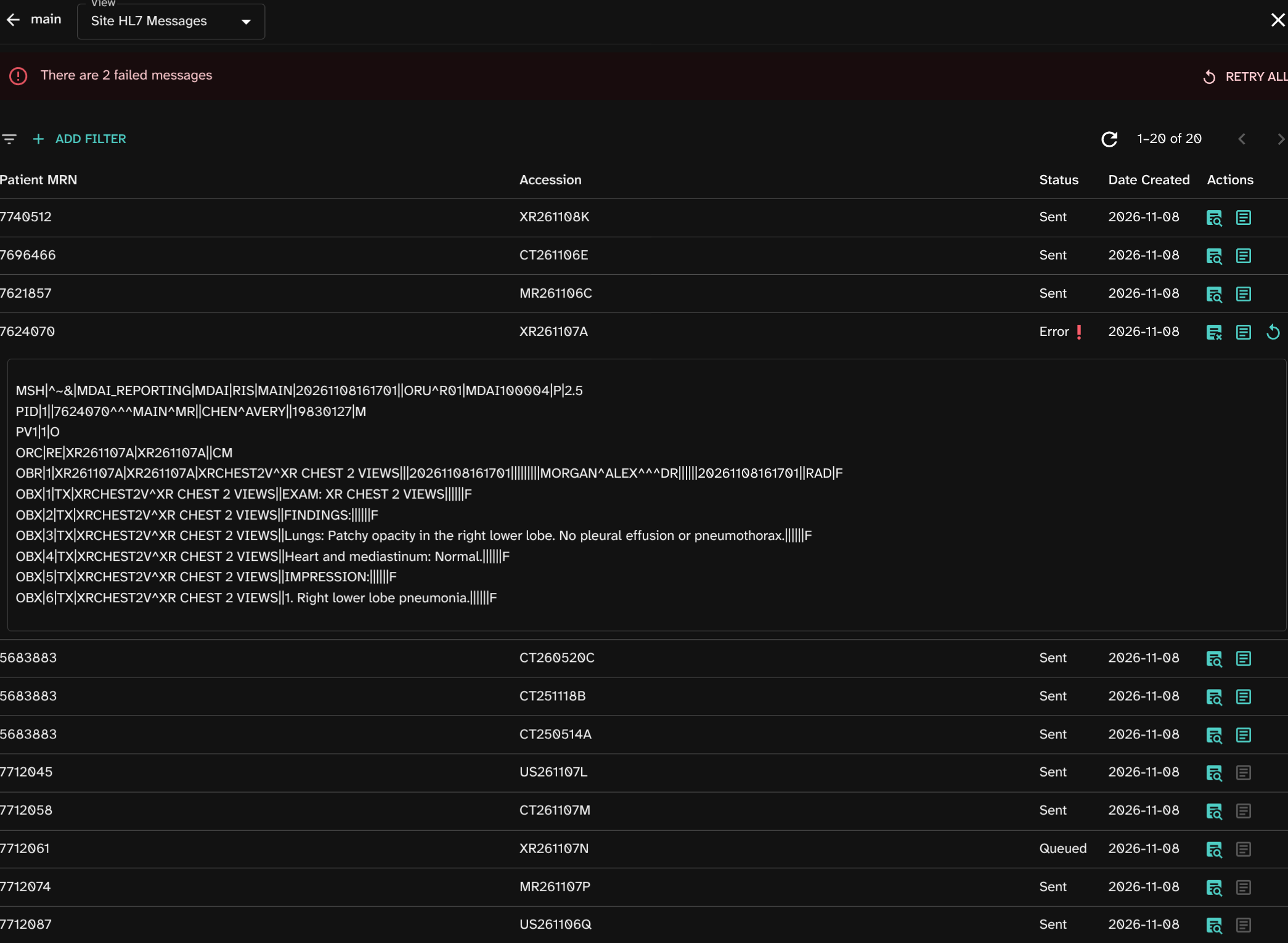
Site HL7 Messages shows the signed reports sent to your RIS over HL7, for the whole site.
- Click Add Filter to filter by status (Error, Pending, Queued or Sent), accession or patient MRN. Click the refresh icon to update the list.
- Click Show Message Content to see a message, or View Source Report to open the report.
- Click Retry Failed Message to resend one that failed, or Retry All to resend every failure.
Usage
Site Usage shows reporting activity at the site.
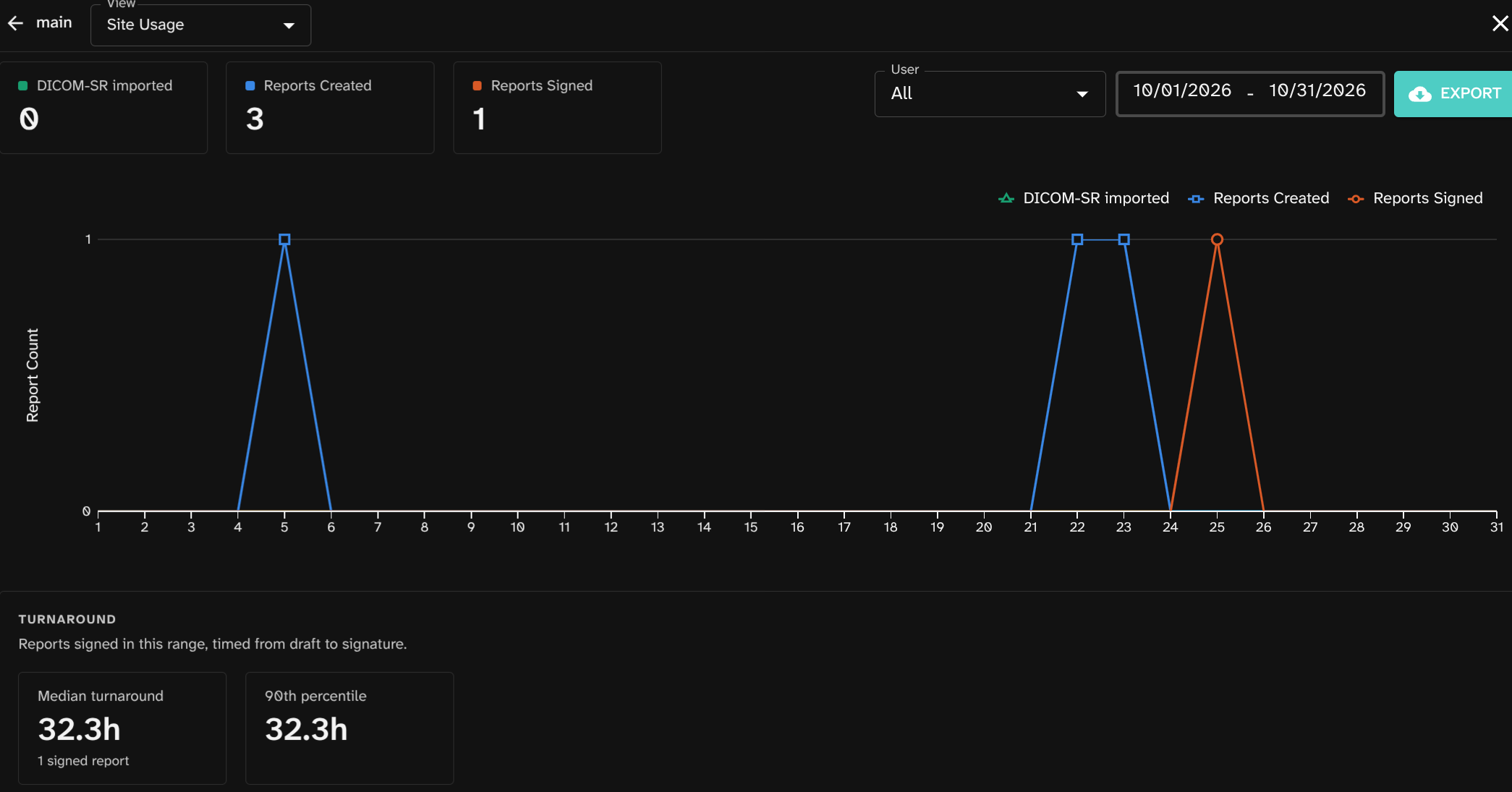
- Choose a User, or All, and a Date Range or Month. Dates are in UTC.
- See Reports Created, Reports Signed and DICOM-SR imported, charted over time.
- Below the chart, for ranges up to a year:
- Turnaround: median and 90th percentile time from draft to signature.
- Corrections: the addendum rate, and how often prelims were revised at review.
- Engagement: active users, reports by status, and how many signed reports were dictated.
- AI assistance: which AI tasks were used on signed reports, and how often runs failed or were undone.
Click Export to download a CSV with one row per report: accession, patient, study, who signed it and when, turnaround time, DICOM SR, procedure code and addenda.