
Manage Your Library
Create, import and organize templates, macros, clinical guidelines and procedure codes
Your library holds your personal templates, macros, clinical guidelines and procedure codes. Open them from the side navigation of the full web app: My Templates, My Macros, My Guidelines and Procedure Codes. From a report, use My library in the More menu.
Site admins manage the site's shared library the same way, under Site Admin.
Templates
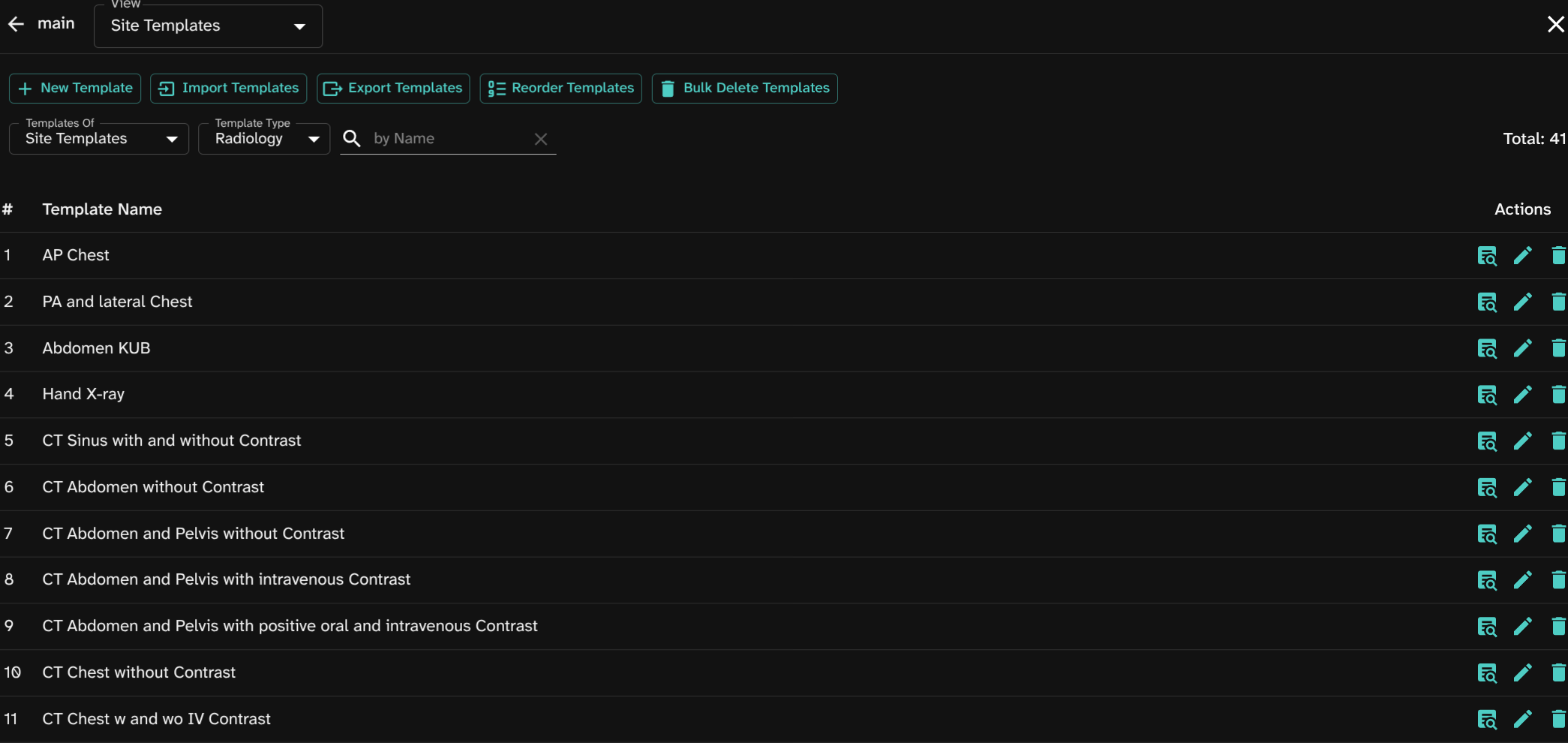
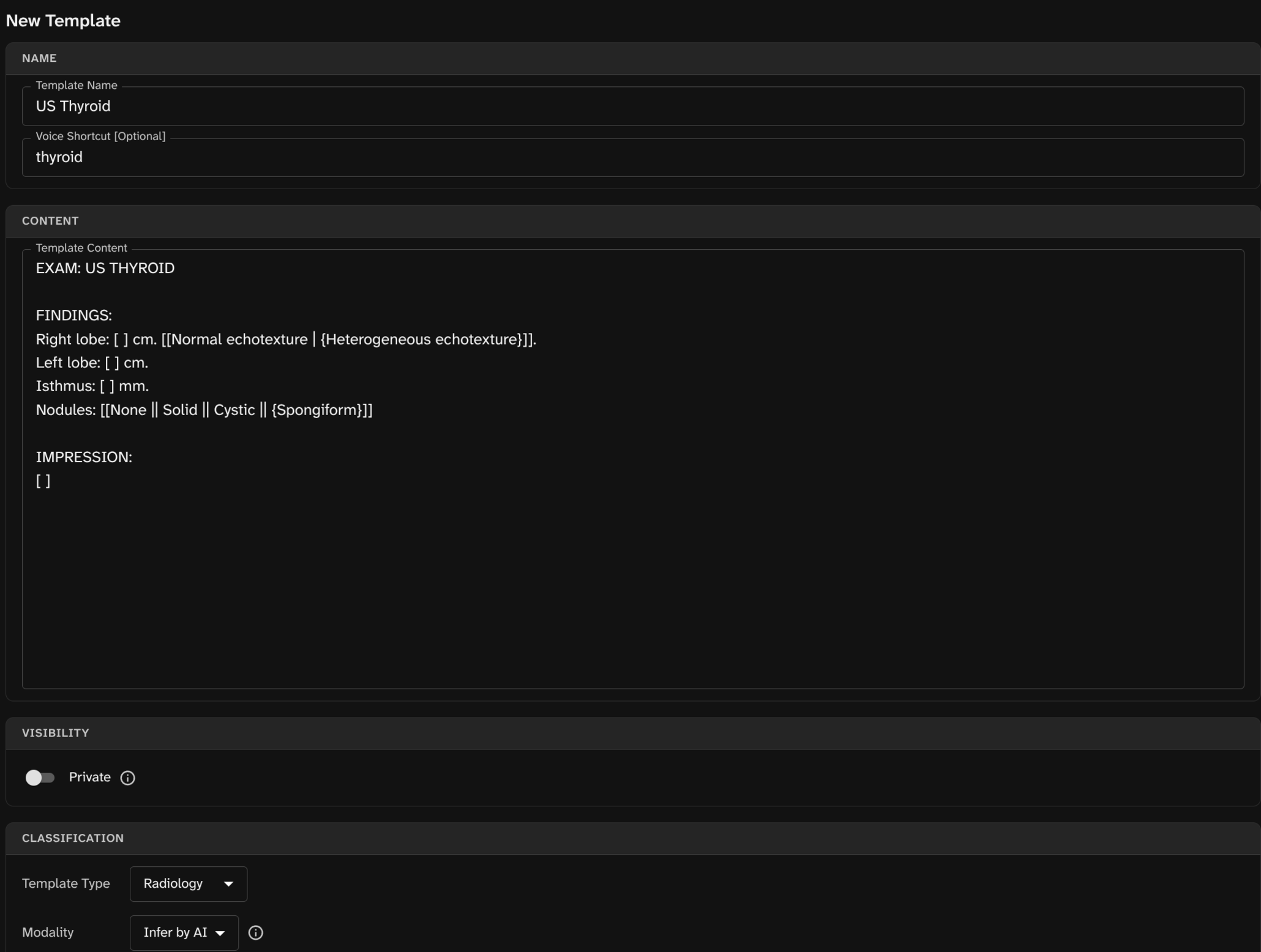
Create a template
- In My Templates, click New Template.
- Fill in the template. Only the name and content are required.
- Click Save.
| Field | What it's for |
|---|---|
| Template Name | Shown in the template list, and said to insert it by voice. |
| Voice Shortcut | A shorter name to say instead, such as "chest two views". |
| Template Content | The report text, with [ ] fields and picklists. |
| Template Type | Radiology or Urgent Care. |
| Modality, Body Part | Radiology templates only. Which exams the template is for. Leave on Infer by AI, or choose Custom values. Used to suggest the template and to filter the list. |
| Clinical Guideline | A guideline added to the report whenever the template is used. |
| Procedure Codes | Procedure codes the template is for. Helps choose the template automatically. |
| Context | Extra instructions for AI when it maps findings into this template, such as how to word a section. |
| Visibility | Private templates are hidden from colleagues browsing your templates. Site admins can still see them. |
Organize templates
- Star Template to mark favorites.
- Set as Default Template to pin it to the top of the template list. It's used when no other template matches the exam, and inserted into new blank reports if Auto template insertion is on.
- Reorder Templates to change the order and numbering in the template list.
- Bulk Delete Templates to select and delete several templates.
- Export Templates to download your templates as a CSV file.
Use colleagues' templates
If your site allows it, choose a colleague under Templates Of to browse their templates, and Copy one into your own. Private templates aren't shown.
Import templates
Click Import Templates, and drag in a file. Imports run in the background. Each upload is listed under Uploaded Templates; deleting an upload also deletes the templates it imported.
| Format | Source |
|---|---|
.xml | PowerScribe 360 or Nuance AutoText. Fields, picklists and procedure codes are converted. Imported as Radiology. |
.txt | Nuance routine exports, with ROUTINE NAME:, ASSIGNED TO MODALITIES: and ASSIGNED TO BODYPARTS: before each template's content. |
.csv | The MD.ai format, below. Also what Export Templates produces, so you can edit templates in a spreadsheet and import them back. |
CSV format
The first row must contain these column headers, in this order:
Name, Content, Type, Modality, Body Part, Context, Voice Shortcut, Clinical Guidelines| Column | Required | Notes |
|---|---|---|
| Name | Yes | Rows without a name or content are skipped. |
| Content | Yes | Line breaks are kept. |
| Type | No | radiology or urgent-care. Defaults to radiology. |
| Modality | No | Separate several with |, such as CT|MR. |
| Body Part | No | Separate several with |. |
| Context | No | See the Context field above. |
| Voice Shortcut | No | |
| Clinical Guidelines | No | A JSON list of guidelines: [{"name": "Fleischner", "content": "…"}]. |
The simplest way to get a valid file is to Export Templates and edit the result.
Macros
A macro is text you insert by saying its name. See Macros.
- In My Macros, click New Macro.
- Enter a Macro Name. It's what you say to insert it, so make it unique and leave out punctuation.
- Enter the Macro Content, and save.
To import macros, click Import Macros and drag in a PowerScribe or Nuance AutoText .xml file. Each AutoText entry becomes a macro, named after its spoken phrase.
Clinical guidelines
- In My Guidelines, click New Guideline.
- Enter a name and the guideline content, such as the criteria and recommendations AI should follow.
- Save.
To import guidelines, click Import and choose a CSV file with Name and Content columns. The content can be the guideline text or a link to it. Guidelines with a name you already have are skipped.
To attach a guideline to a template, choose it under Clinical Guideline when you edit the template.
Procedure codes
Procedure codes help MD.ai Reporting choose the right template for an exam.
- In Procedure Codes, click New Procedure Code.
- Enter the Code and a Description, and click Create.
To import codes, click Import and choose a CSV file with a Code column and an optional Description column. Codes you already have are skipped.
Attach codes to templates under Procedure Codes when you edit a template. Deleting a code warns you if templates use it.