Measurements and OCR
Bring measurements and text into a report from images, documents, DICOM SR and AI results
Instead of retyping numbers, bring them in from the source:
| Source | Use |
|---|---|
| Ultrasound or DEXA screens, worksheets, scanned requisitions | OCR |
| DICOM SR from your modality or an AI vendor | DICOM SR and AI results |
| 3D measurements already in the report | Calculate volumes |
OCR
OCR reads measurements, clinical notes and study details from images and documents, and adds them to your report.
Open OCR
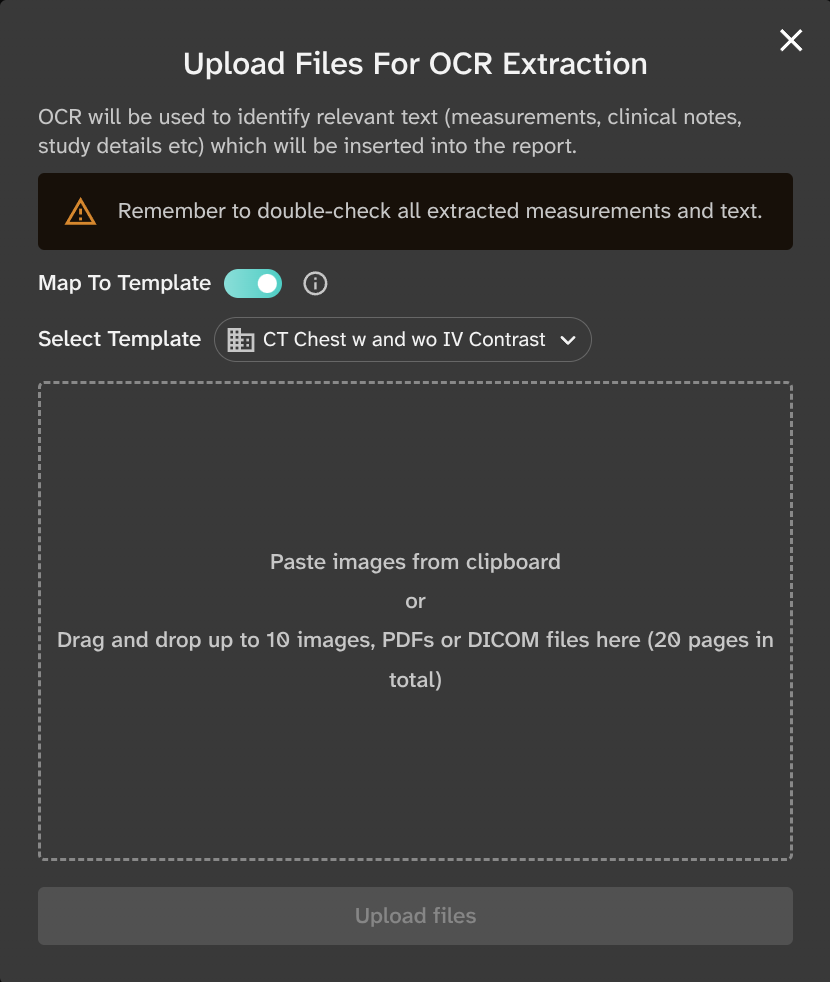
Click OCR Extraction in the toolbar, or press Alt+O.
Choose where the text goes
To fill a template with the extracted values, turn on Map To Template and choose a template under Select Template, or Auto Infer Template. Otherwise, the text is added to the report.
Add files
Paste a screenshot, drag files in, or click to browse. On a synced phone, you can take a photo. Then click Upload files.
Review
Click Keep or Undo. Always check extracted numbers against the source.
OCR is on by default. If the button is unavailable, turn on OCR Extraction For Images in User Settings.
Supported files
| Type | Formats |
|---|---|
| Images | JPEG, PNG, WEBP, GIF |
| Documents | PDF, including scanned PDFs; TIFF, including multi-page |
| DICOM | Secondary captures, scanned documents and encapsulated PDFs, with or without a file extension |
Add up to 10 files at a time, each up to 20 MB. Up to 20 pages are read in total: each image, PDF page, TIFF page or DICOM frame is one page.
Take a screenshot to paste
| To | Mac | Windows |
|---|---|---|
| Copy part of the screen | ⌘+Ctrl+Shift+4 | Windows+Shift+S |
| Paste into the OCR dialog | ⌘+V | Ctrl+V |
Files sent by your PACS or RIS
Your integration can send files, such as a scanned requisition or a measurement worksheet, when it opens a report. They're read automatically:
- On a new report, the text is mapped into the template along with your key findings.
- On a report you've already started, the text is added once any running AI task finishes.
Each file is read once, and never into a signed report. Ask your PACS or RIS provider to set this up; integrators can find the details in the Report Generation API.
DICOM SR and AI results
If your PACS or RIS sends DICOM SR, for example ultrasound measurements or AI results, MD.ai Reporting maps the measurements into your template when you insert a template or run AI.
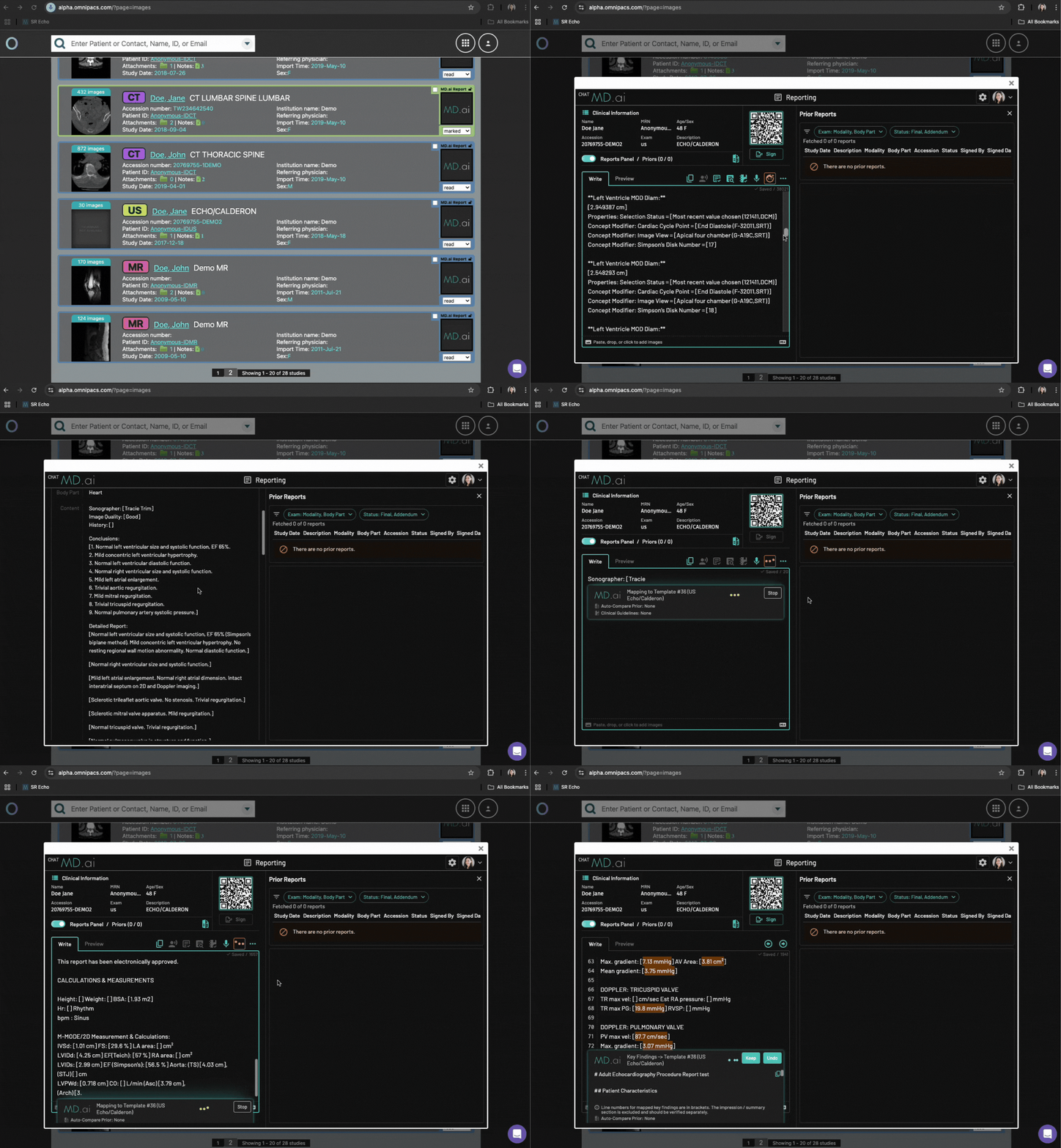
The clinical information panel shows DICOM-SR with the number of files used. Open it to see each file, and to turn off Use Content from DICOM-SR for all files or for one.
Ask your PACS or RIS provider to set this up; integrators can see Update Report DICOM-SR Files.
Calculate volumes
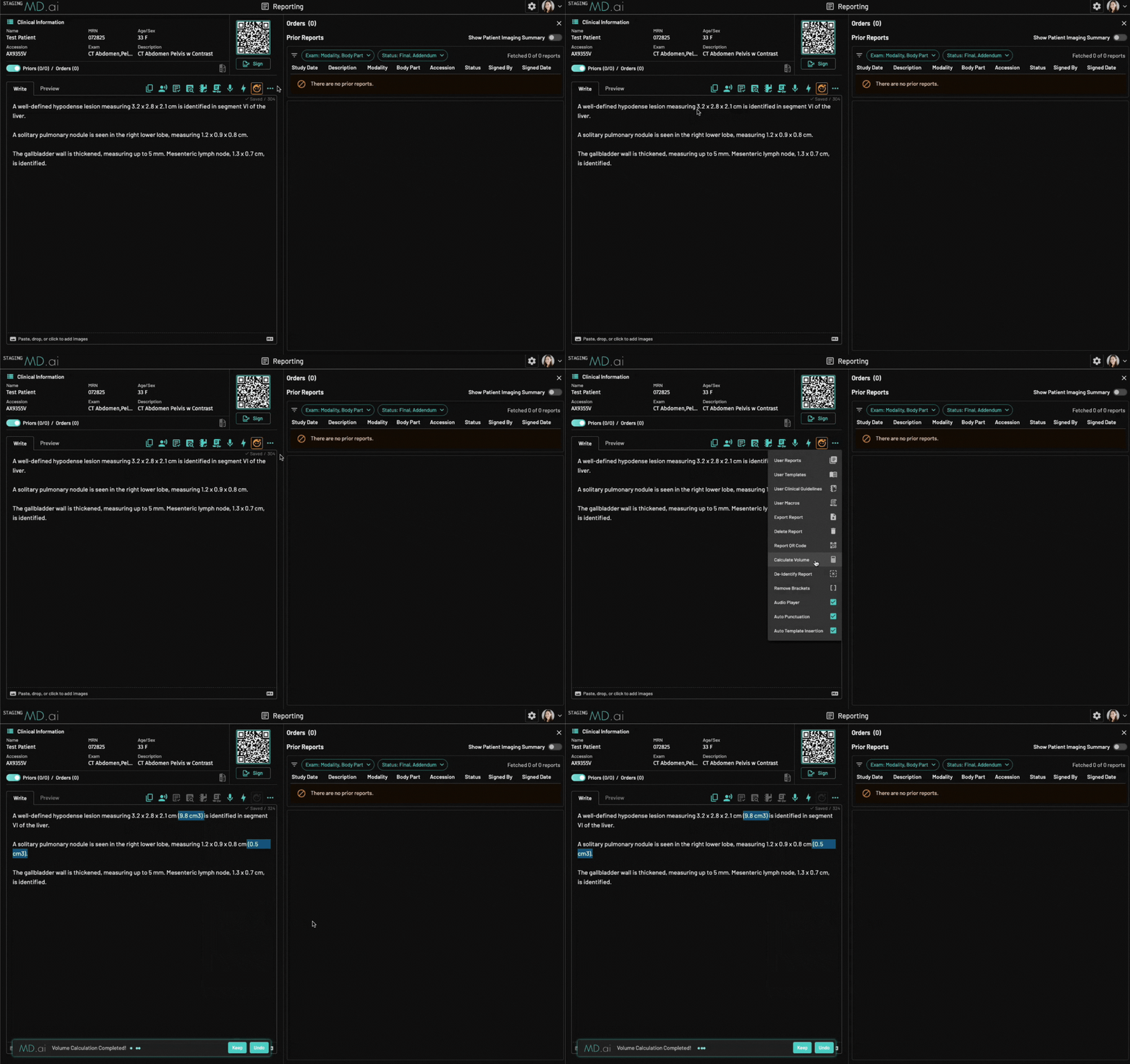
To add a volume next to each 3D measurement in the report, such as 3.1 x 2.4 x 2.0 cm, click Calculate volume in the More menu or press Ctrl+Alt+C. Review, then click Keep or Undo.