
User Settings
Language, dictation, AI behavior, signing, dictionary and voice training
To open User Settings, click the gear at the top right, or User Settings in your profile menu. If your site hides the header bar, the gear is in the report toolbar. Settings are saved to your account and follow you to any computer, except your microphone choice, which is saved per browser.
Some settings are also in the report's More menu. See Workspace overview.
App Settings
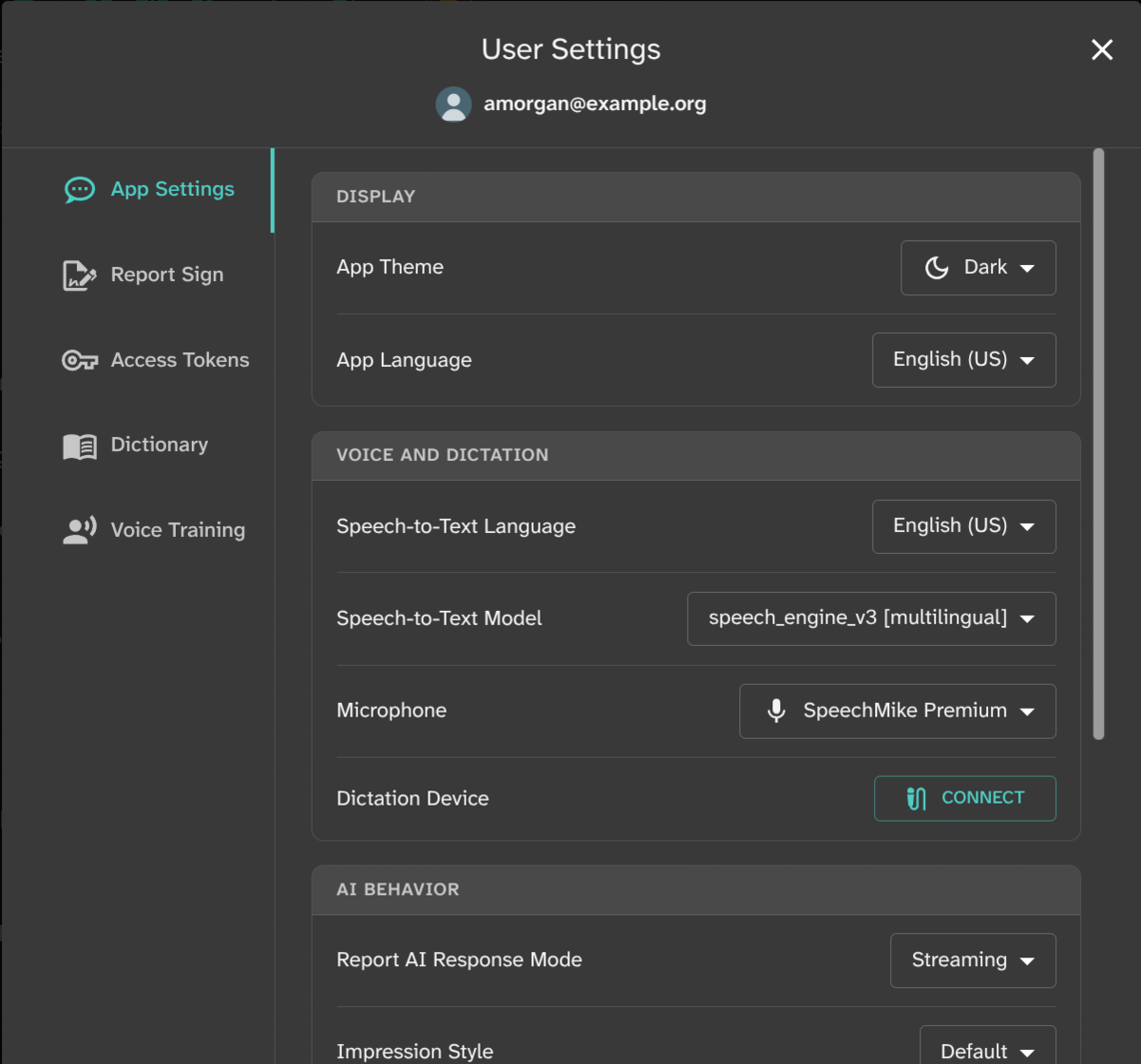
Display
| Setting | Options | Notes |
|---|---|---|
| App Theme | Light, Dark, System | Your site may set a theme for everyone. |
| App Language | See Languages | Also changes your Speech-to-Text Language to match. |
Voice and Dictation
| Setting | What it does |
|---|---|
| Speech-to-Text Language | The language you dictate in. See Languages. |
| Speech-to-Text Model | speech_engine_v2 [english], the default, offered only when you dictate in English; or speech_engine_v3 [multilingual], for any language. |
| Microphone | The microphone to dictate with. Your browser must allow microphone access. |
| Dictation Device | Connect a SpeechMike or PowerMic. See Dictation devices. |
AI Behavior
| Setting | Default | What it does |
|---|---|---|
| Report AI Response Mode | Streaming | Streaming shows AI results as they're written. Wait until complete shows only the finished result. |
| Impression Style | Default | Default, Verbose or Adaptive. See Impression style. |
| Auto-Compare Prior Findings | Off | AI compares your findings with prior reports. See Compare with prior reports. |
| OCR Extraction For Images | On | Turns the OCR button on or off. |
Layout
| Setting | Default | What it does |
|---|---|---|
| Chat in Launched Reports | Off | Shows the chat panel beside reports opened from your PACS or RIS. |
| Report on Right | Off | On wide screens, puts the report to the right of the open panel. |
Languages
The app and dictation are available in English (US, UK and Australia), Chinese (Simplified and Traditional), Dutch, French (Canada and France), German, Indonesian, Italian, Japanese, Korean, Polish, Portuguese (Brazil), Romanian, Spanish and Vietnamese.
Your PACS or RIS can also set the language when it opens a report.
Report Sign
Choose your sign actions: what happens each time you sign a report or addendum. If your site admin has set them for the whole site, they're shown as Configured by Site Admin and can't be changed.
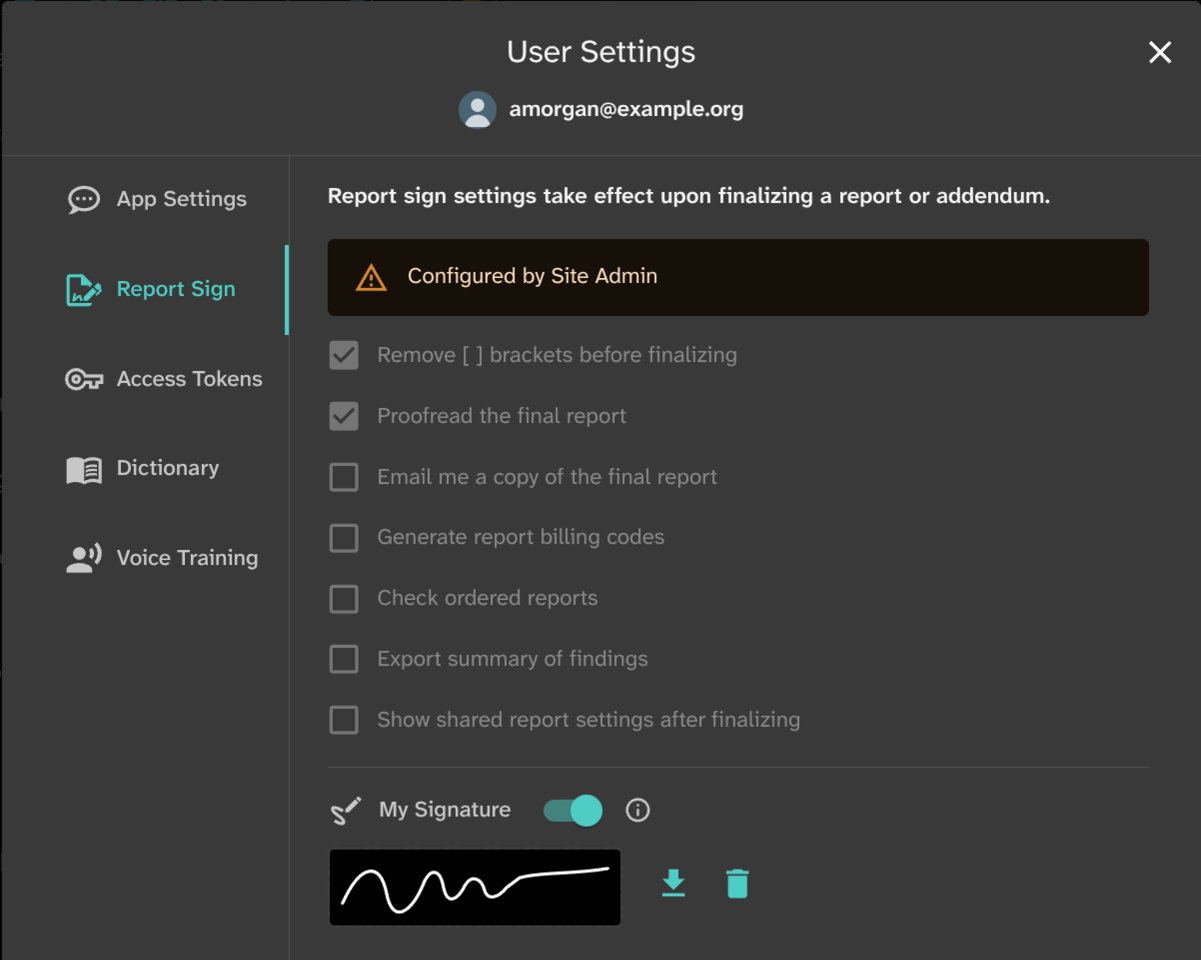
My Signature
To add your signature to signed reports and addenda:
- Turn on My Signature.
- Drag in an image of your signature, or click to choose one. Use a PNG or JPEG under 10 MB.
Blank space around the signature is trimmed, and a version for dark mode is made automatically. To replace it, delete the current image and upload a new one.
Access Tokens
Access tokens let your organization's systems call the Report Generation API on your behalf. Integrations usually need a token from a site admin.
- Under New Token, click Generate, enter a Token Name, and click Confirm.
- Click Copy to Clipboard, and store the token securely.
Treat access tokens like passwords: never share them. They don't expire, so revoke tokens you no longer use.
To see your tokens, click View under My Tokens. Click Revoke Token to delete one; it stops working immediately.
Dictionary
Add words that dictation should recognize, such as names, rare terms and abbreviations, and fix words it consistently misspells.
- Click Add word and type the word.
- To fix a misspelling instead, turn on Correct a misspelling, and enter the Misspelling and the Correct spelling.
- Click Add word.
Edit or delete words from the list at any time. Changes apply to your next dictation.
Voice Training
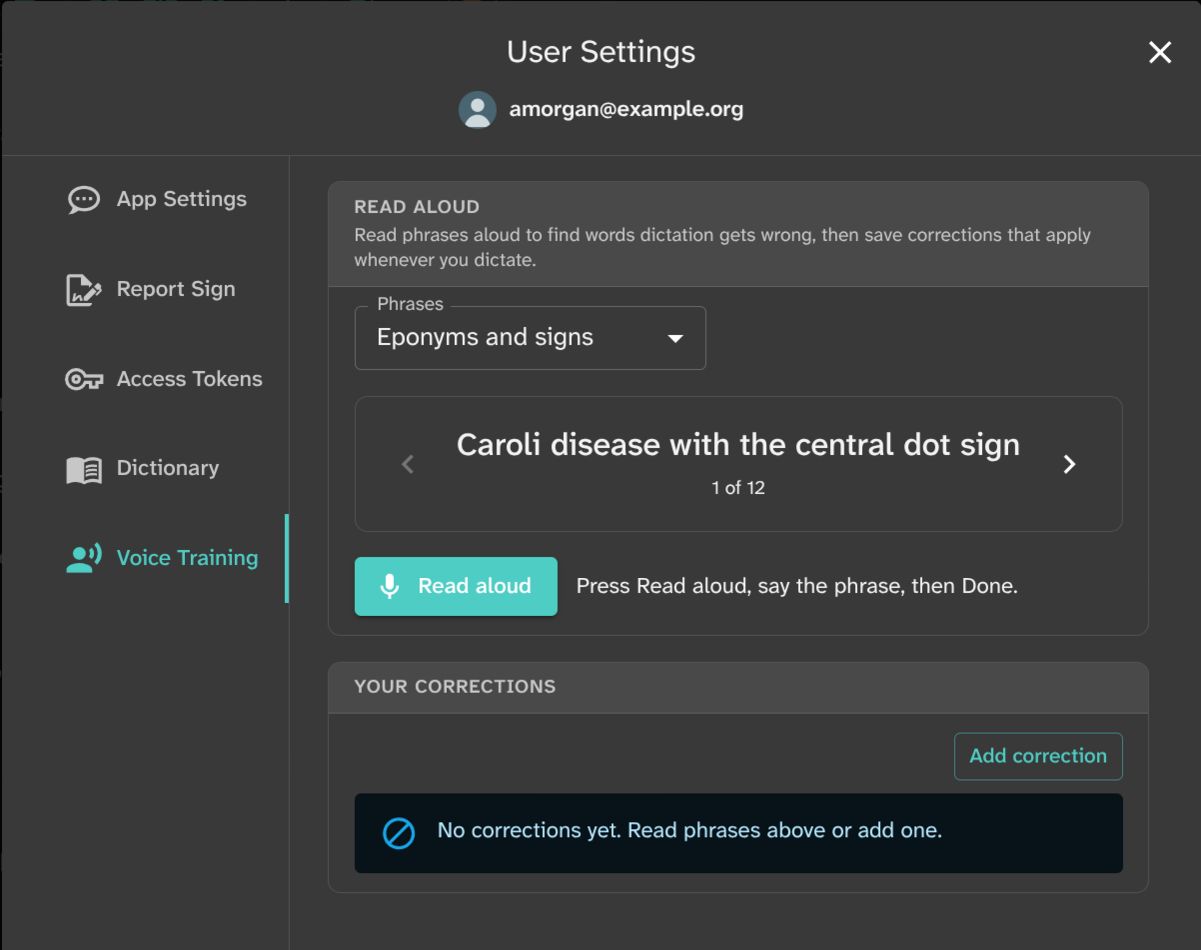
Voice Training finds words that dictation gets wrong for you, and fixes them for good.
Choose phrases
Under Phrases, choose a built-in set, such as Eponyms and signs or Abbreviations, Your dictionary words, or Your own phrases. Click Edit phrases to write your own, one per line.
Read aloud
Click Read aloud, say the phrase shown, then click Done. Use Next phrase to move on.
Save corrections
If dictation got a word wrong, you'll see what it wrote and a suggested correction. Click Save correction, then read the phrase again to check it.
Saved corrections appear under Your corrections and apply every time you dictate. You can also Add correction by hand, or edit and delete them. Built-in phrase sets appear when you dictate in English. Suggested corrections are available when you dictate in English, Spanish or French; in other languages, add corrections by hand.