
Sign and Addend
Sign reports, undo a signature, add addenda, and choose what happens when you sign
Report status
| Status | Meaning |
|---|---|
| Ordered | Created from an order, not yet opened. Only at sites that use ordered reports. |
| Draft | Being written. Saved as you go. |
| Preliminary | Sent for review by a prelim user. See Prelim reports. |
| Final | Signed. |
| Addendum | Signed, with one or more signed addenda. |
Sign a report
Click Sign in the clinical information panel, press Alt+F, or say "sign report".
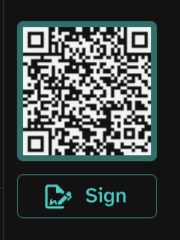
Sign is unavailable while the report is empty or an AI task is running. If you're a prelim user, use the menu next to it to choose Sign or Prelim.
Undo a signature
After you sign, the report waits a short time before it's sent to your RIS, usually 3 minutes. Your site admin sets this time. While it counts down:
- Click Unsign to return the report to draft, or to preliminary if it was a prelim, and keep editing. Any addenda, billing codes and share links created since signing are removed.
- Click Finalize Report Now, the icon next to Unsign, to send it immediately.
- Colleagues who open the report see that it's locked.
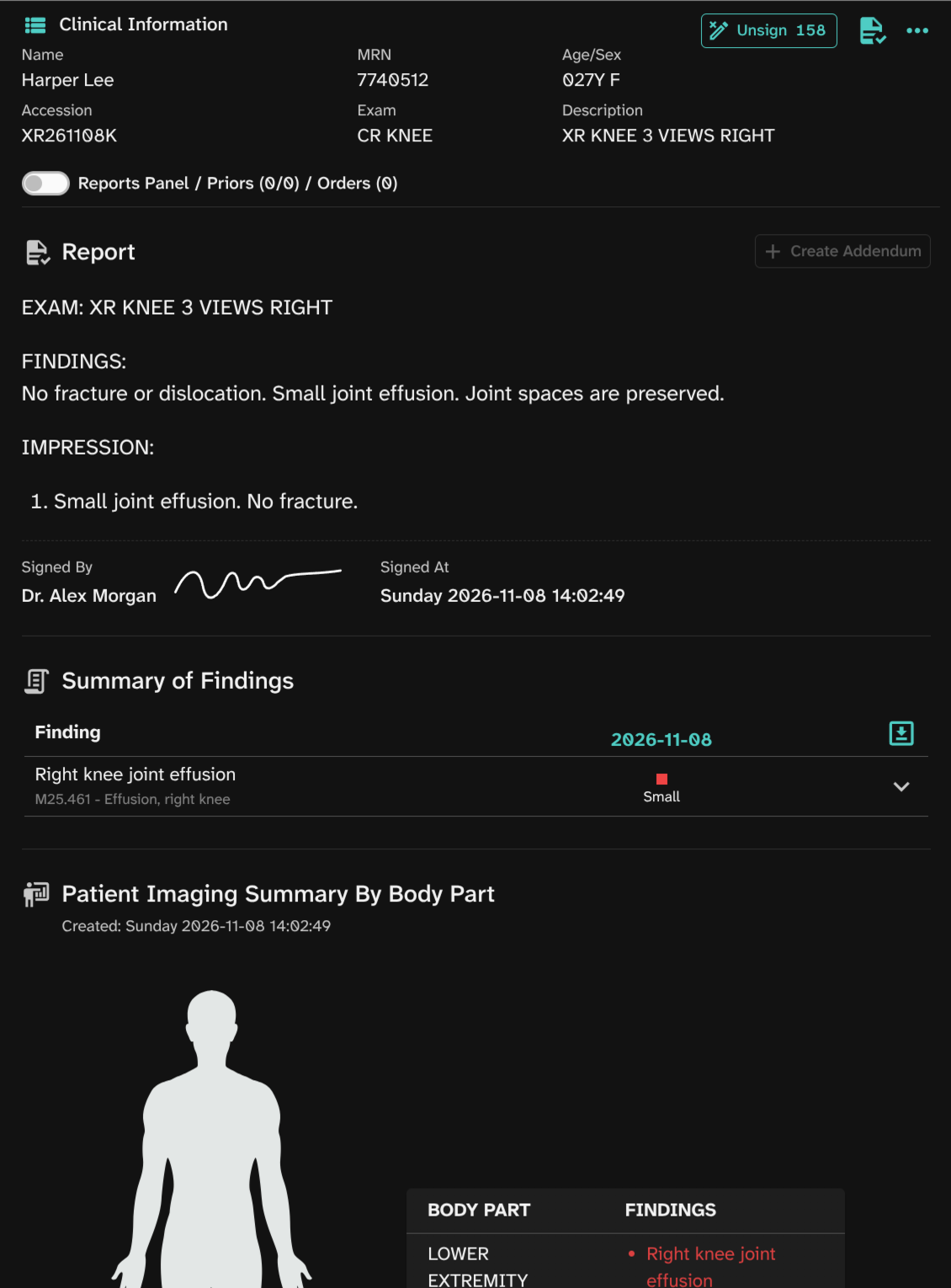
When the countdown ends, the report is final: it's sent to your RIS, and your sign actions, such as the email copy, are completed. From then on, change it with an addendum.
If your site has no unsign limit, the report is sent as soon as you sign it, and you can unsign it at any time. If your site makes reports final on signing, it's sent at once and can't be unsigned; write an addendum instead.
Sign actions
Sign actions run each time you sign a report or addendum. Set them in User Settings under Report Sign.
| Action | Default | What it does |
|---|---|---|
| Remove [ ] brackets before finalizing | On | Removes leftover field brackets and unchosen picklists. |
| Proofread the final report | On | Checks the report for errors and shows suggestions on the signed report. |
| Email me a copy of the final report | Off | Emails you the report when it's final. |
| Generate report billing codes | Off | Suggests CPT and ICD-10 codes. See Billing codes. |
| Check ordered reports | Off | Lists other open orders for the patient, so you can link them before the report is final. |
| Export summary of findings | Off | Adds the summary of findings to exported PDFs and Word documents. |
| Show shared report settings after finalizing | Off | Opens the share link settings after you sign. Needs sharing turned on for your site. |
If your site admin sets sign actions for the whole site, the tab shows Configured by Site Admin and you can't change them.
Add your signature
Upload an image of your signature under My Signature in User Settings. It's added to your signed reports and addenda, including in exported PDFs and Word documents.

Billing codes
MD.ai Reporting can suggest a CPT code and ICD-10 codes for a signed report:
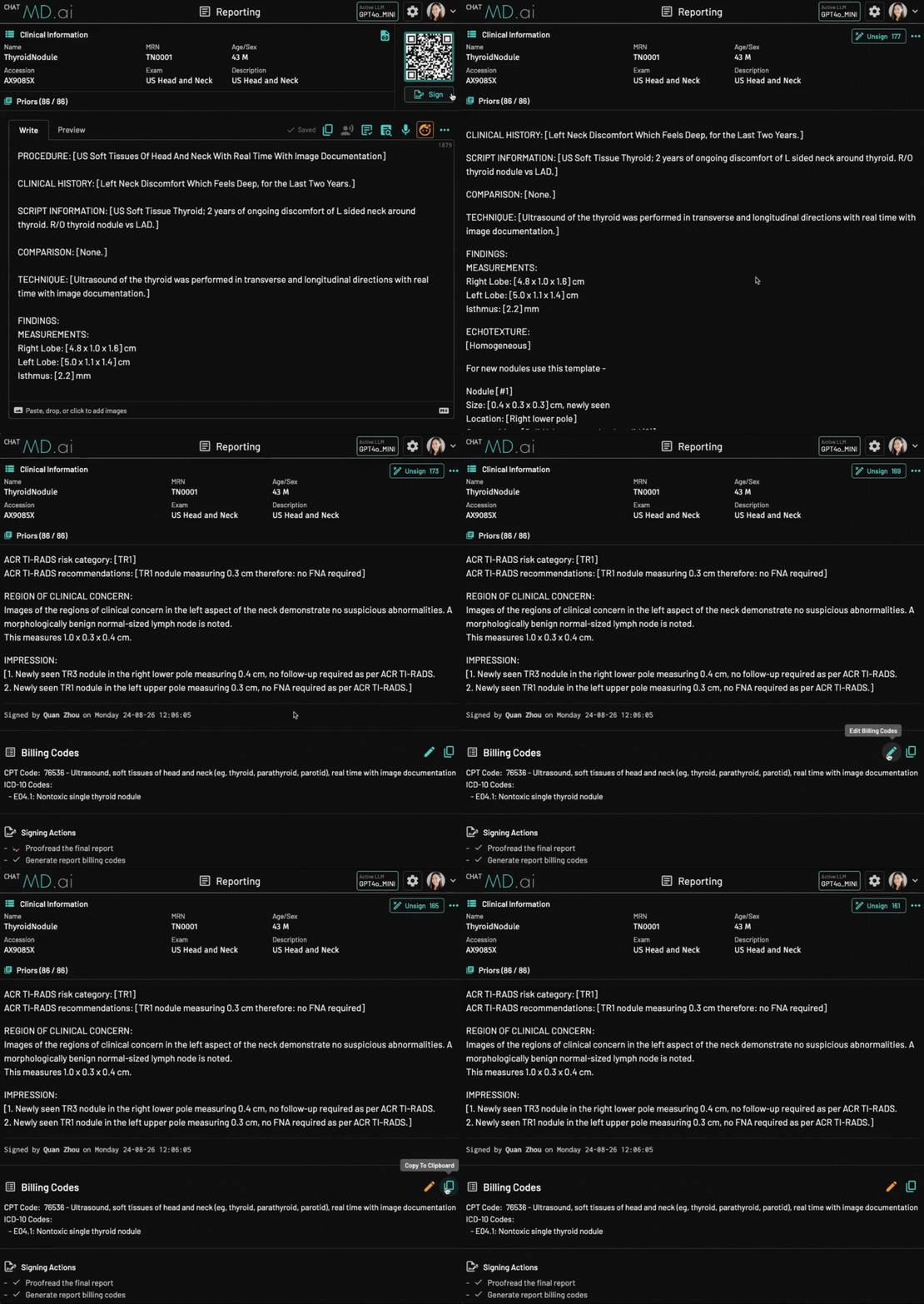
- When you sign: turn on Generate report billing codes in your sign actions.
- Any time after: open More (
⋯) on the signed report and click Generate billing codes, or Regenerate billing codes.
The codes appear under Billing Codes on the signed report. Click Edit Billing Codes to change them, or Copy to Clipboard. Only the person who signed the report can generate or edit them.
Integrations can read the codes, including your edits, with the Billing Codes Query endpoint.
Add an addendum
Once a report is final, add corrections or new information as an addendum:
- Open the signed report, for example from My Reports or your worklist.
- Click Create Addendum.
- Type or dictate the addendum.
- Click Sign.
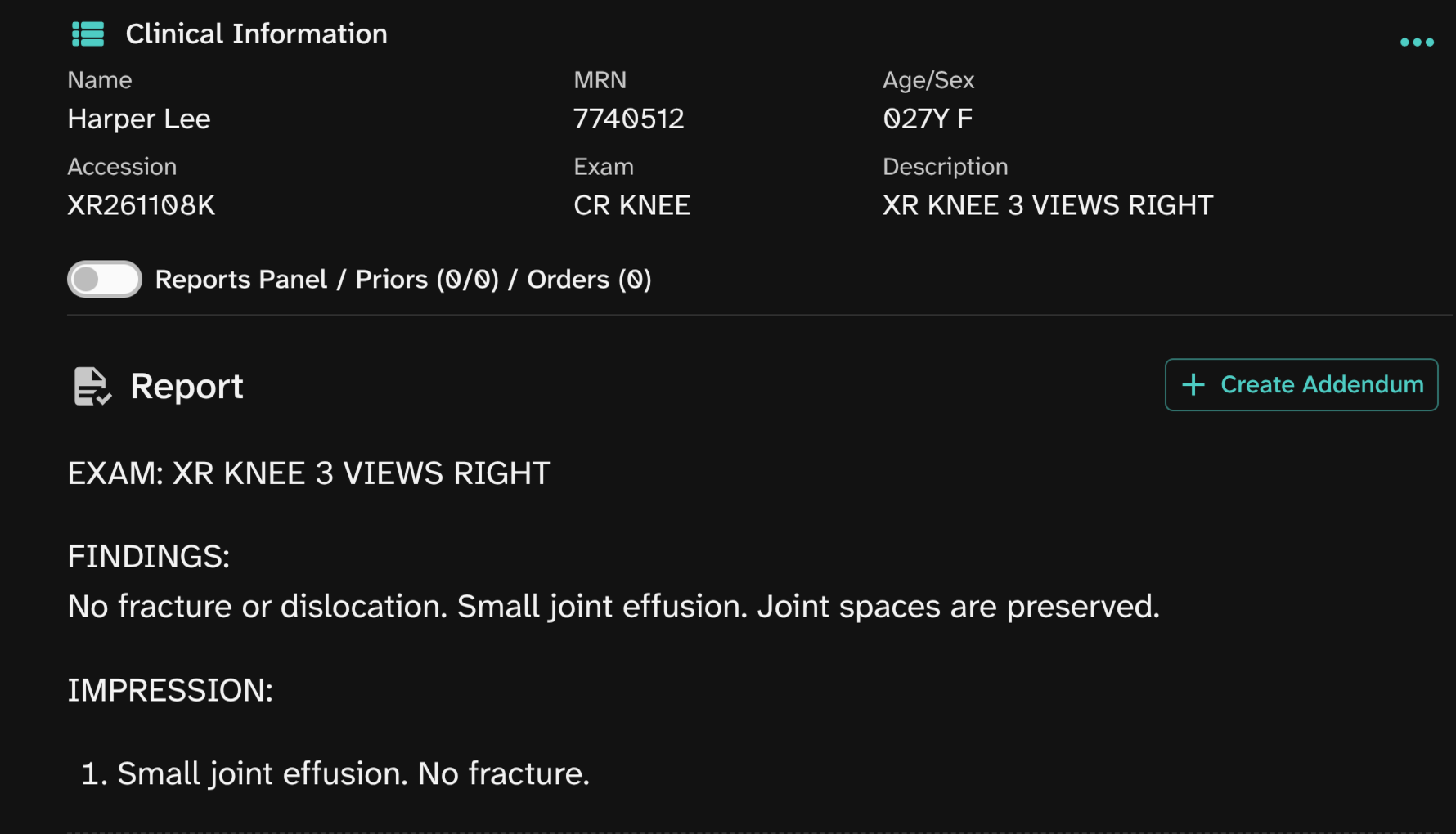
Addenda have the same unsign window as reports. A report can have one unsigned addendum at a time, and you can't start one while the report or its last addendum is still counting down. Only the author can edit, sign, unsign or delete an addendum.
You can addend reports you signed. If your site allows access to signed reports, you can also addend colleagues' reports. Site admins can addend any report at their site.
Linked orders
If your site creates reports from orders, other open orders for the same patient appear in the Orders panel. To report several orders in one report, such as a CT chest and a CT abdomen done together, click Link next to each one. Linking is permanent.
To be reminded when you sign, turn on the Check ordered reports sign action.
Discard a draft
To delete a draft you don't need, click Discard draft… in the More menu. This can't be undone.