
Export and Share
Download, print and share reports
Export a report
Click Export report… in the More menu, on a draft or a signed report. The Export Report dialog shows a preview of the report as your site formats it.
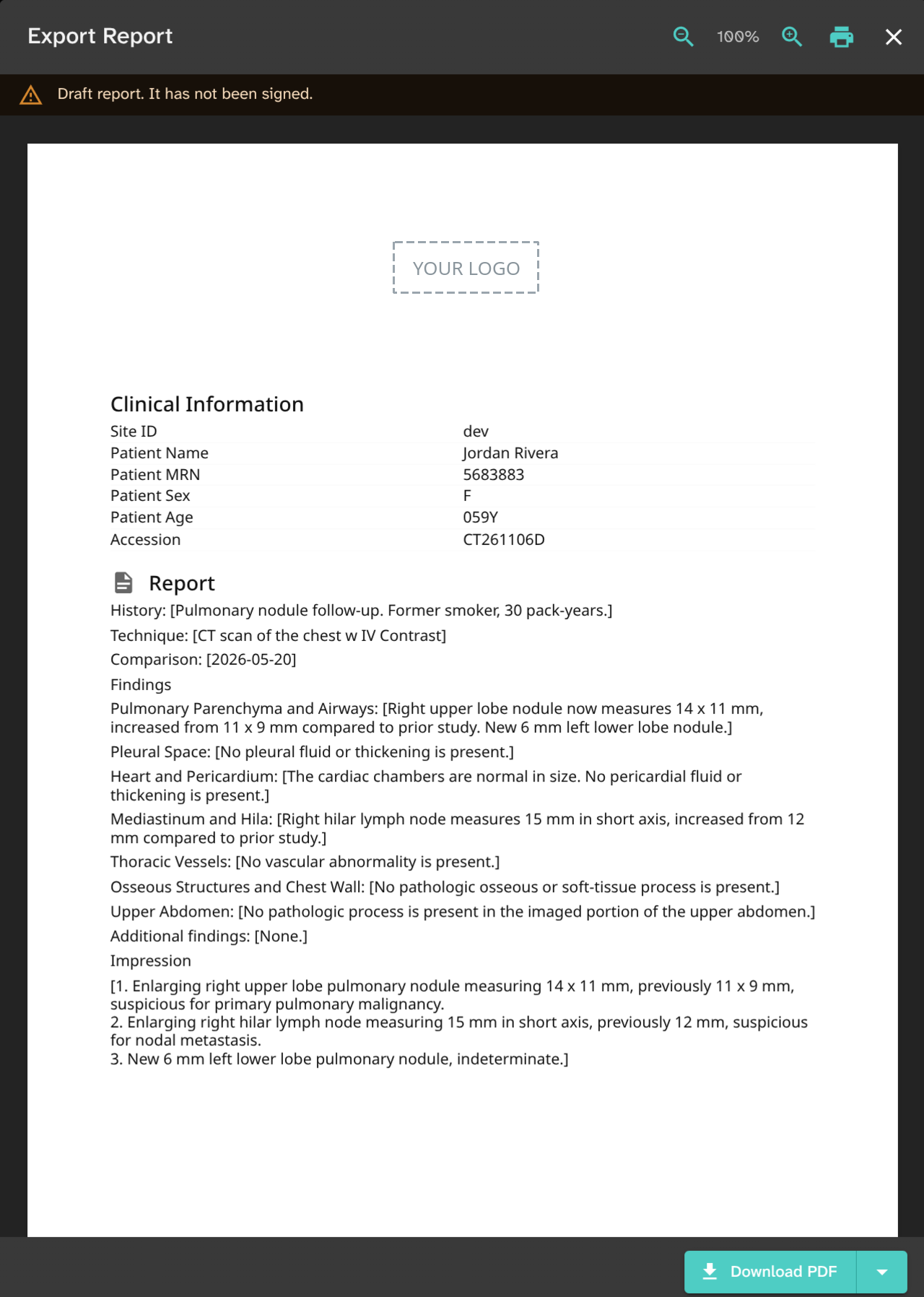
- Print the report.
- Download PDF.
- Download in another format: Word document (.docx) or Rich Text Format (.rtf).
Drafts and prelims are marked as unsigned in the preview. Your site admin sets the PDF layout, including the header, footer, font and the clinical information shown.
Share a link
If your site allows it, you can share a report with a link, for example with a referring provider or a patient. Anyone with the link can view the report.
- Click Share report… in the More menu.
- Set the options, and click Create.
- Click Copy to Clipboard, and send the link.
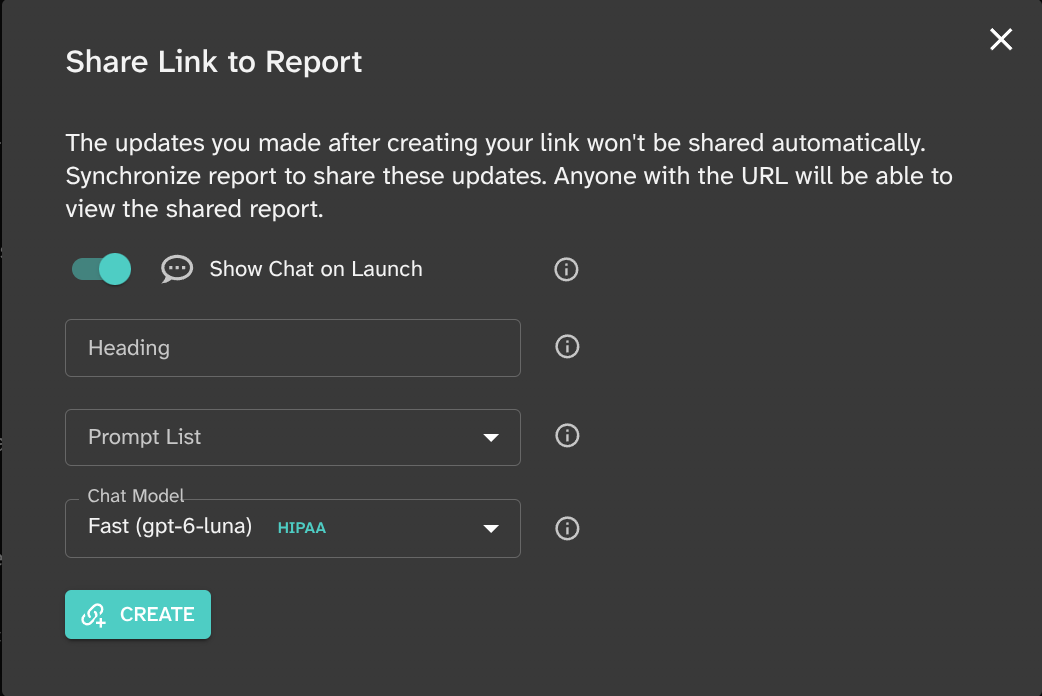
| Option | What it does |
|---|---|
| Heading | The title shown above the shared report. |
| Show Chat on Launch | Opens a chat panel so viewers can ask questions about the report. |
| Prompt List | Example questions offered to viewers in chat: your own prompt list, or one your site admin manages under Site Prompts. |
| Chat Model | The model viewers chat with. |
| Share Your Name | Shows your name on the shared report. Offered only for reports you didn't open from your PACS or RIS. |
Links don't expire. To stop sharing, open the dialog again and click Delete Shared Link.
Changes you make to an unsigned report after creating a link aren't shared automatically. To update the link, click Sync in the dialog. Only the report's owner can change its share settings.
Shared Reports in the side navigation lists your links, and Shared with me lists links others have sent you.
To open the share settings every time you sign, turn on Show shared report settings after finalizing in your sign actions. When sharing is on for your site, a link is also created automatically for every report when it's finalized.
Save a shared report
Viewers can save the shared report as a PDF or as a DICOM SR.