
Users
Add users and site admins, and control who can open reports
Site Users lists your site's admins and users. If your site has locations, users are managed per location.
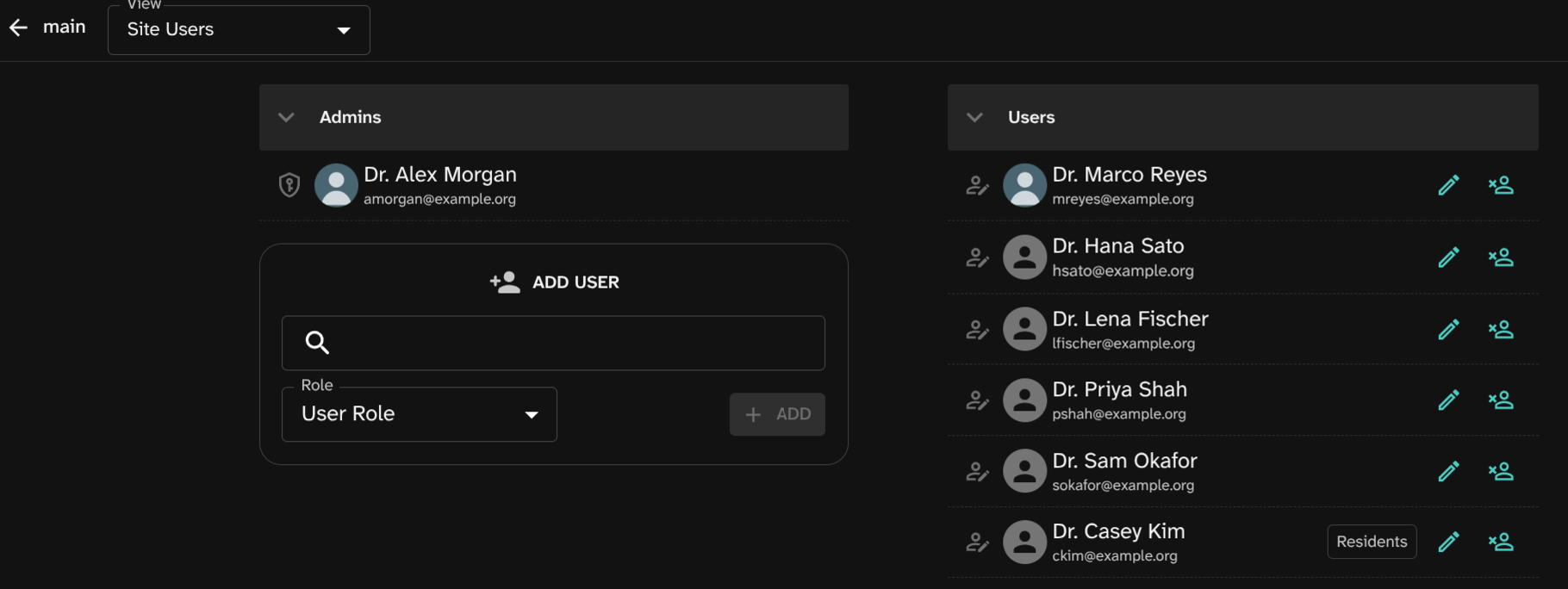
Add a user
- Under Add User, search for an existing MD.ai user by name or full email address, or type the email of someone new.
- For someone new, enter their User Email and User Name.
- Choose a Role: User Role or Admin Role.
- Click Add.
Someone new gets an MD.ai account with that email. Users added automatically when they first open a report get the User role.
Change a role or name
Click Edit User (the pencil) next to a user. You can change their Role, but not your own. Their User Name can be changed only until they first sign in; after that, it comes from their account.
Remove a user
Click Remove User next to a user. Removing someone also takes them off their prelim groups' lists, and prelims they had open go back to waiting for a reviewer. To remove an admin, first change them to User Role.
Control who can open reports
In Site settings:
- Restrict Report Launch: when on, only users you've added can open reports. When off, anyone your PACS or RIS opens a report for is added as a user automatically.
- Access Signed Reports: when on, users can open every signed report at the site. When off, only their own.